
The following article outlines how to bulk update inspection requests using the APX Web App.
- Video Tutorial
- Steps
- PDF Version
1.Video Tutorial
2. Steps
1. To bulk select a page of inspection requests, select the checkbox at the top of the table
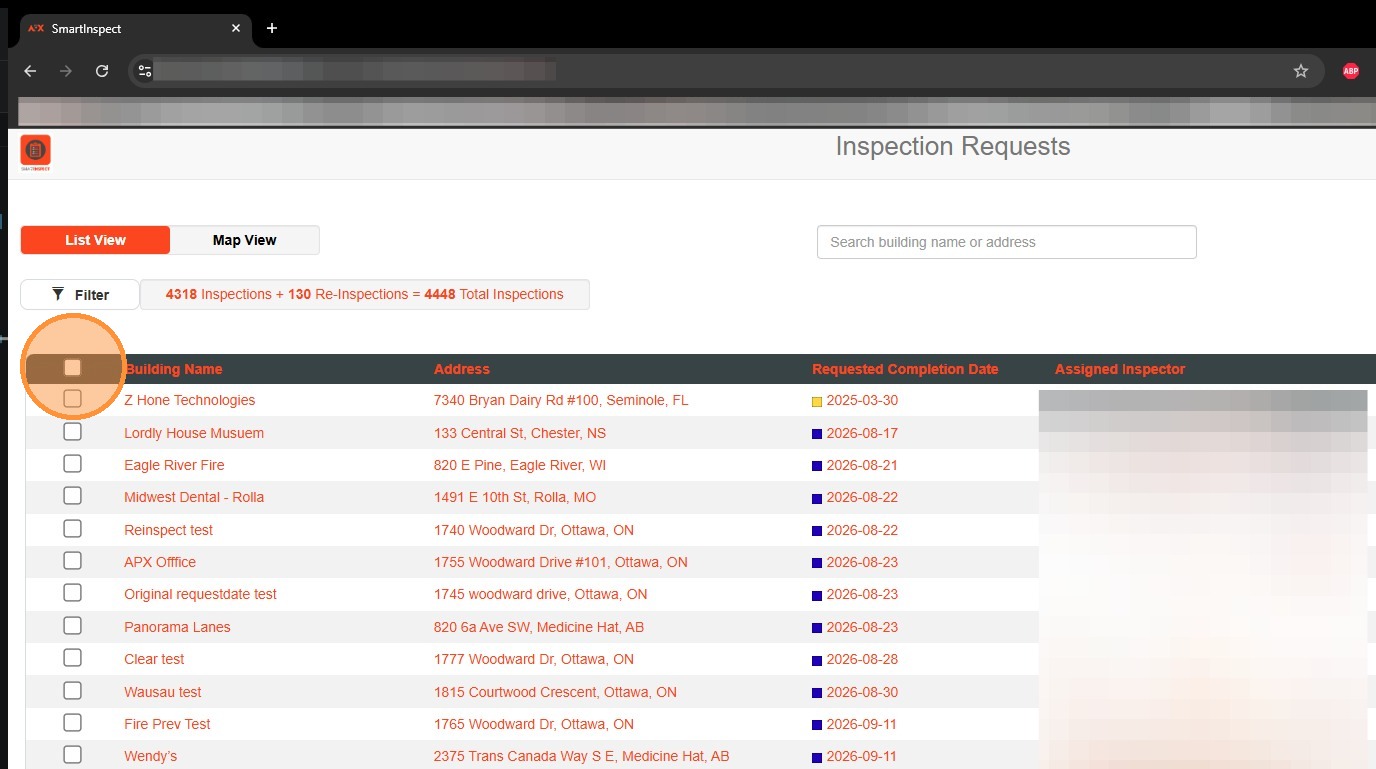
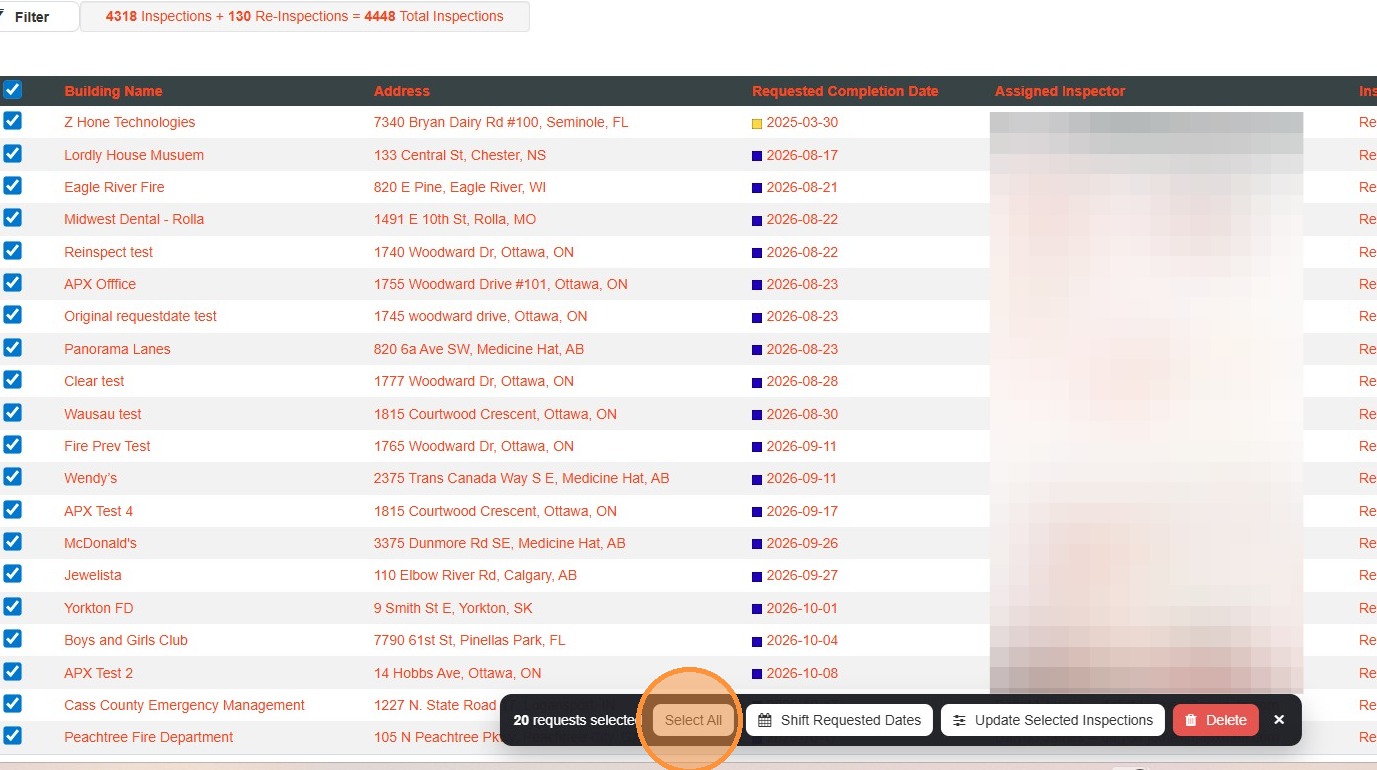

2. To Select All inspection requests that match the current search/filter parameters, select Select All in the pop-up at the bottom of the screen.

3. To bulk delete selected inspection requests, select Delete in the pop-up at the bottom of the screen. Users will be asked to confirm deletion.
Click "Cancel"

4. To bulk shift inspection request dates, select Shift Requested Dates. A pop-up will appear, allowing users to set all selected inspection requests to a specific date, or move them forward or backward "X" number of days, weeks, months, or years.
5. To bulk update other inspection request values, select Update Selected Inspections. A pop-up will appear, allowing users to select one of the following values to update: District Zone, Inspection Type, Inspection Frequency, Assigned Inspector, or Inspection Form.
Comments
0 comments
Please sign in to leave a comment.