
The following article outlines how to import images from a PDF file into a preplan through the SmartCapture Web app.
- Video Tutorial
- Steps
- PDF Version
1. Video Tutorial
2. Steps
1. Select Actions.
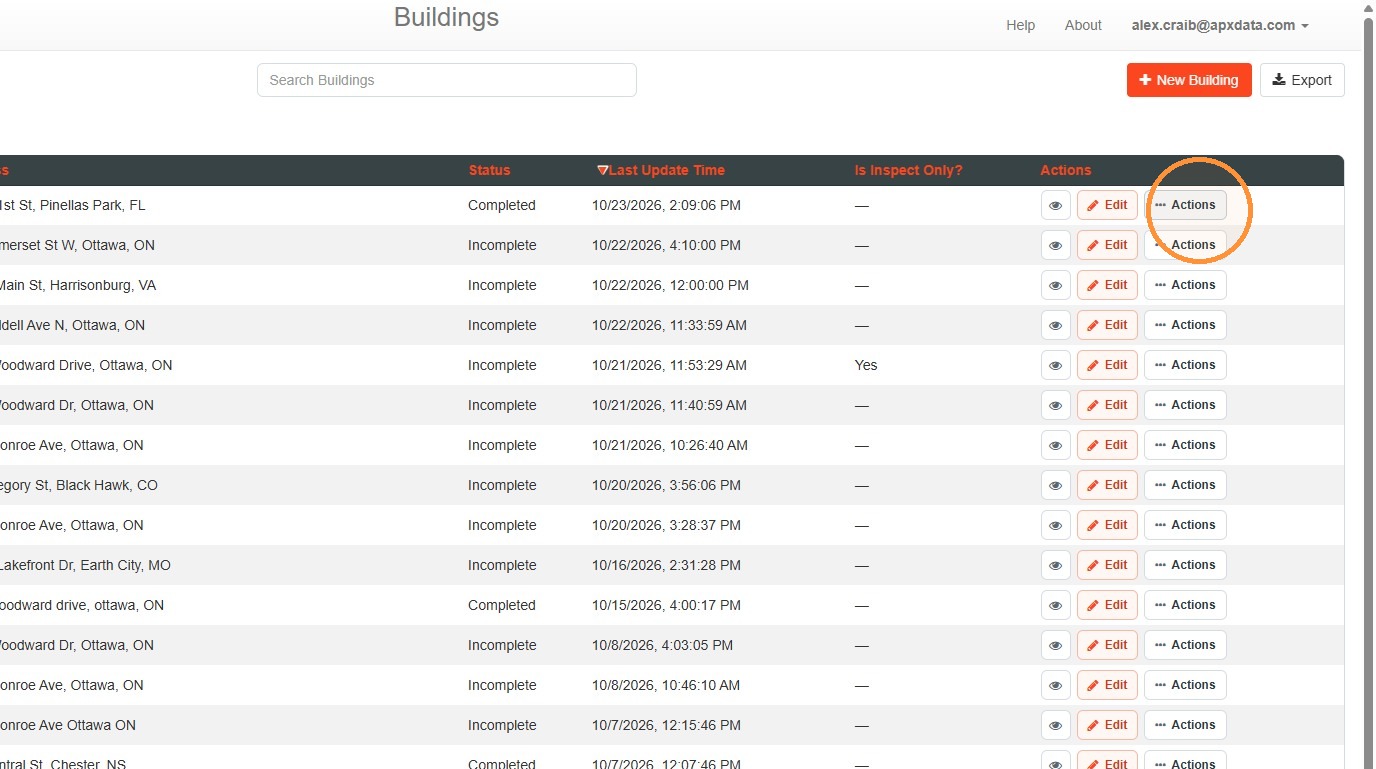
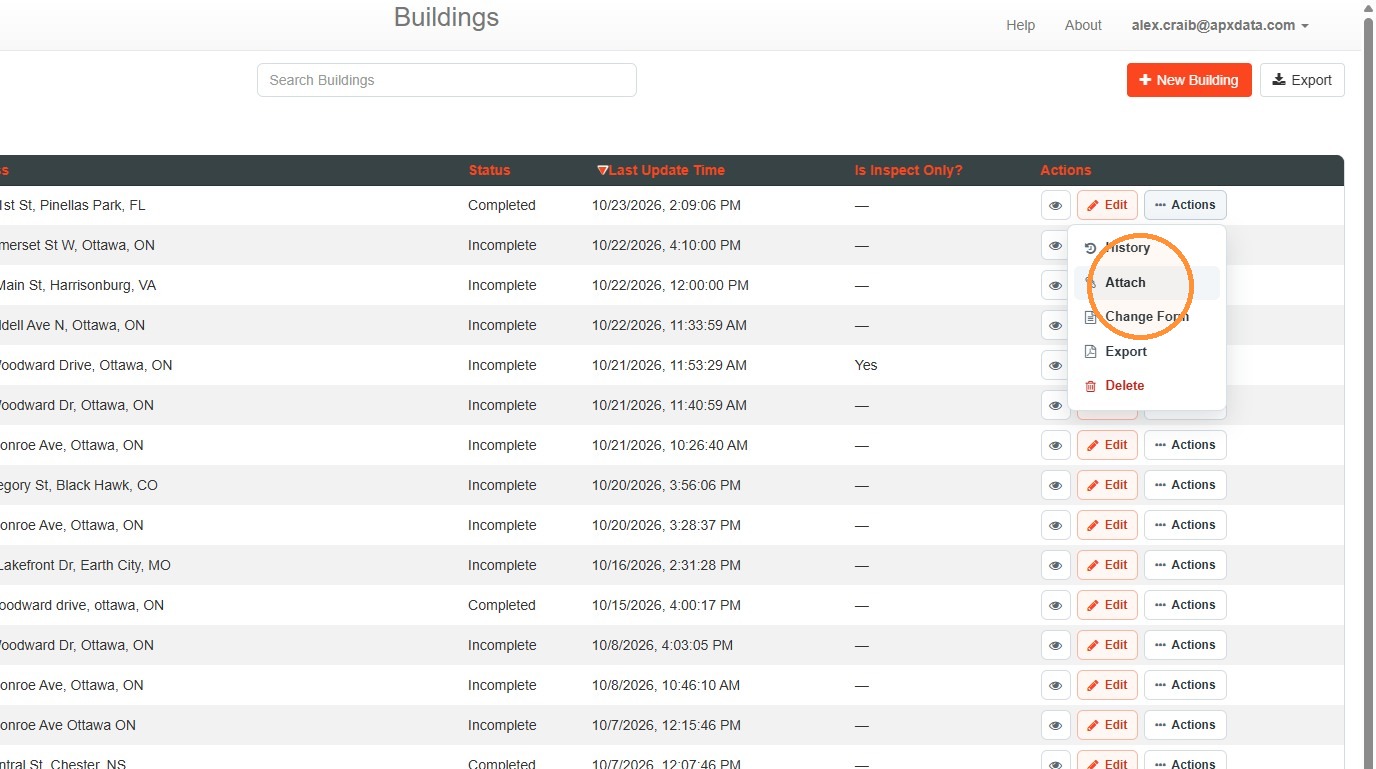
2. Select Attach.
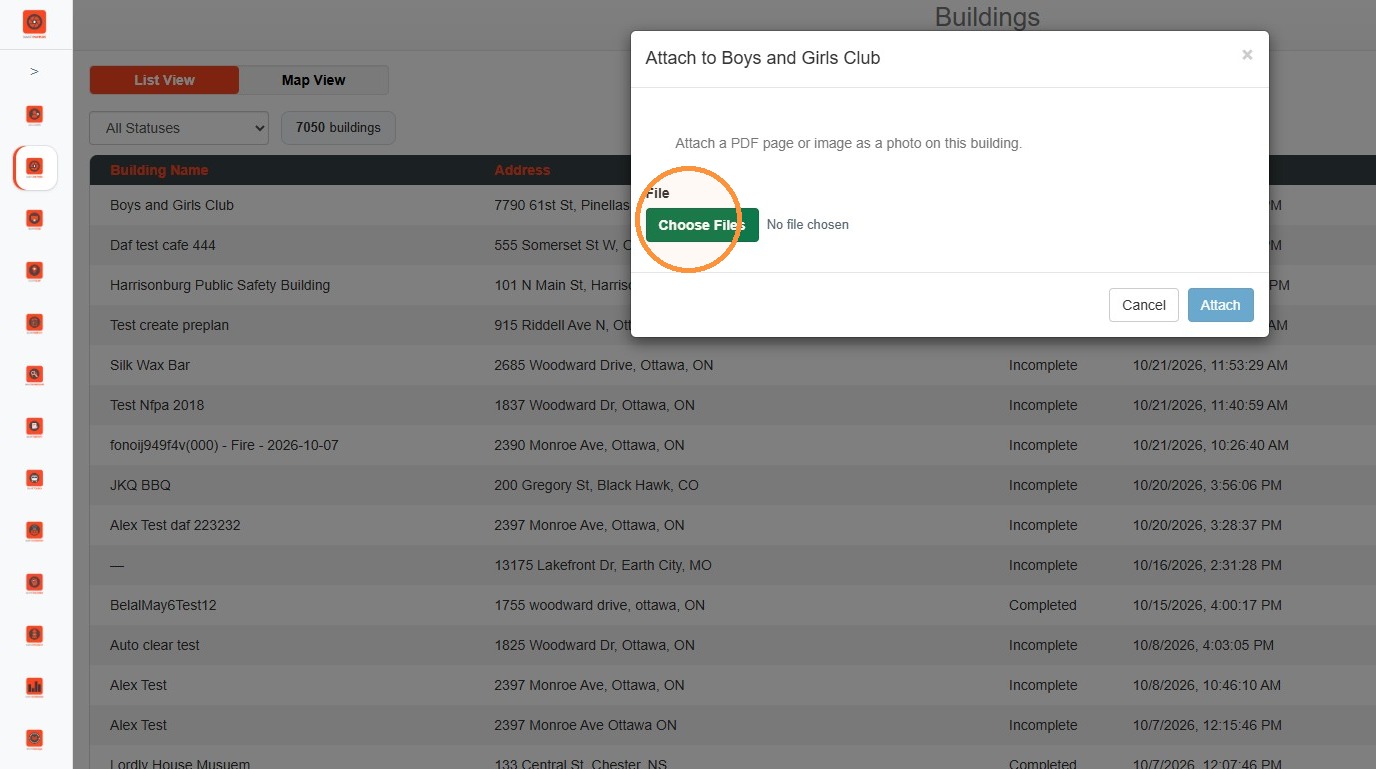
3. Select Choose Files
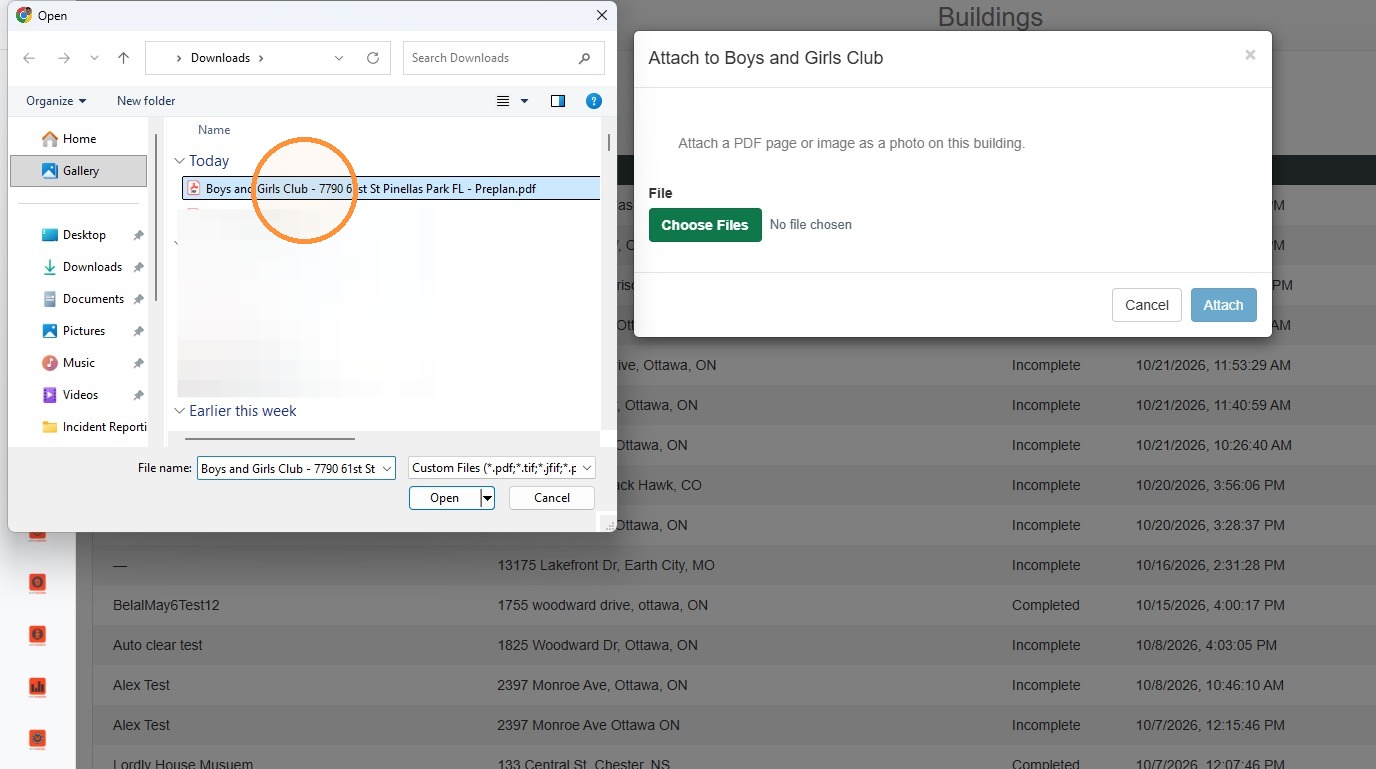
4. Use the file explorer to locate the desired PDF file.
5. In the selection window, select the page of the PDF that should be imported as an image.
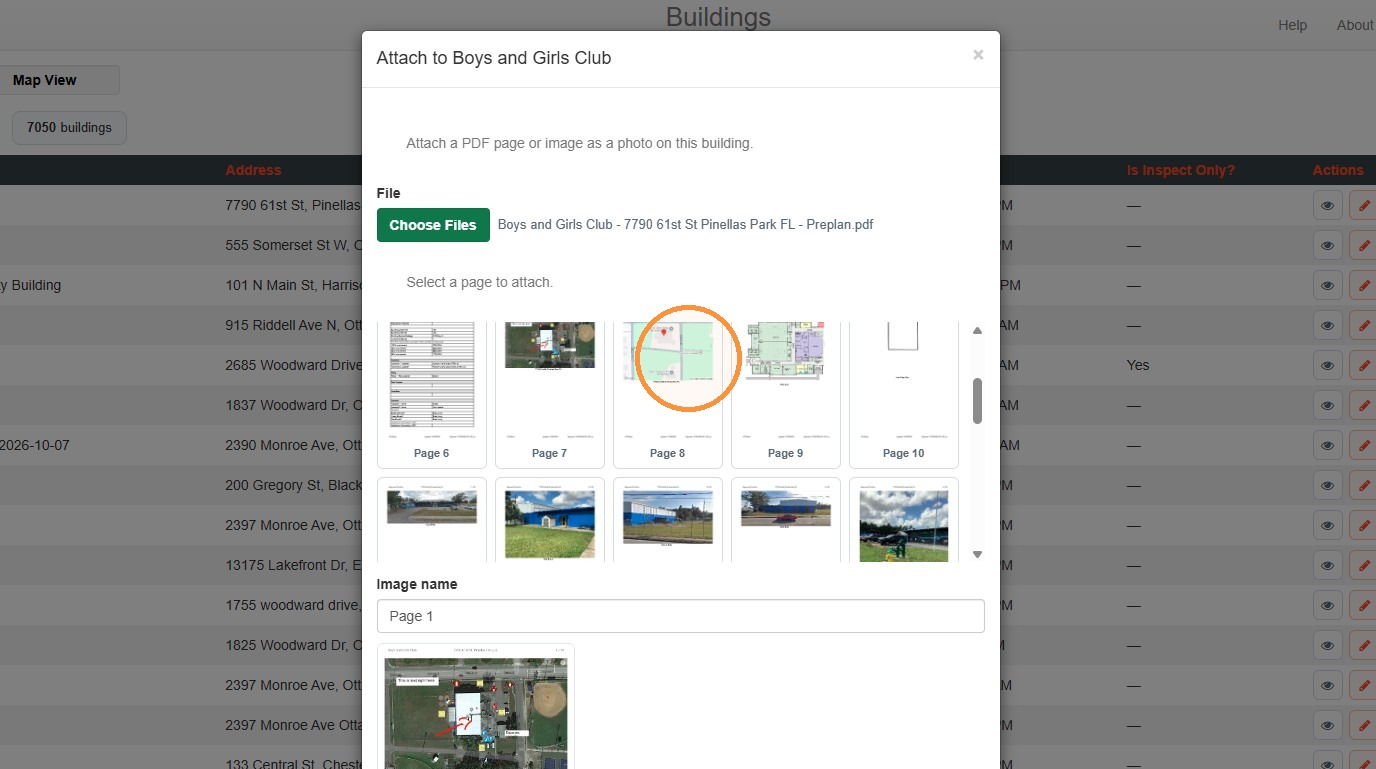
6. If required, update the name of the image to be imported.
By default, the page number will be used as the name.
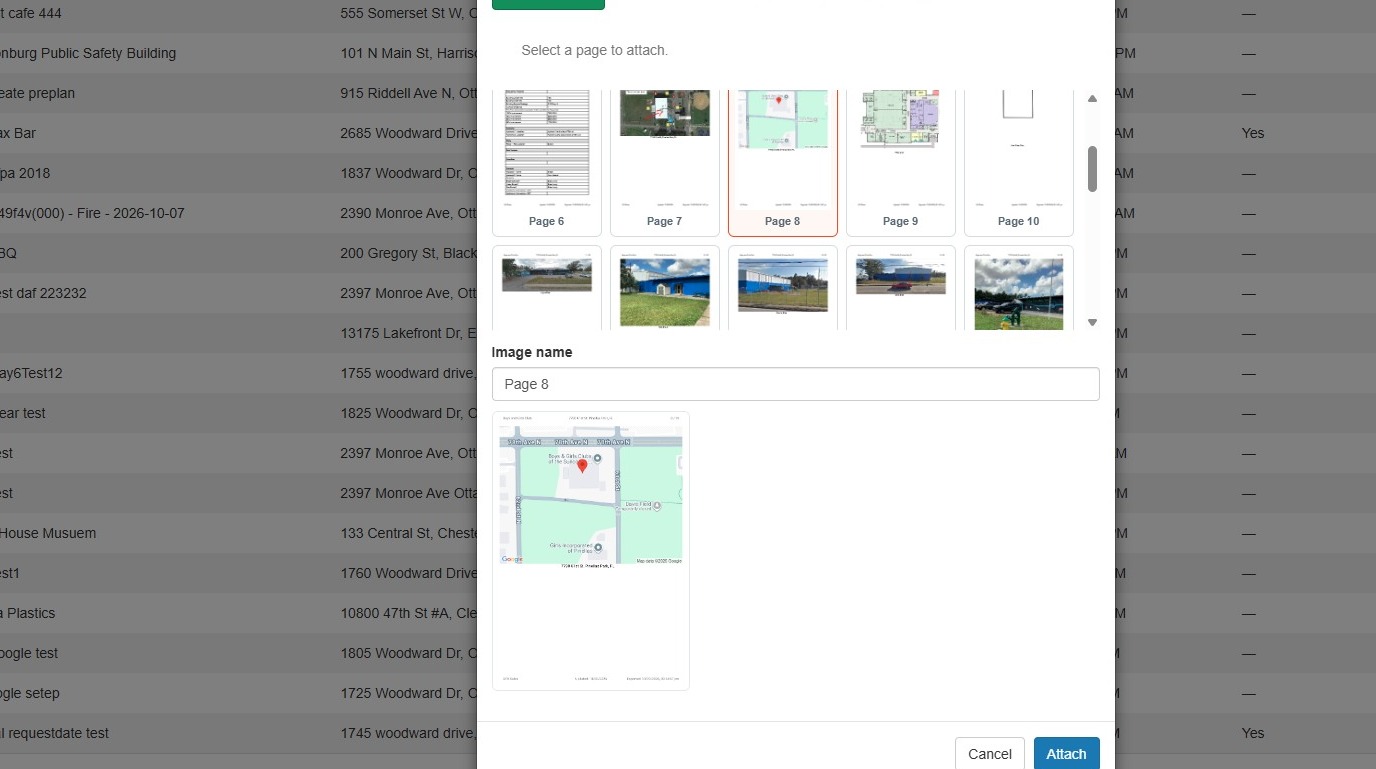
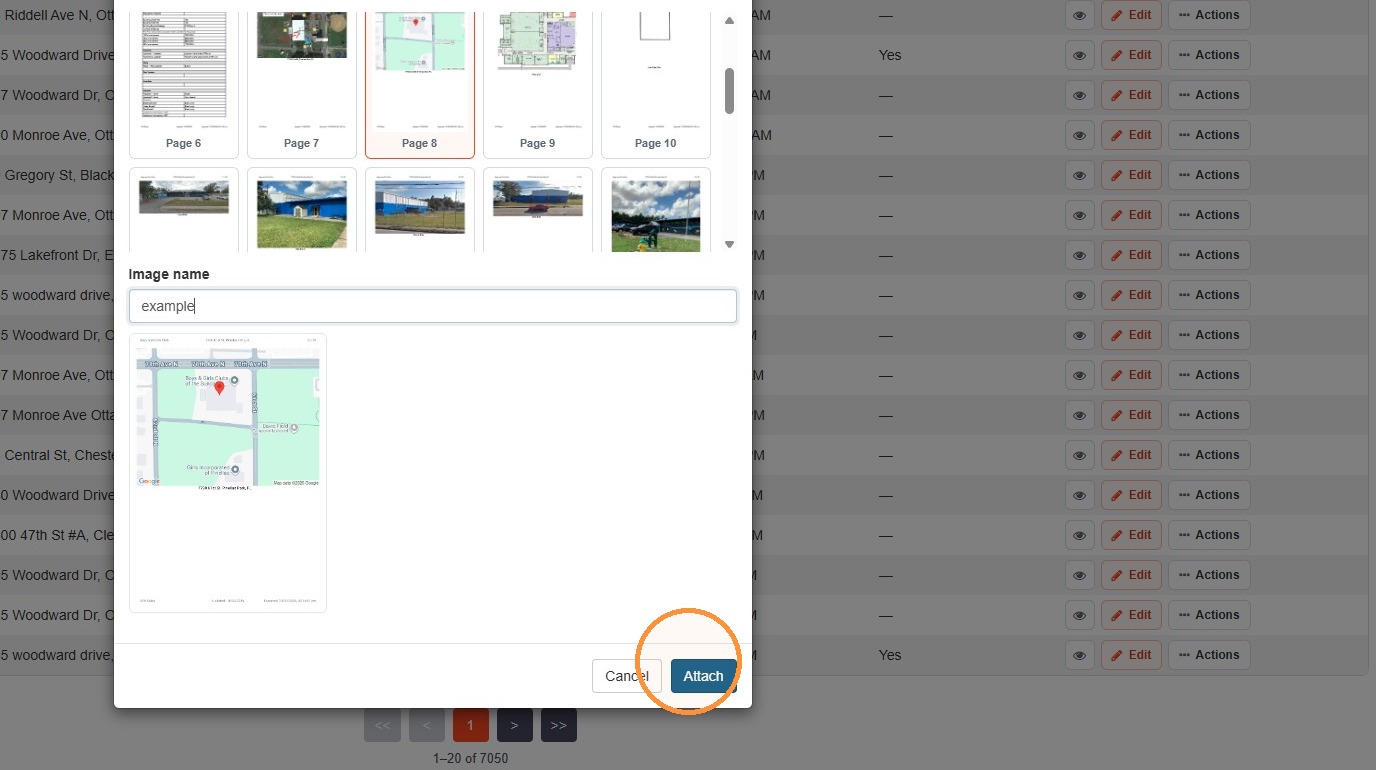
7. Select Attach to add the selected page as an image to the property record.
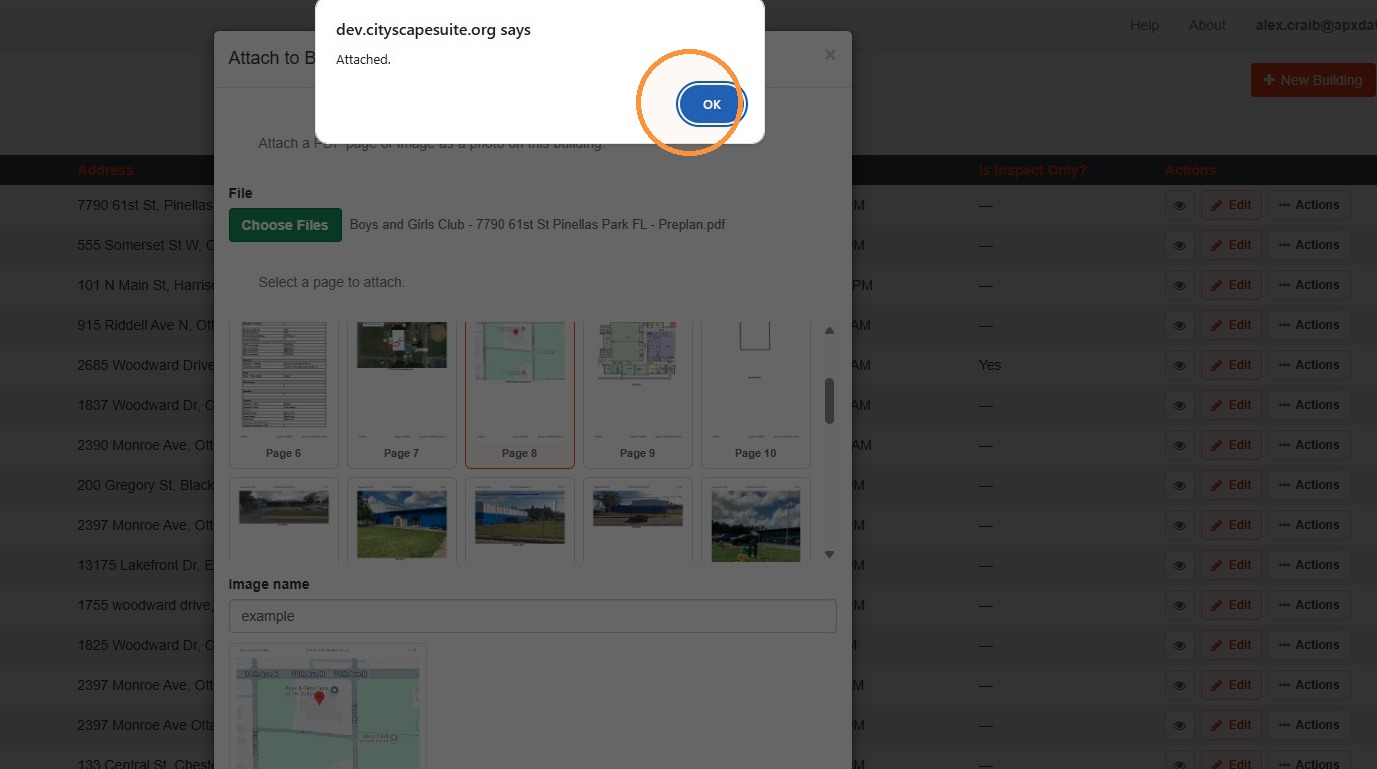
8. Select OK.
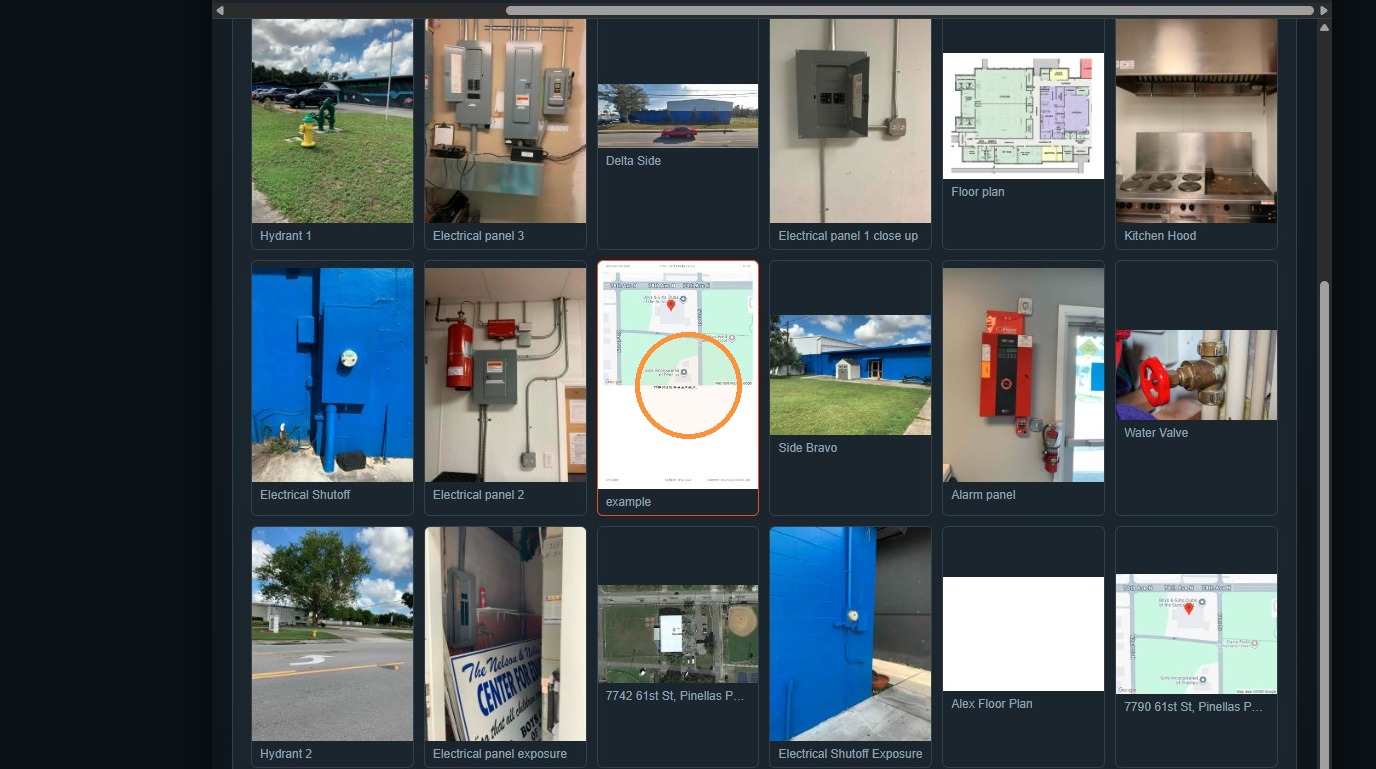
9. The photo will be uploaded and placed in the "Other" photo section.
Below shows the example photo uploaded and displayed within the SmartMAP preview.
Comments
0 comments
Please sign in to leave a comment.