
The following article outlines how to complete a bulk export through the SmartCapture Web app.
Note: only Admin-level users can access the bulk export feature.
- Video Tutorial
- Steps
- PDF Version
1. Video Tutorial
2. Steps
1. Select Export.
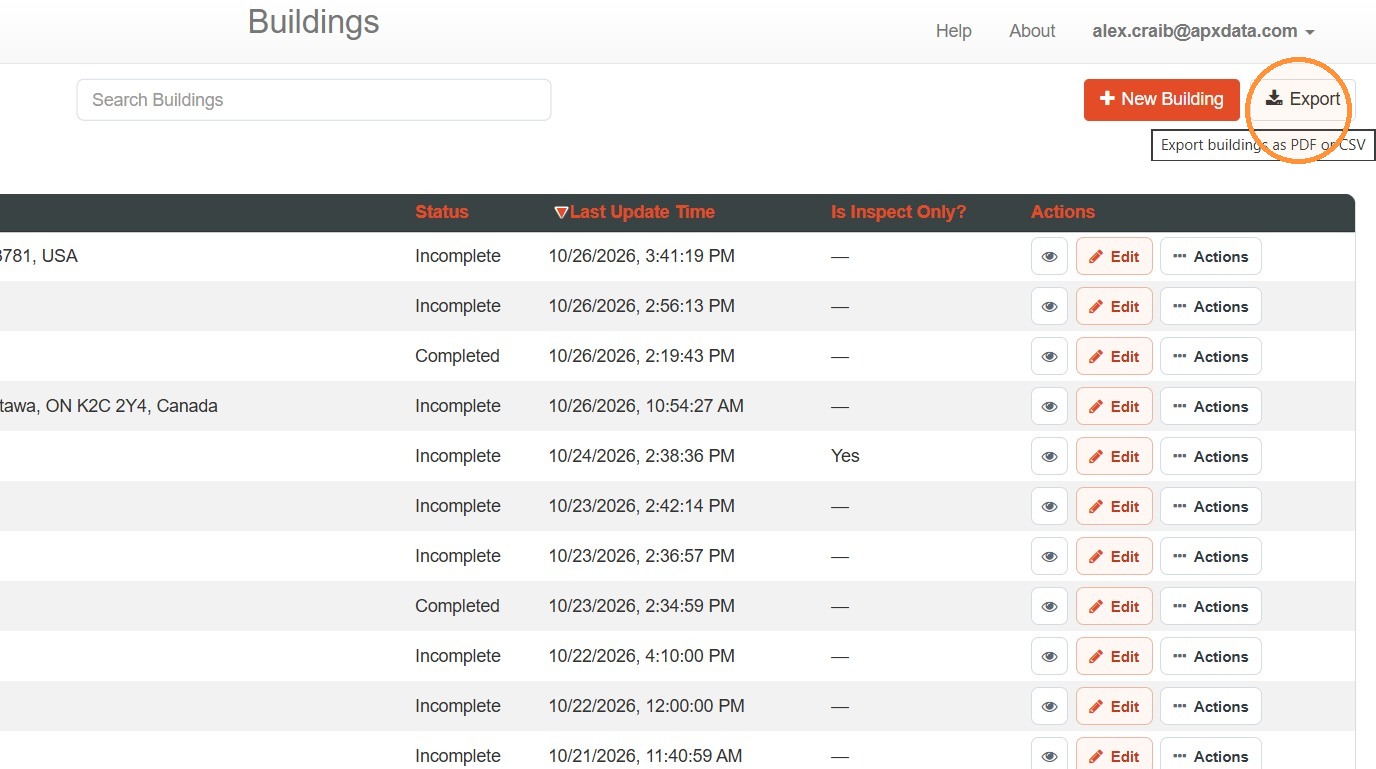
2. In the export window, select between PDF and CSV.
PDF will export all property records to PDF for the selected range. The export will be sent via a download link.
CSV will present the option of Building Data or Building List. Building Data will be the most recent data collected for selected properties as part of preplans or inspections, with the option to include images. This export will come via an emailed download link. Building List will be a list of all occupancies, and will be downloaded directly.
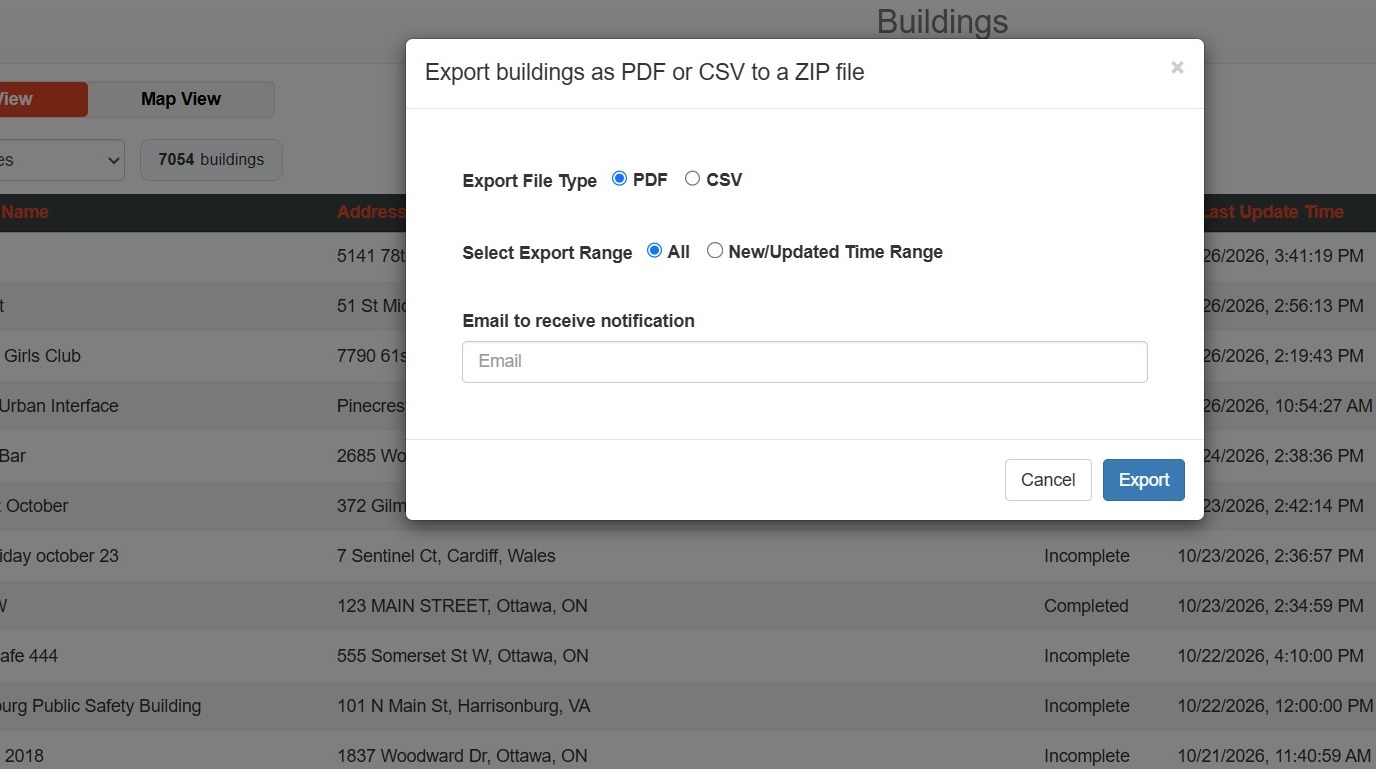
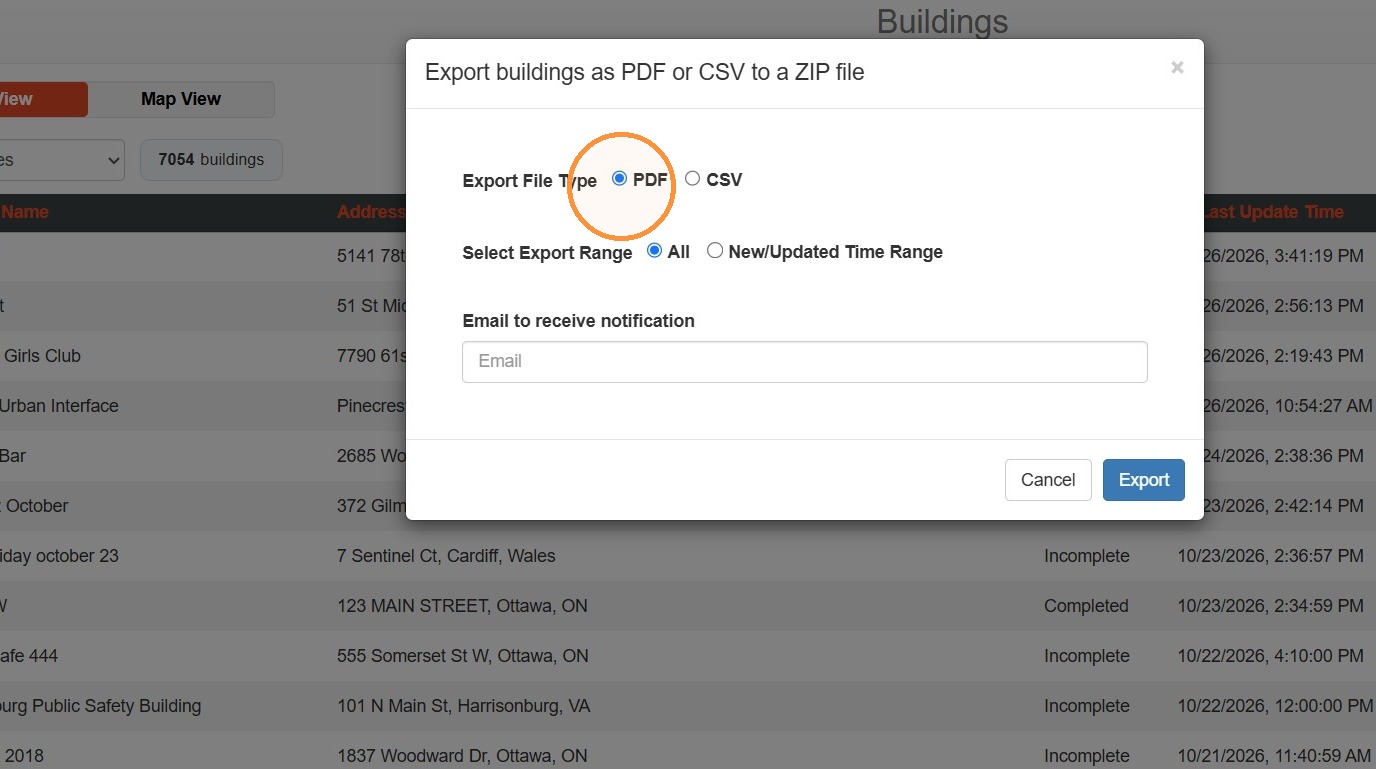
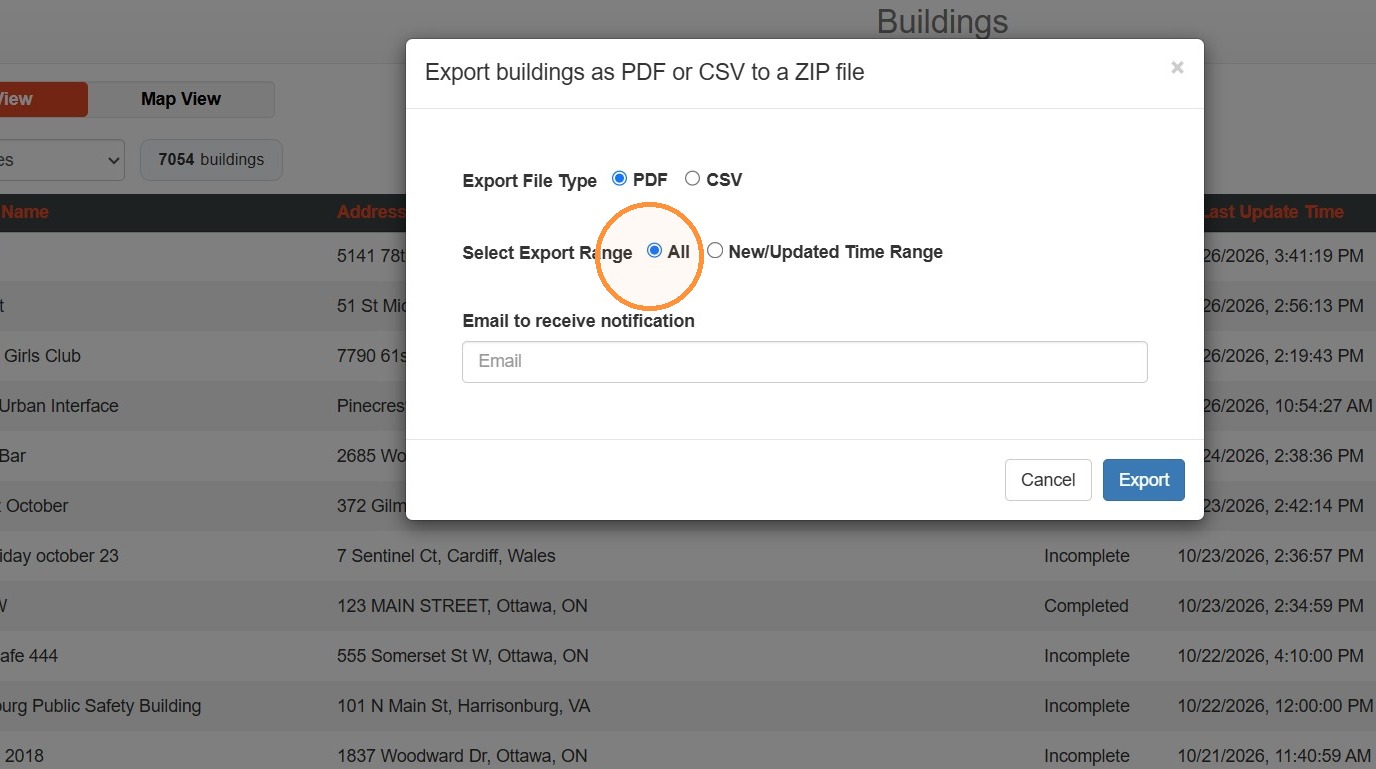
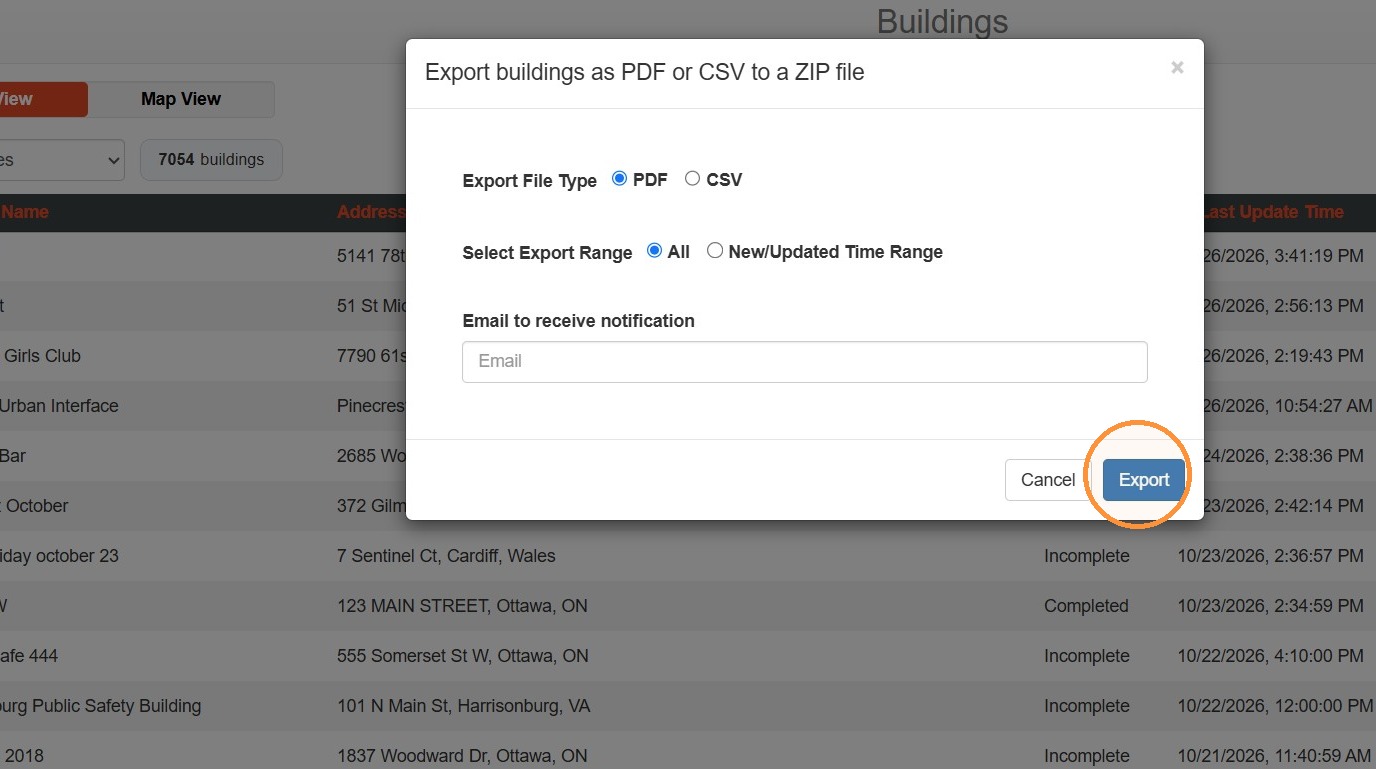
3. To export to PDF, complete the following:
- Select PDF
- Select your range (All or a custom range)
- Enter an email to receive a download link
- Select Export
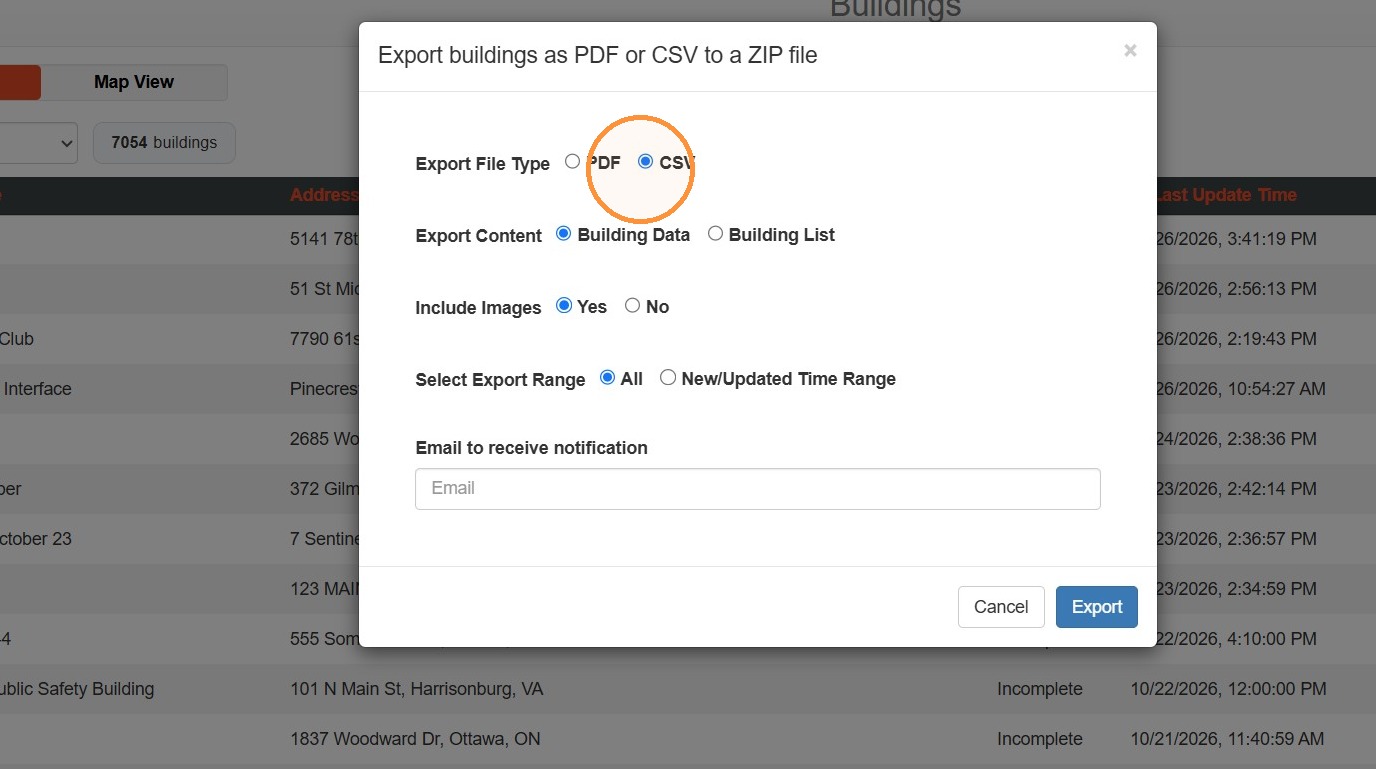
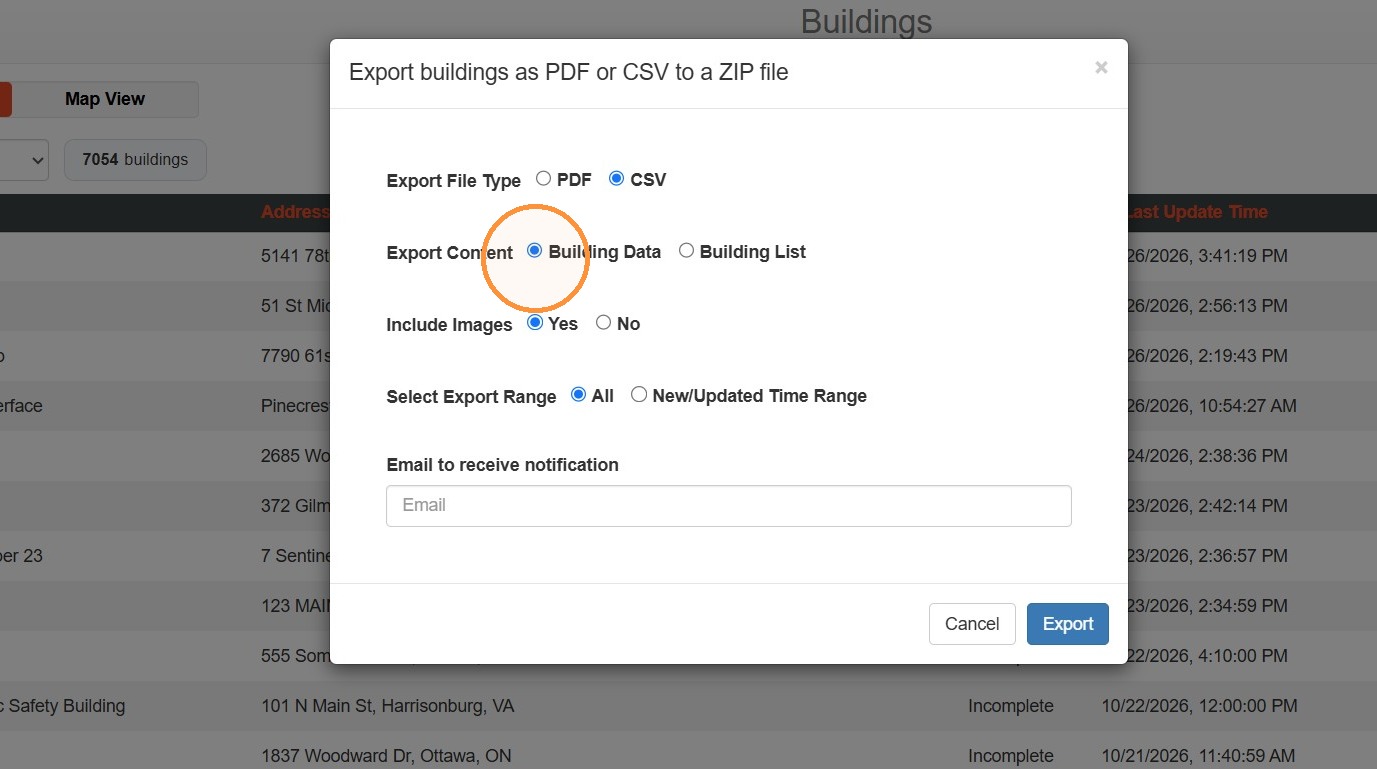
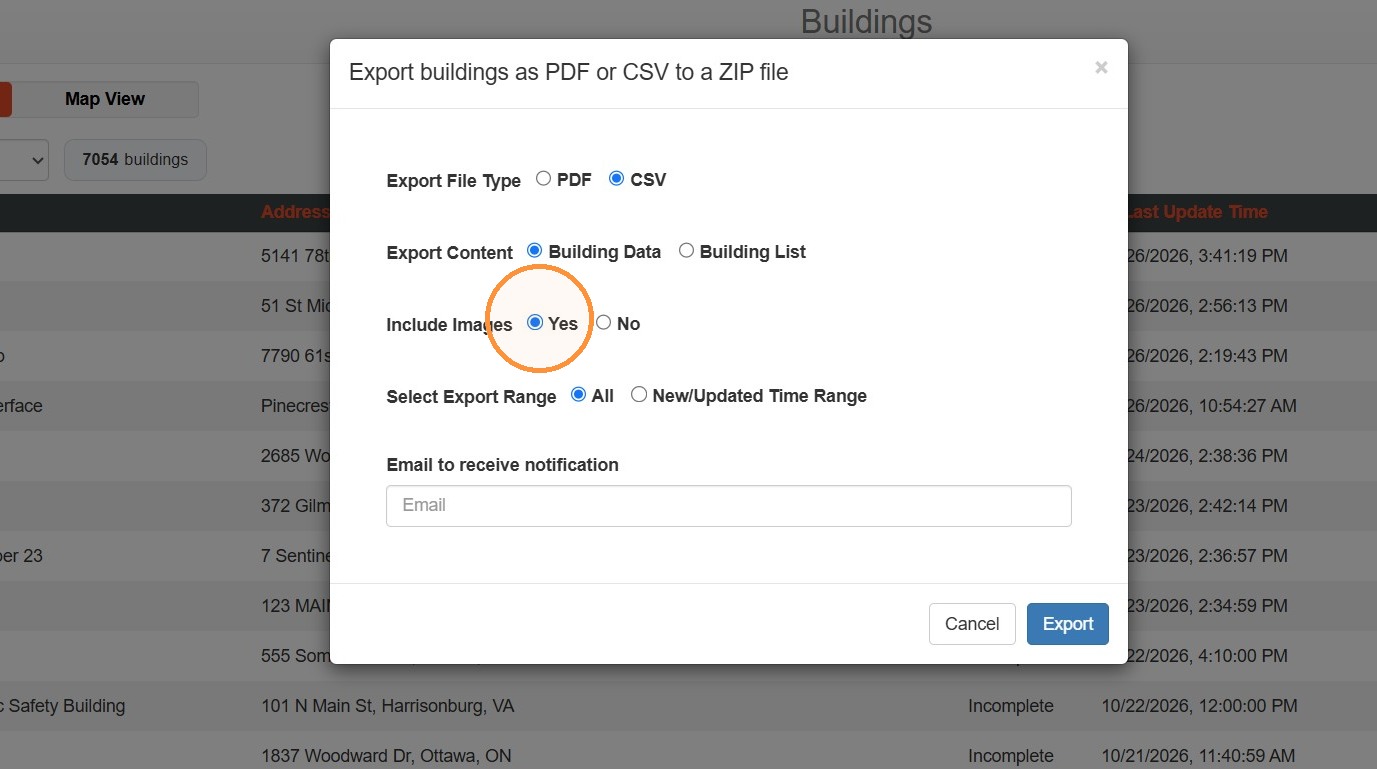
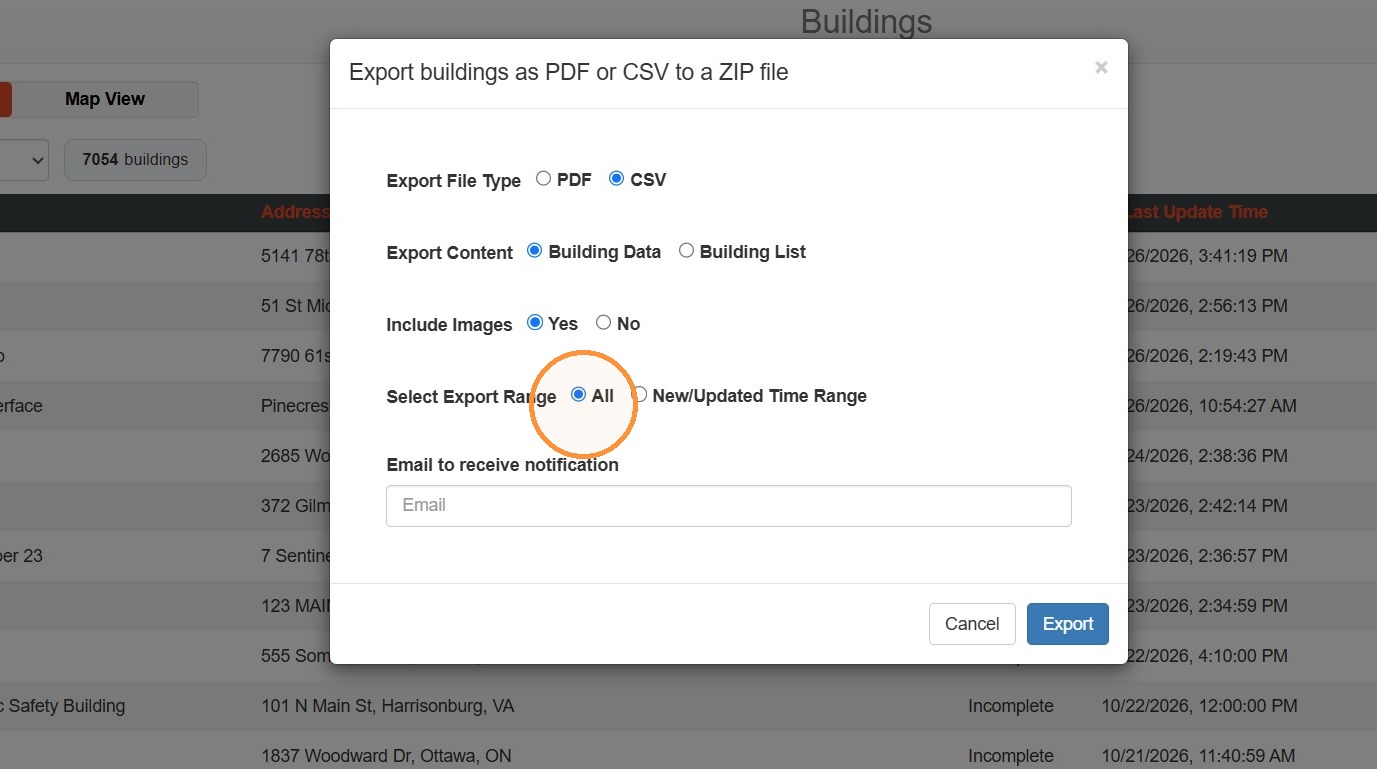
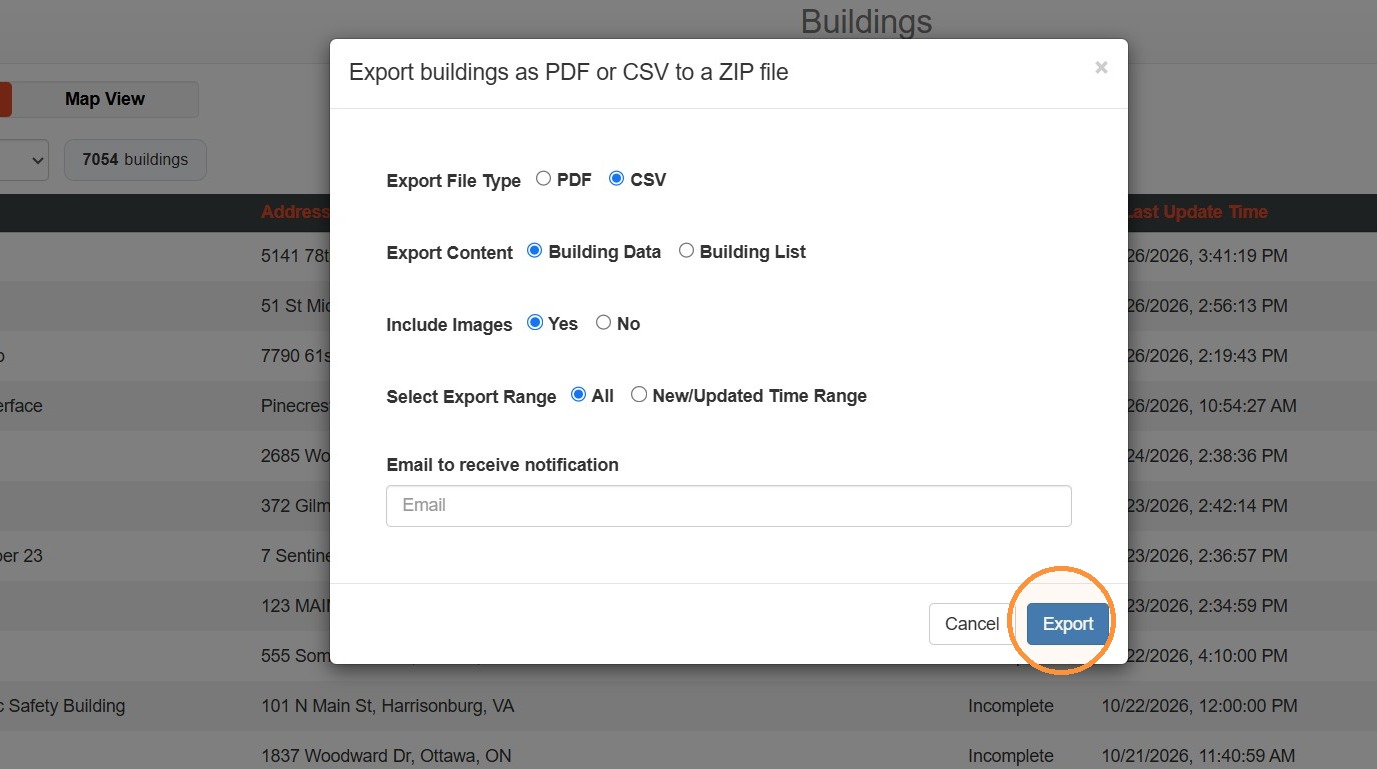
4. To export Building Data to CSV, complete the following:
- Select CSV
- Select Building Data
- Choose to include images or not
- Select a date range
- Enter an email to receive the download link
- Select Export
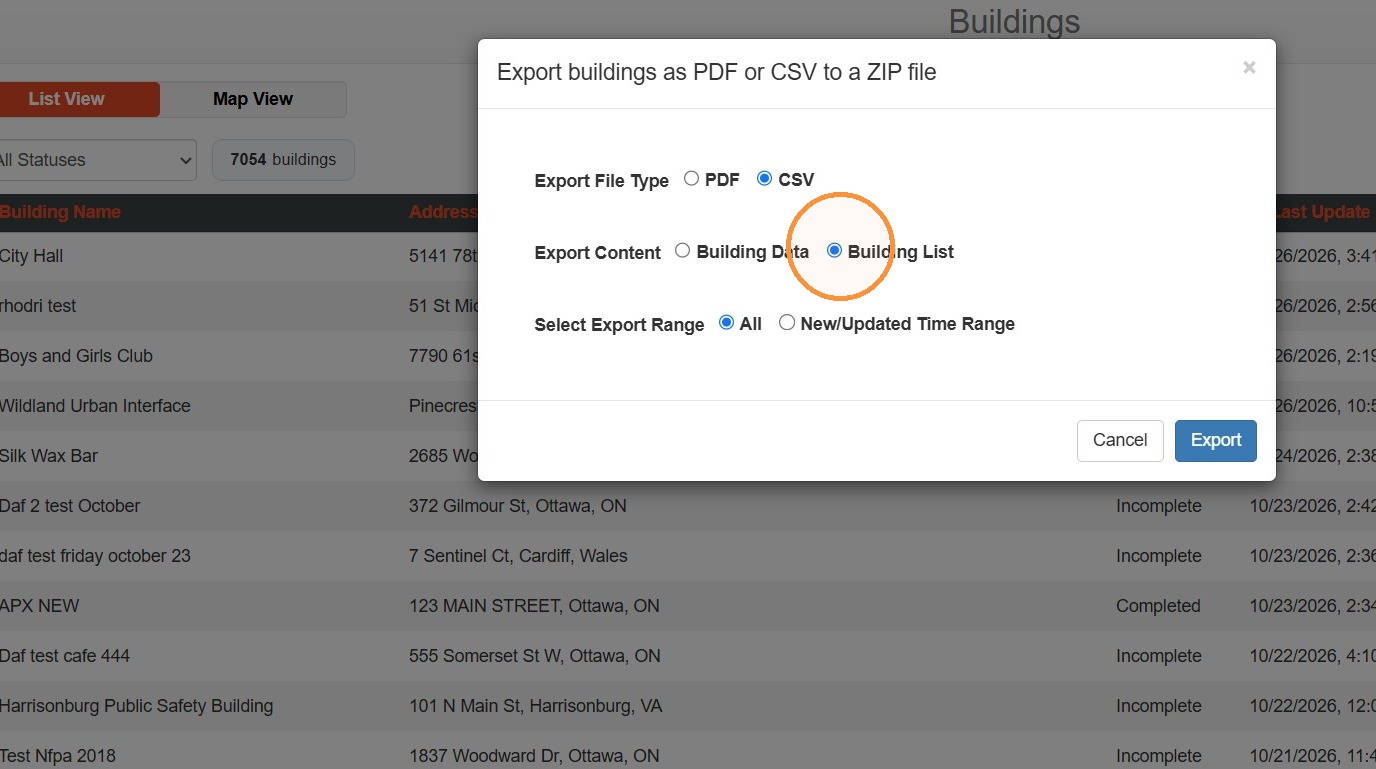
5. To export the Building List to CSV, complete the following:
- Select CSV
- Select Building List
- Select a date range
- Select Export
Comments
0 comments
Please sign in to leave a comment.