
The following article outlines how to add annotations to an image through the SmartCapture iOS app version 3.16.7 or newer.
- Video Tutorial
- Steps
- PDF Version
1. Video Tutorial
2. Steps
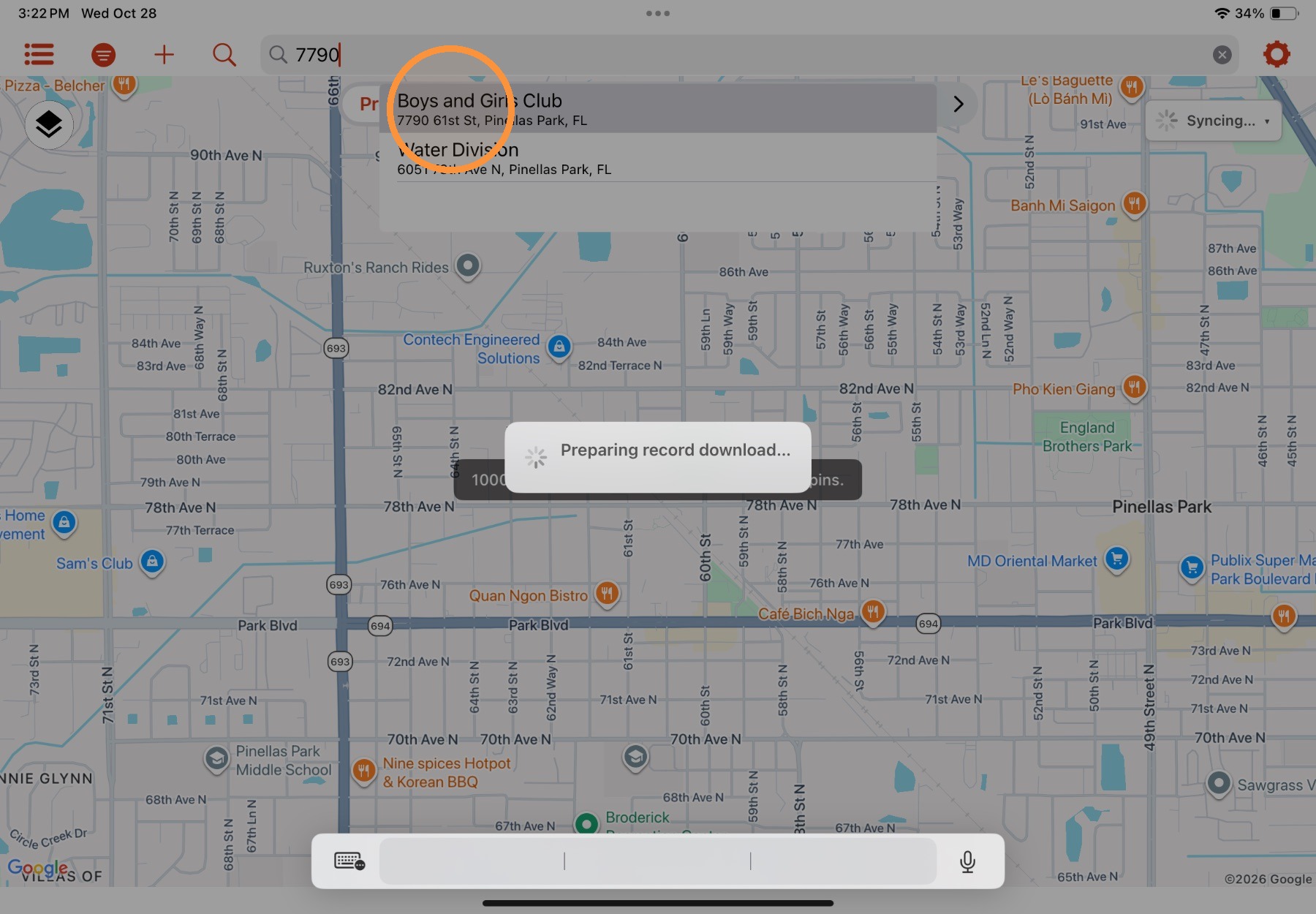
1. From the Home View, open a property record.
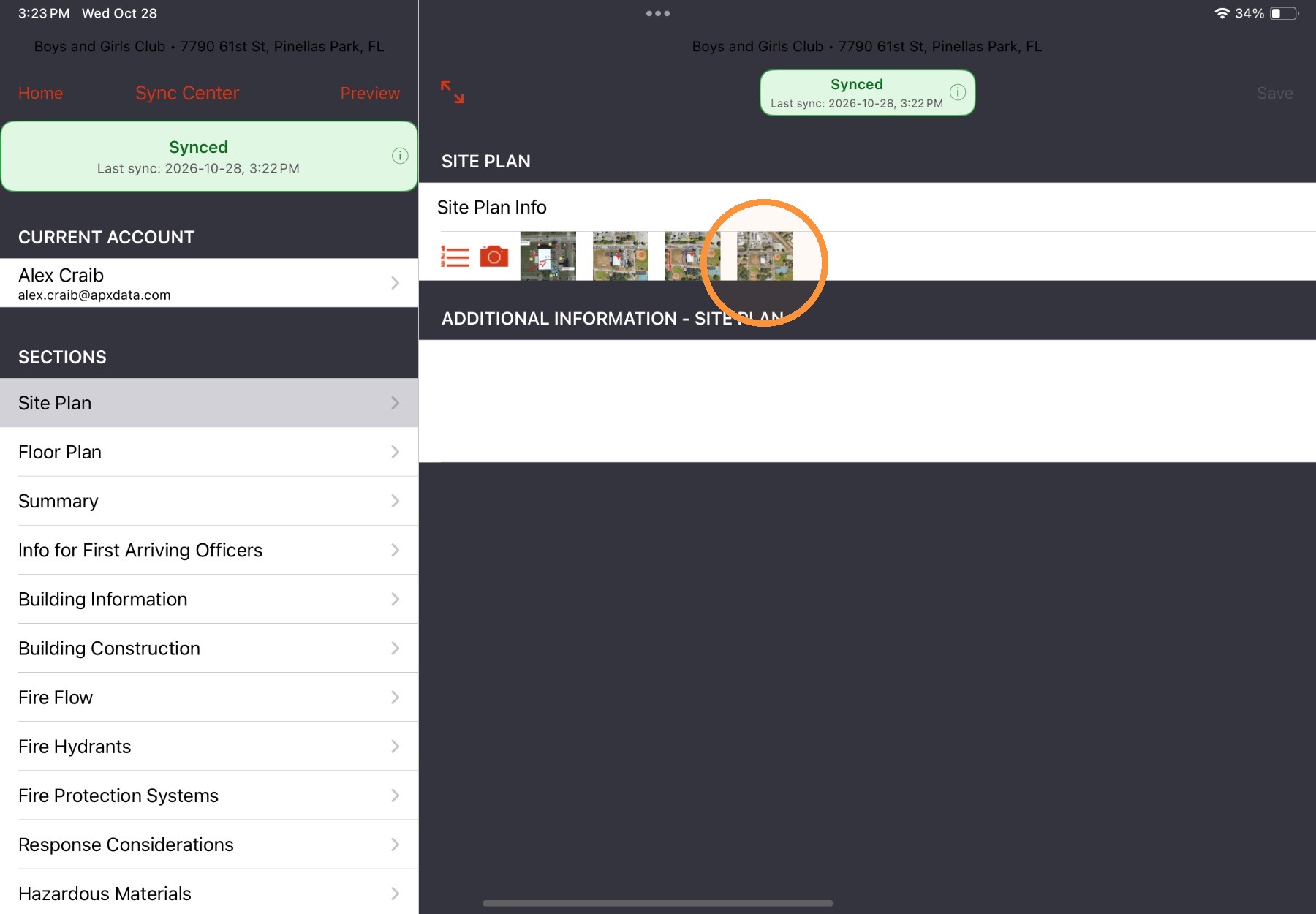
2. Navigate to the desired image and tap the thumbnail.
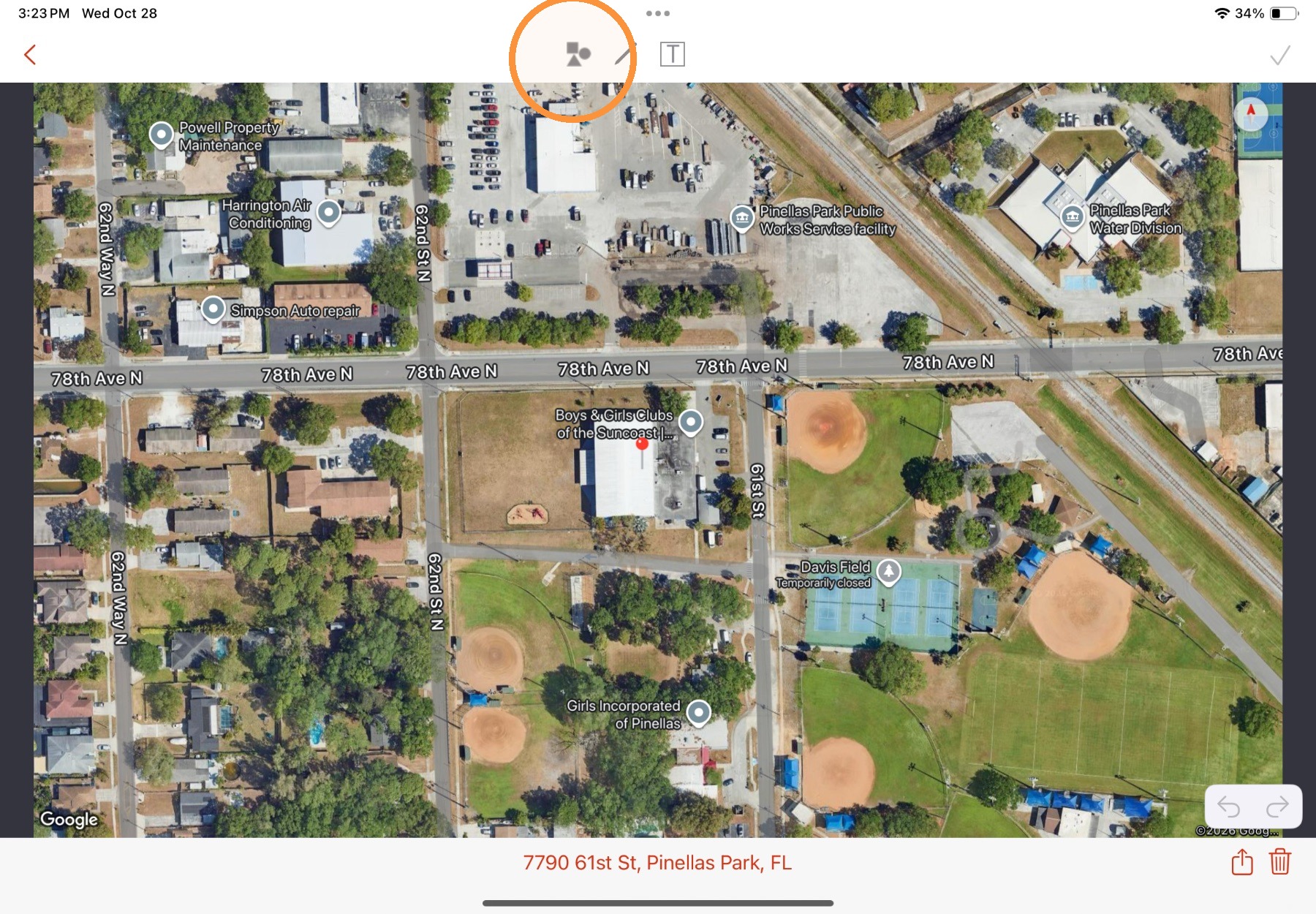
The image annotation mode will open.
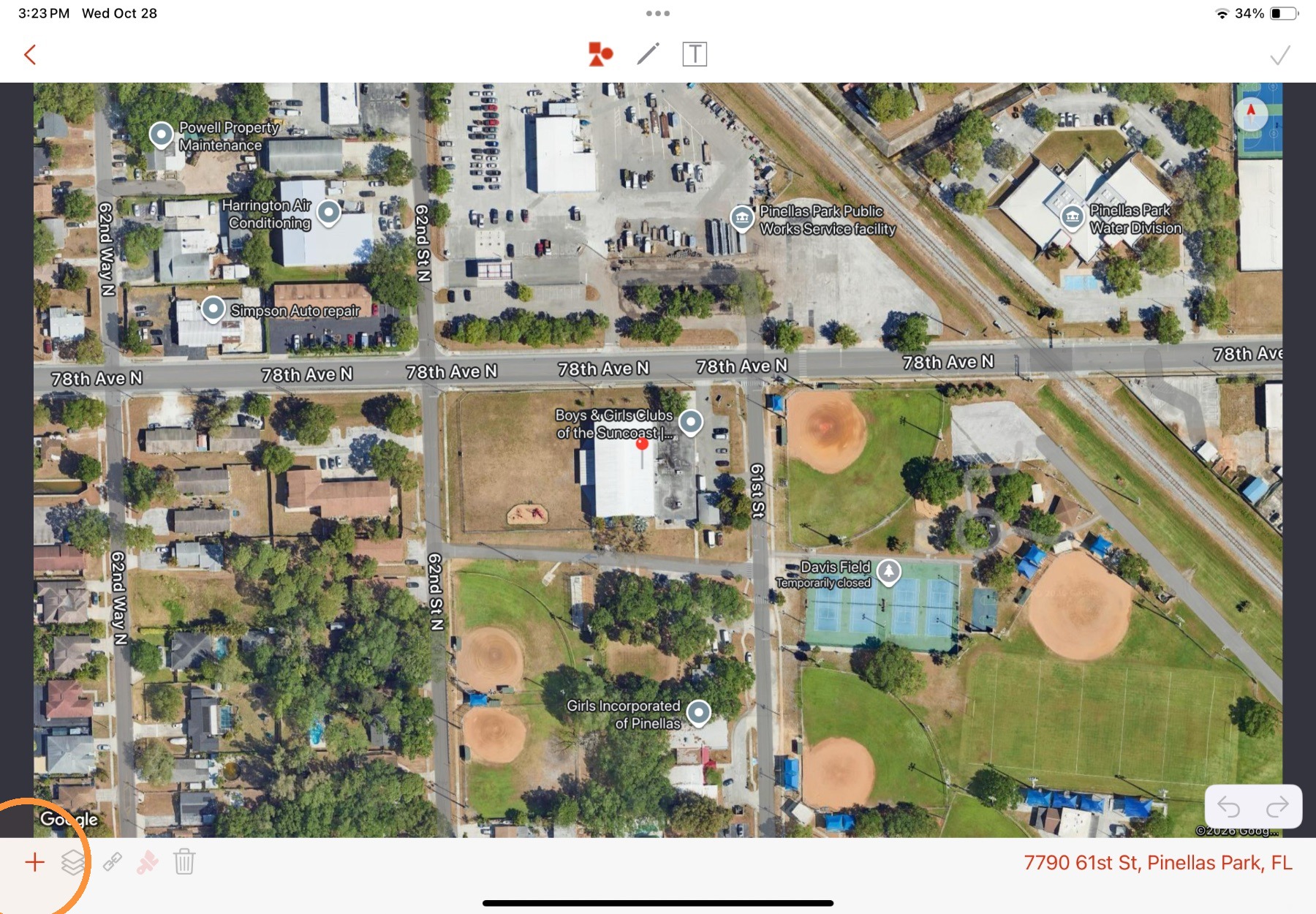
3. To enter the Shapes annotation mode, select the Shapes button.
To use the Shapes annotation mode:
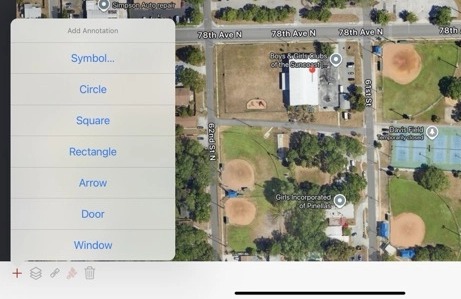
- Select the + button
- Select either Symbol or one of the default shapes.
- If Symbol is selected, a list of available options will appear
- Select a symbol to add it to the image
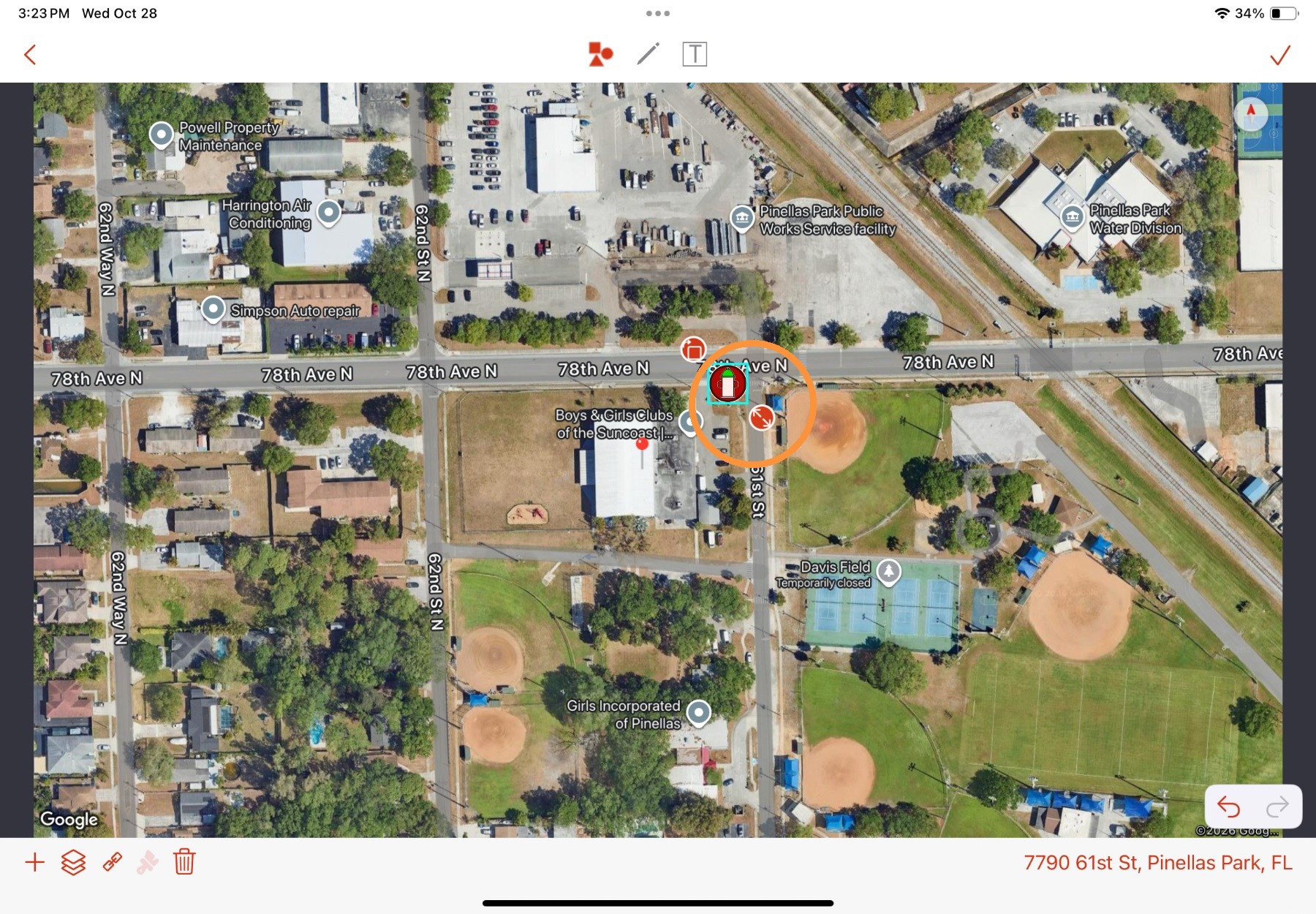
- Tap and drag the symbol to position it on the image
- Tap and drag the size handle to resize the symbol
- Tap and drag the rotate handle to rotate the symbol
- Select the Linked Fields button to edit preplan form fields linked to the icon
- Select the Delete button to delete a selected symbol
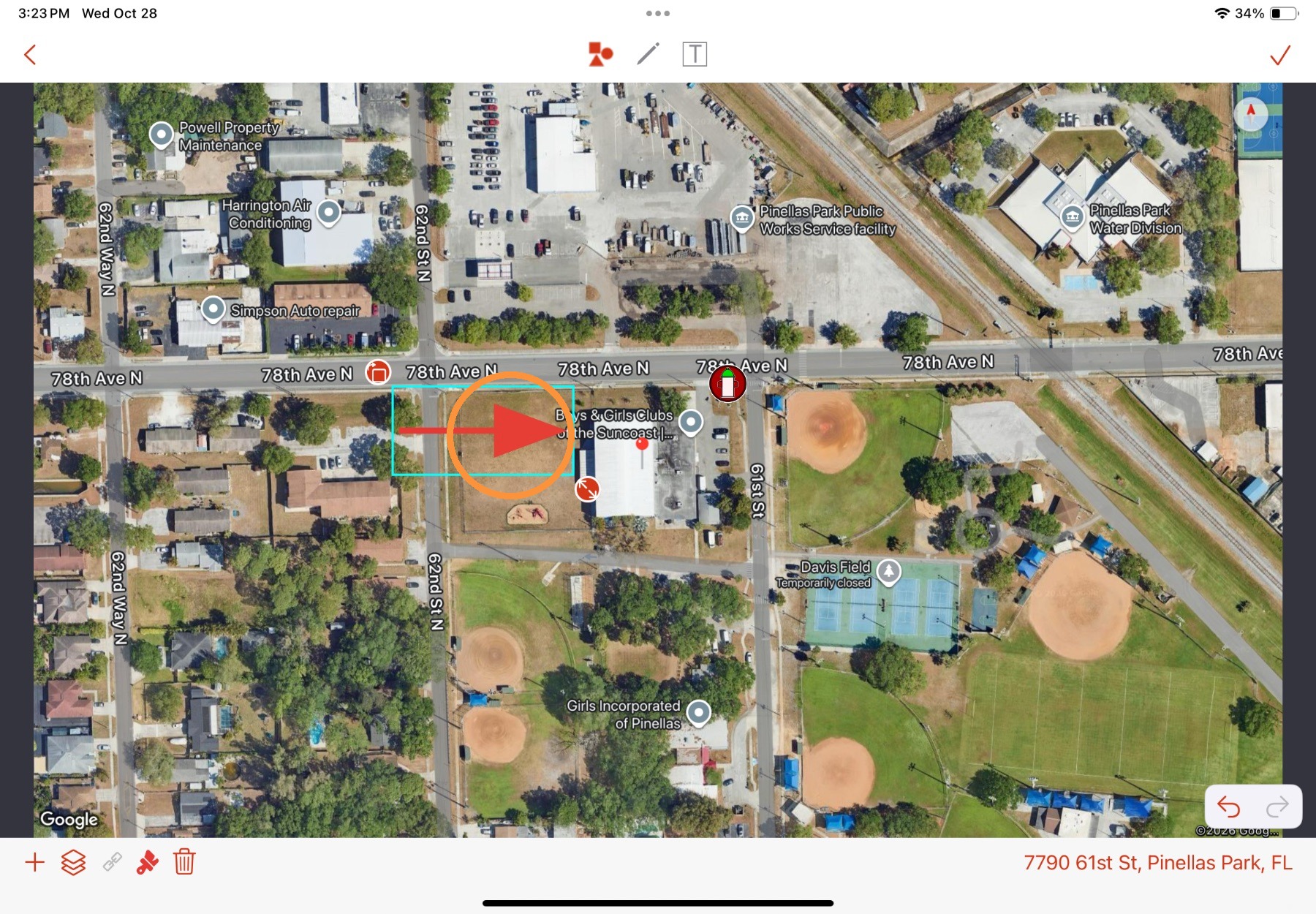
- If a default shape is selected, it will appear in the center of the image
- Tap and drag the shape to position it on the image
- Tap and drag the size handle to resize the shape
- Tap and drag the rotate handle to rotate the shape
- Select the color button to change the color of the selected shape
- Select the Delete button to delete a selected shape
- If Symbol is selected, a list of available options will appear
- Select the layer button to switch between different shapes on the image.
If you're in the Shapes annotation mode, you can also tap a shape to select it.
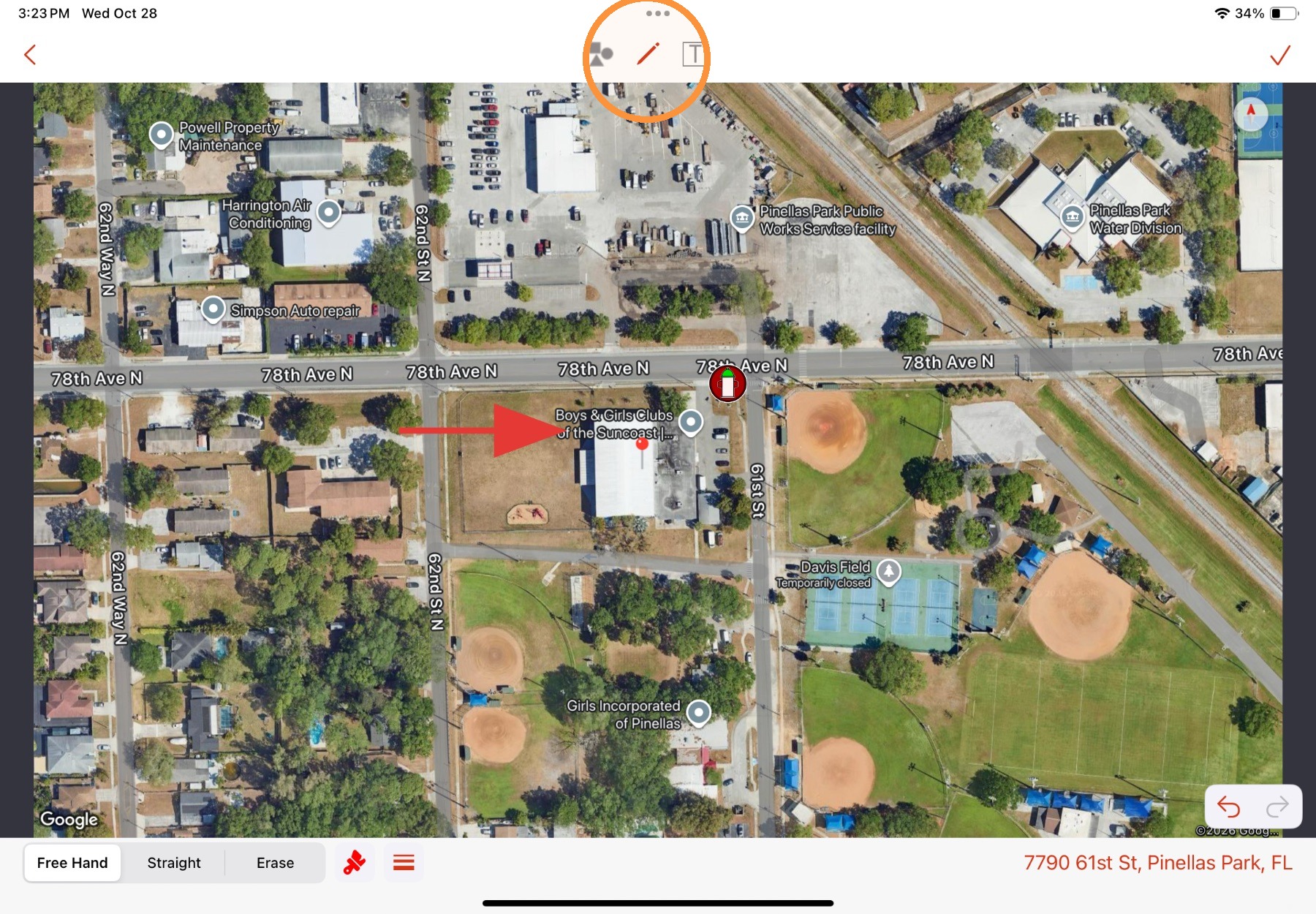
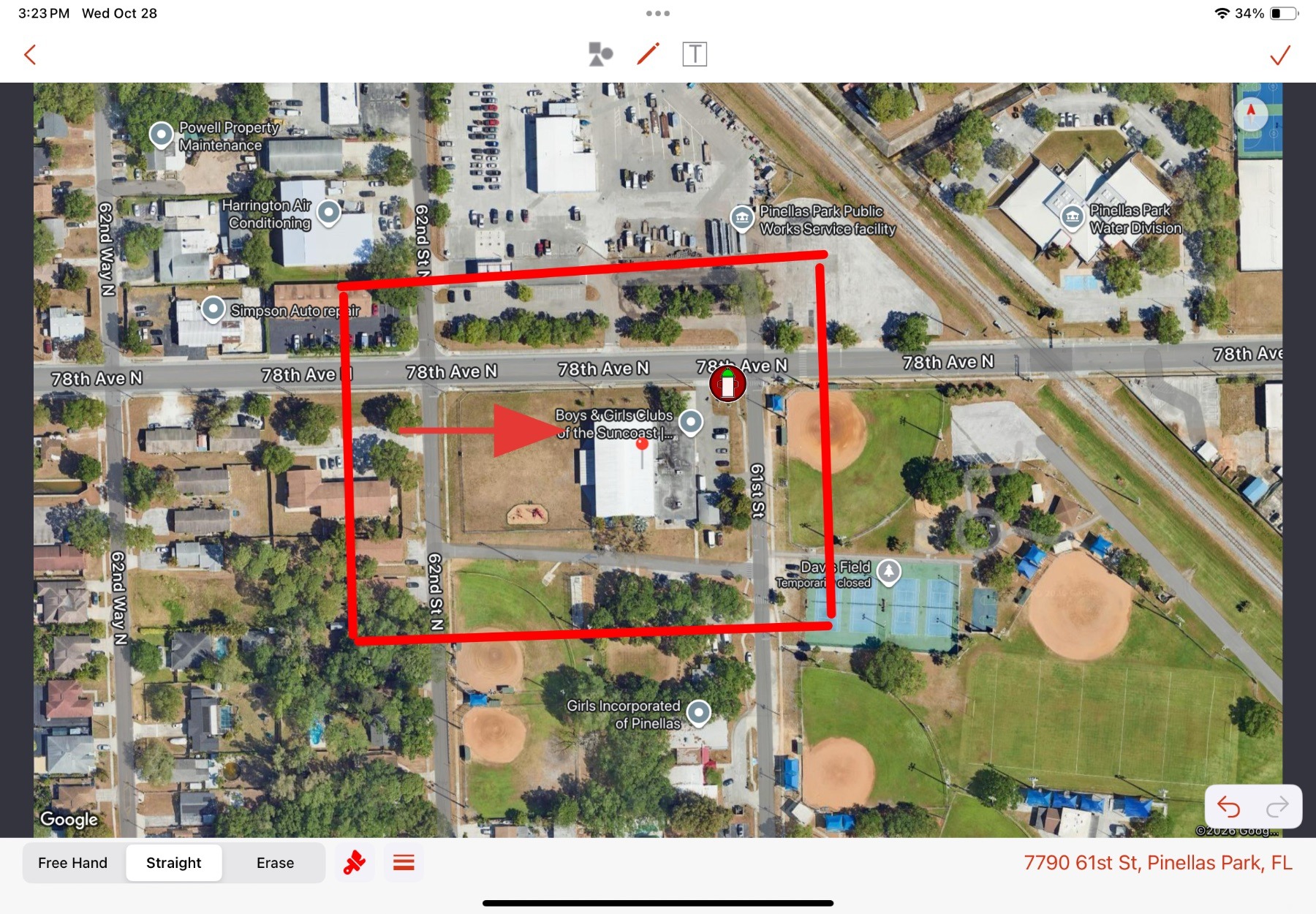
4. To enter the Drawing annotation mode, select the Draw button.
To use the Draw annotation mode:
- Select Free Hand or Straight
- Select the color button to set a line color
- Select the size button to change line thickness
- Tap and drag on the image to draw a line
- To erase a draw annotation, select Erase and then tap and drag over the draw annotation
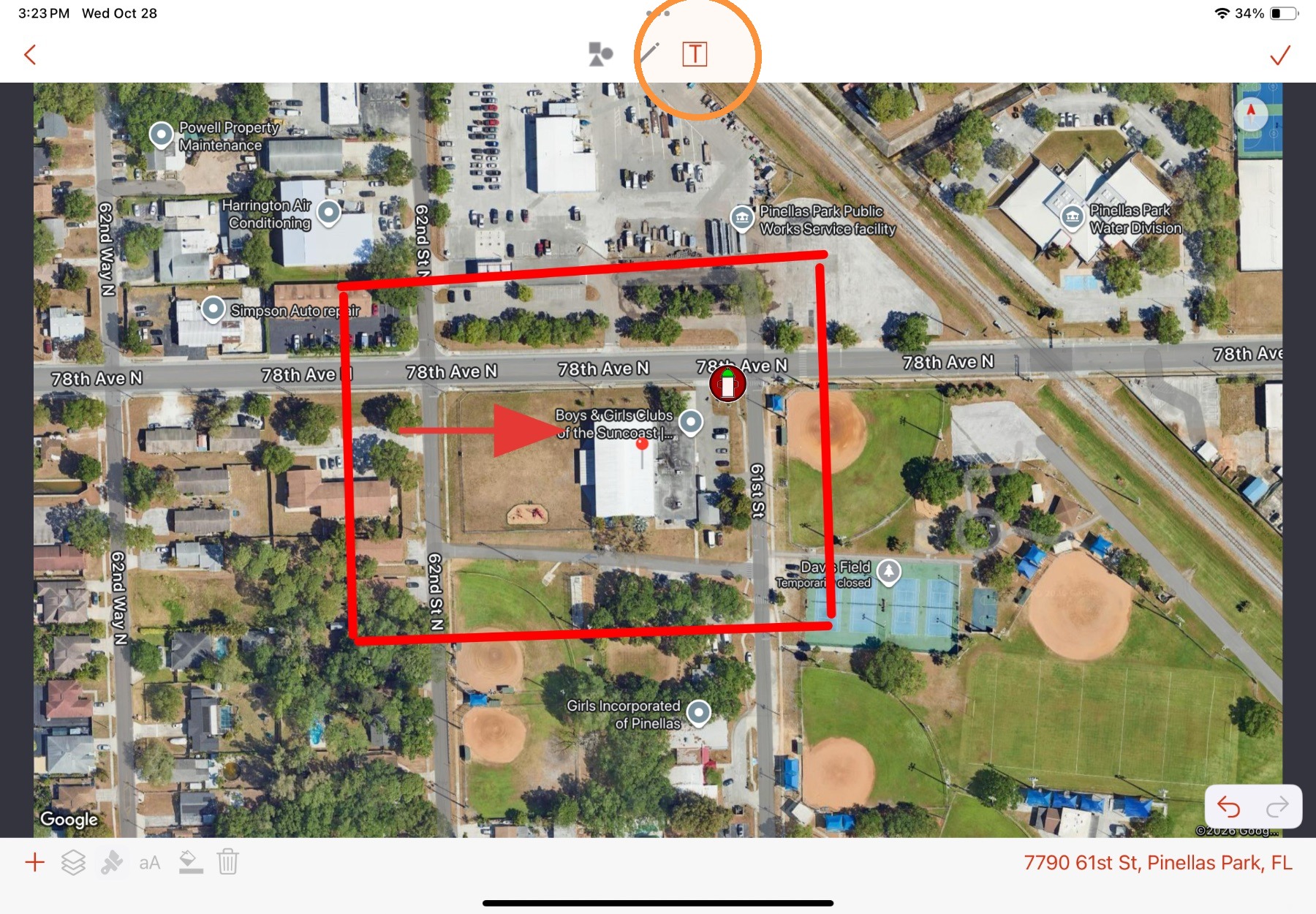
5. To enter the Text annotation mode, select the Text button.
To use the Text annotation mode:
- Select the + button
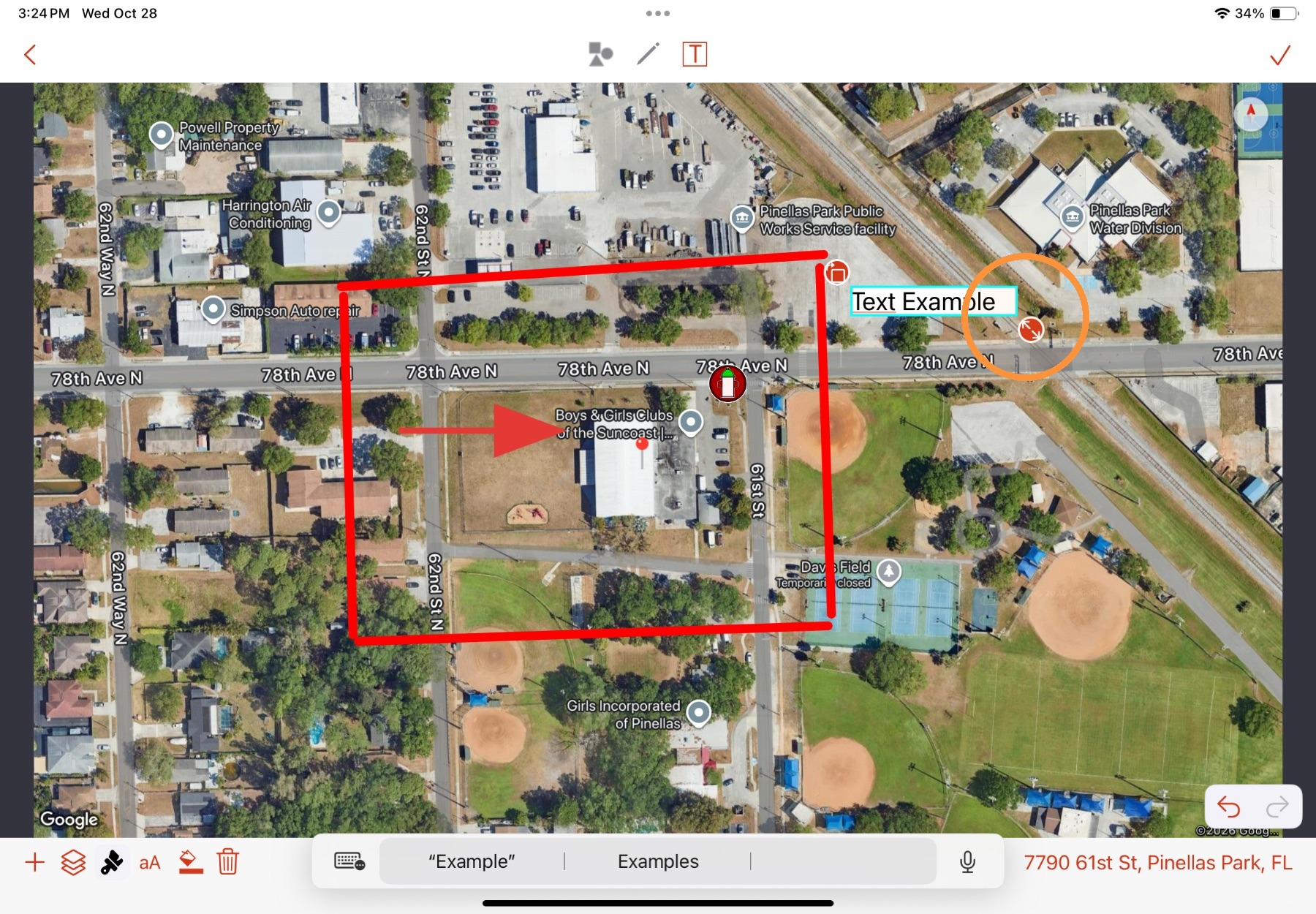
A text box will be placed on the image. - Tap and drag on the image to position the text box
- Tap into the text box and type to add text
- Tap and drag the size handle to resize the text box
- Tap and drag the rotate handle to rotate the text box
- Select the color button to set a line color
- Select the text size button to change the text size
- Select the text box background button to toggle the background on/off
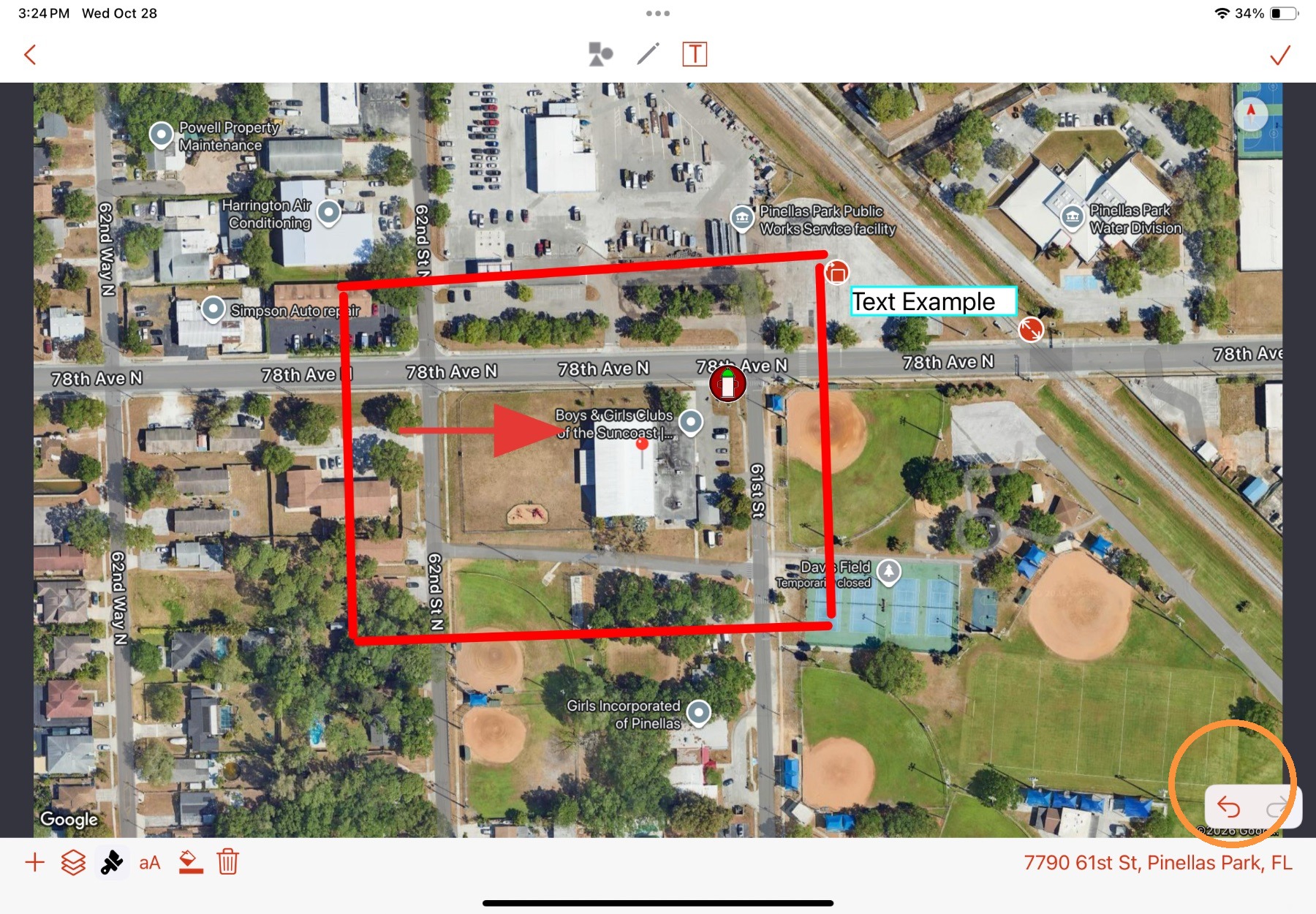
6. In any annotation mode, use the Undo/Redo buttons to remove/re-add changes.
7. Select Save to save changes to the image.
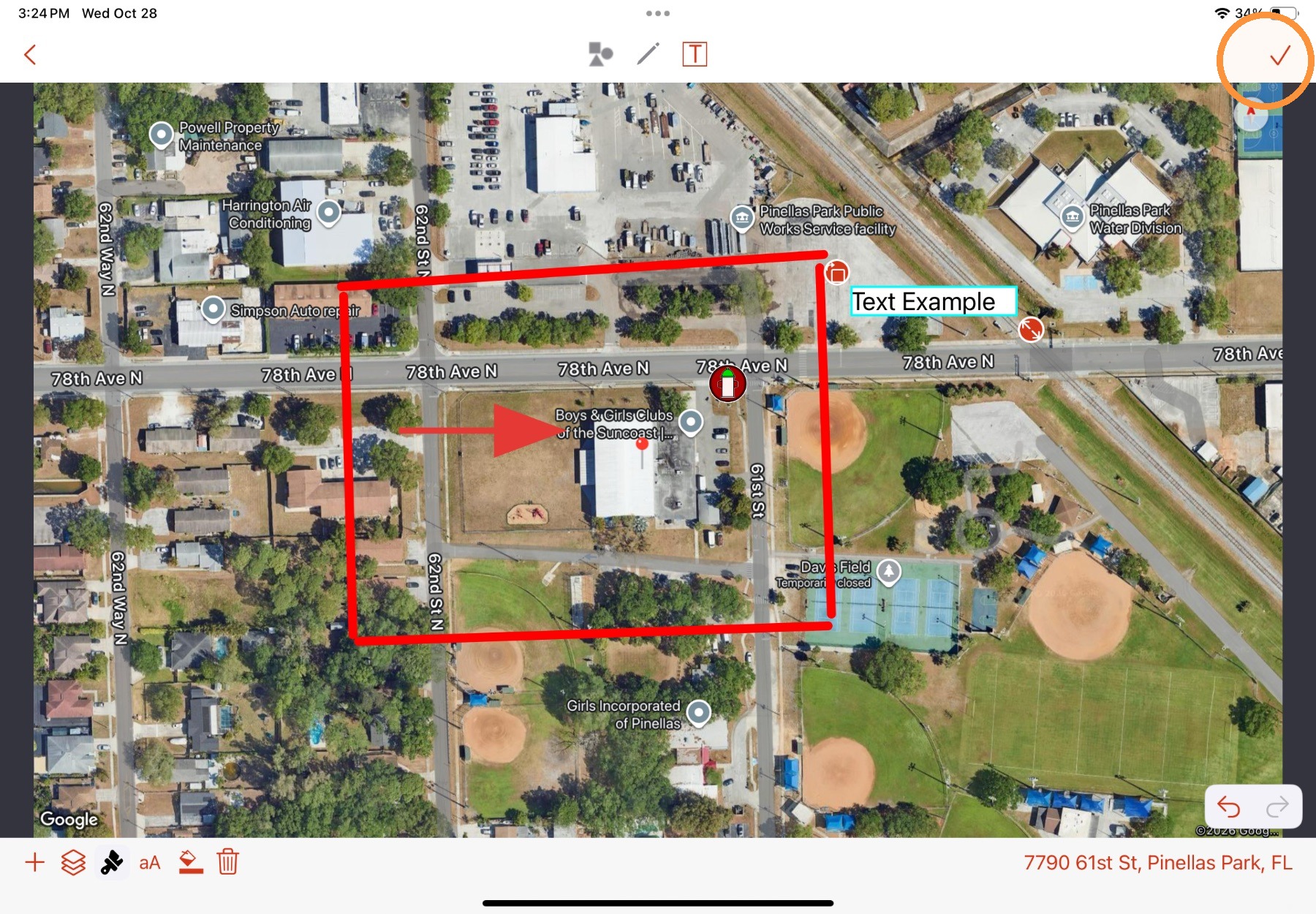
8. Select Back to exit the annotation mode.
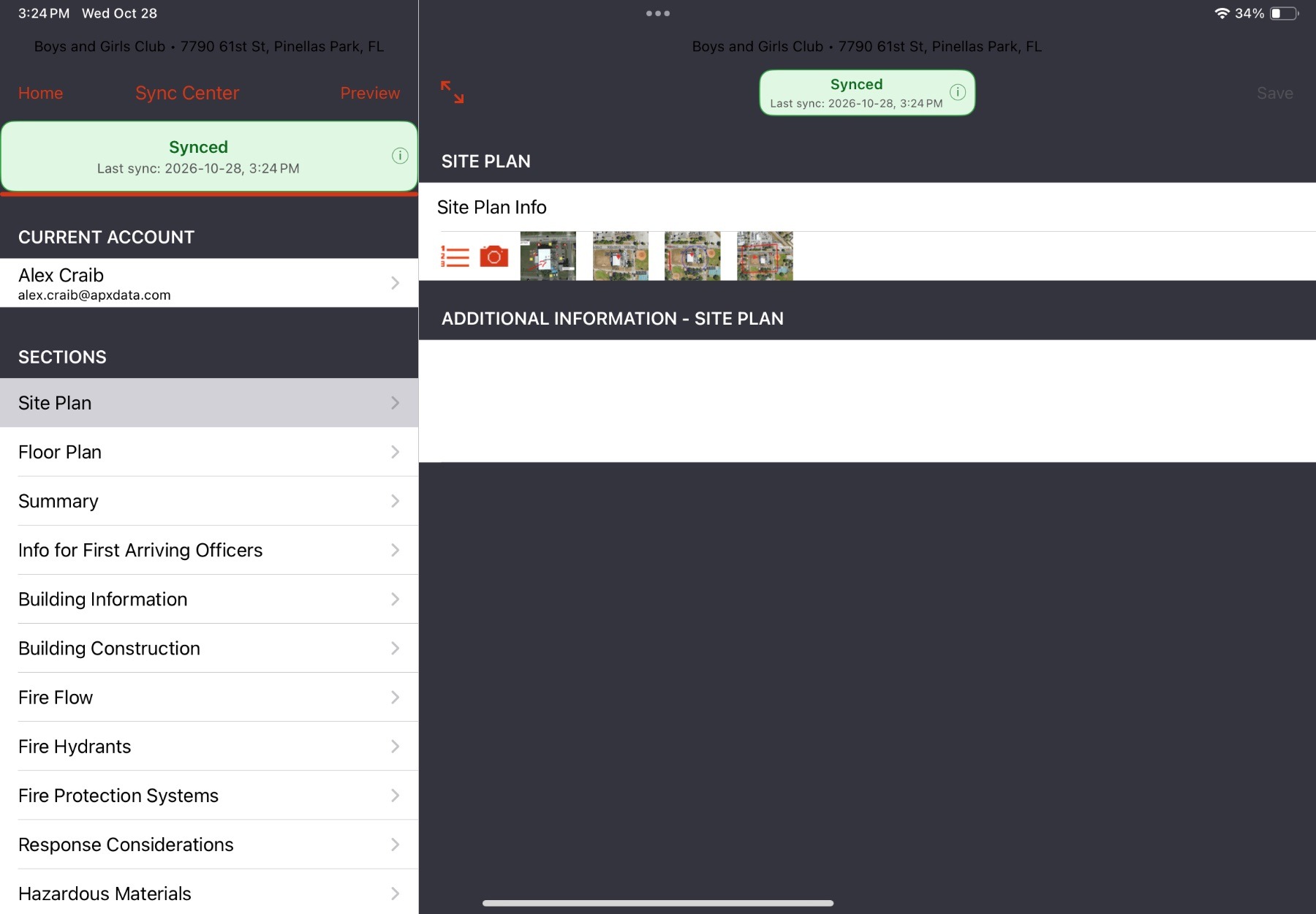
The app will navigate back to the section. The image thumbnail will update to include any annotations.
Comments
0 comments
Please sign in to leave a comment.