
The following article outlines how to navigate the preplans module of the SmartCapture iOS app version 3.16.7 or newer.
- Video Tutorial
- Steps
- PDF Version
1. Video Tutorial
2. Steps
1. Use the module switcher to change between available modules.
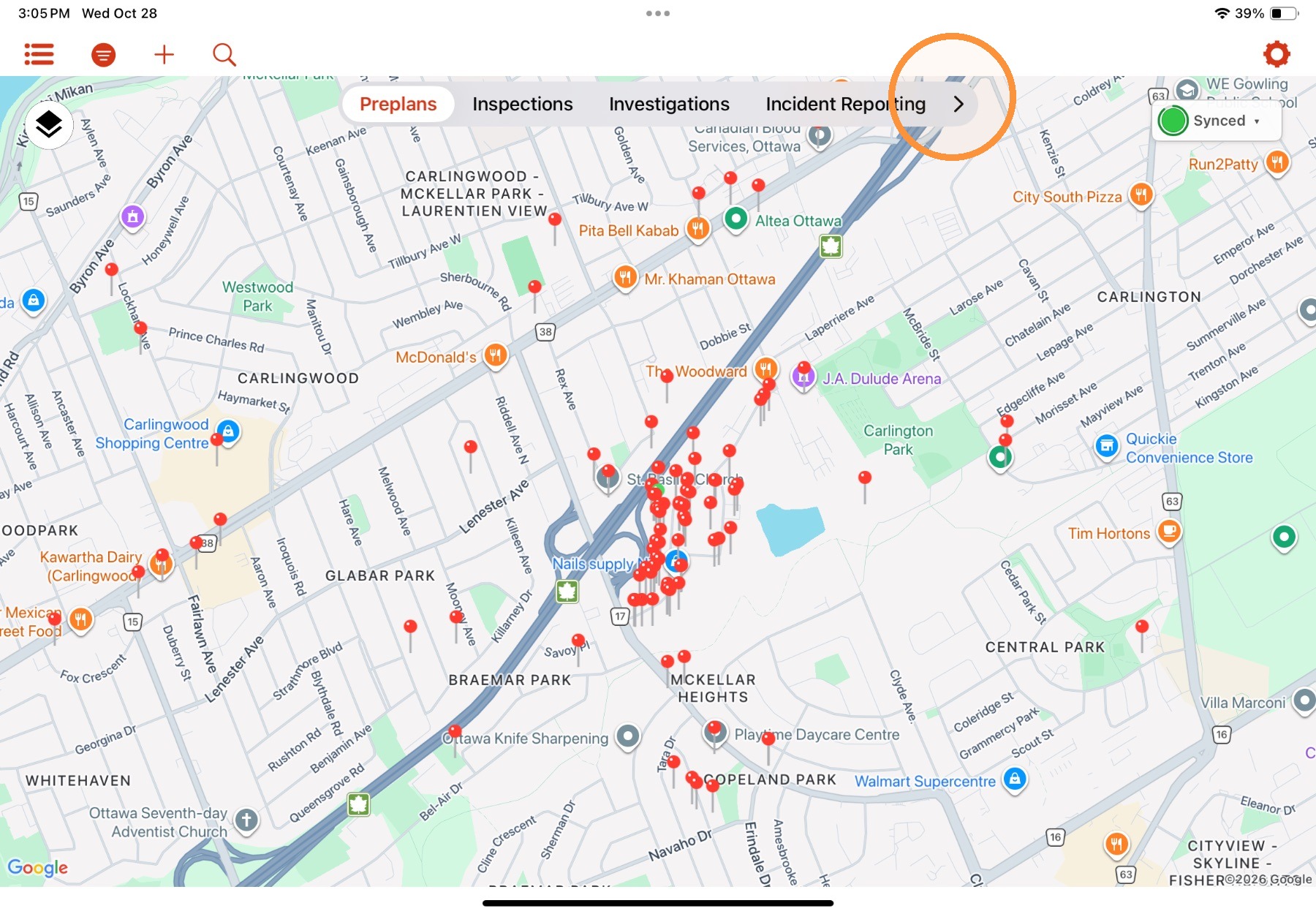
Tip: On iPhone, the module switcher is at the bottom of the screen.
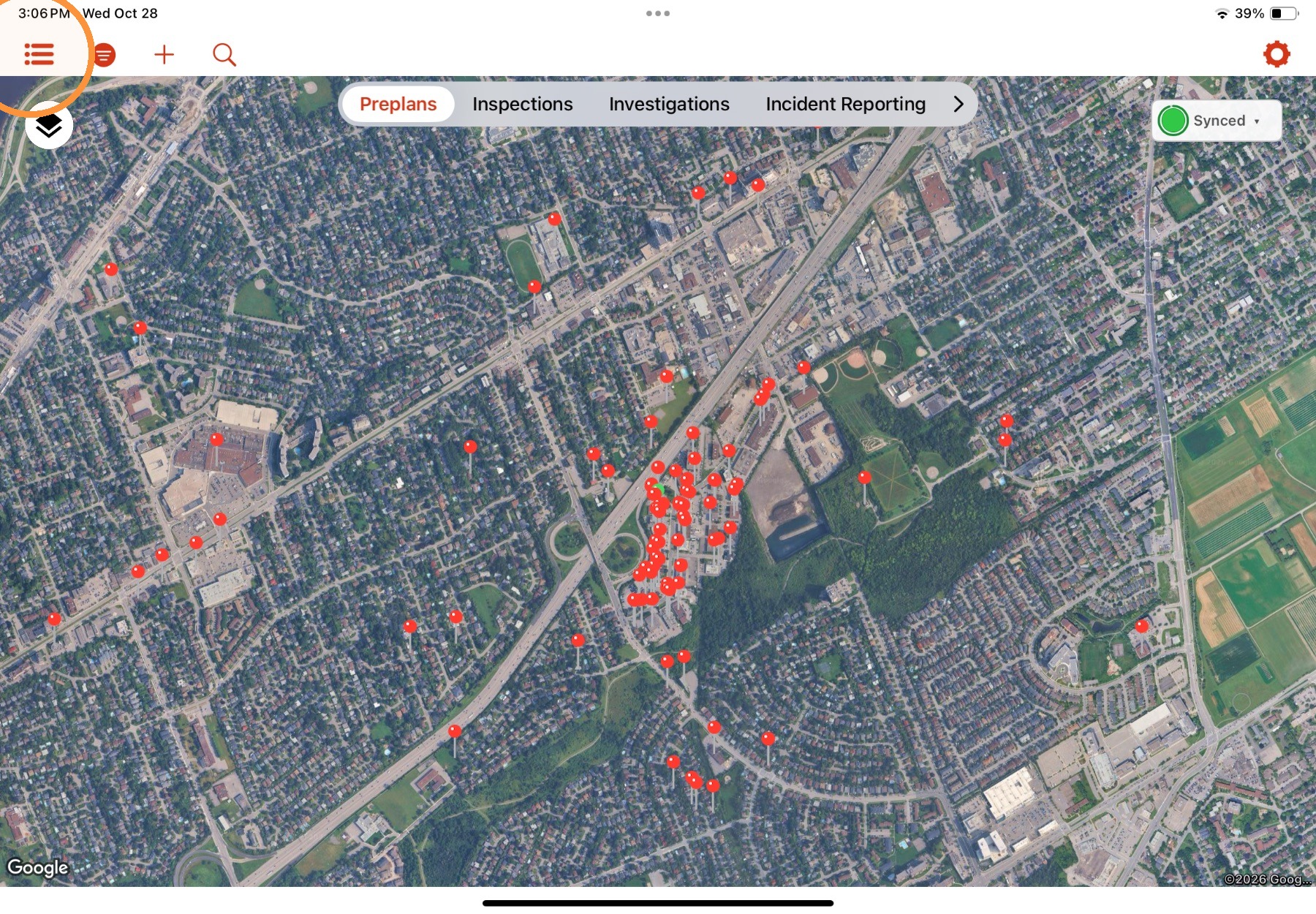
2. Use the Home View Mode button to toggle between list and map views.
Note: the SmartCheck Checks module only has a list view.
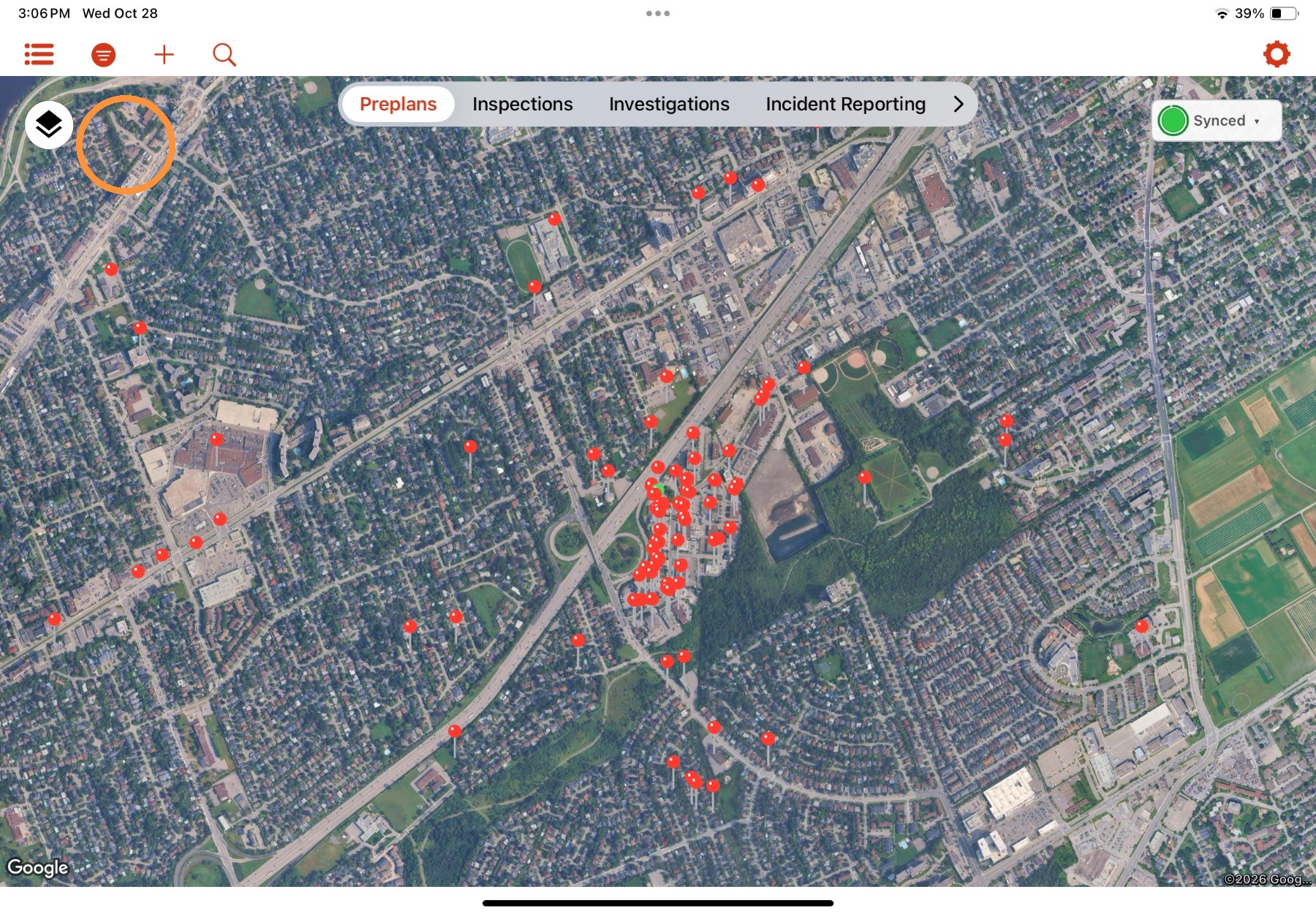
3. In the Map View mode, use the layer button to switch between Map and Satellite views.
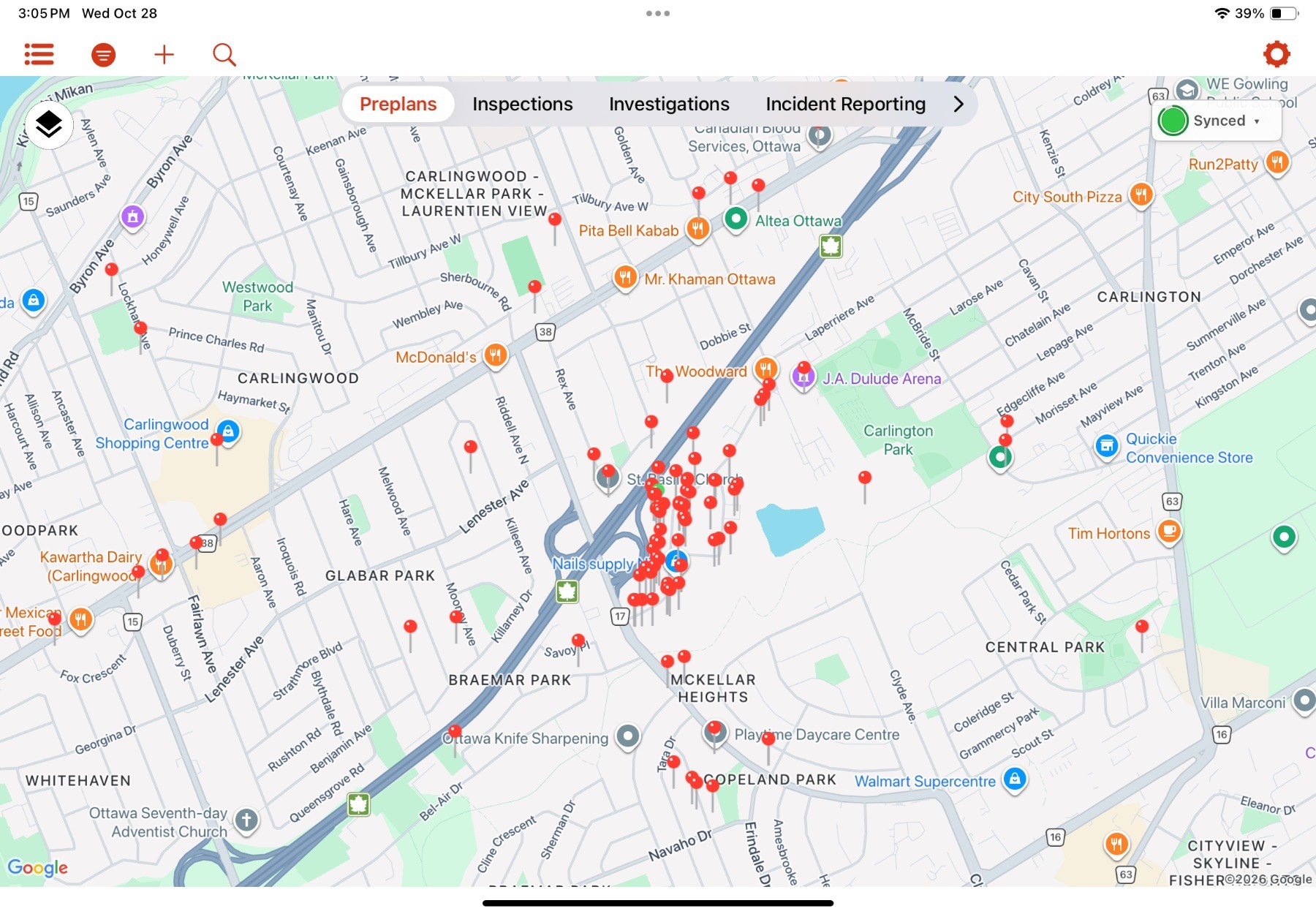
4. To search for an existing record, select the Search button and then enter a search term in the displayed search bar. Search results will be displayed below.
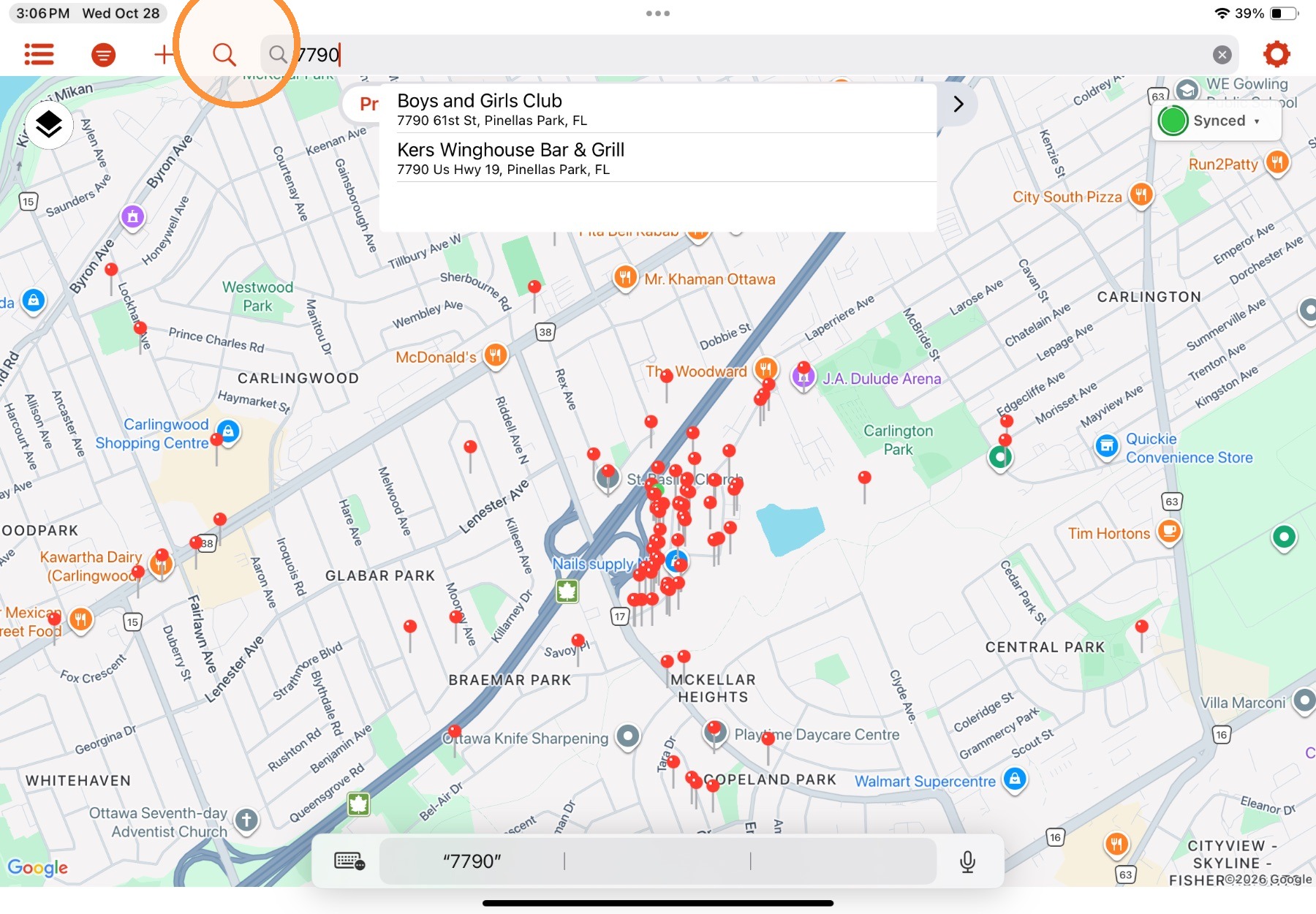
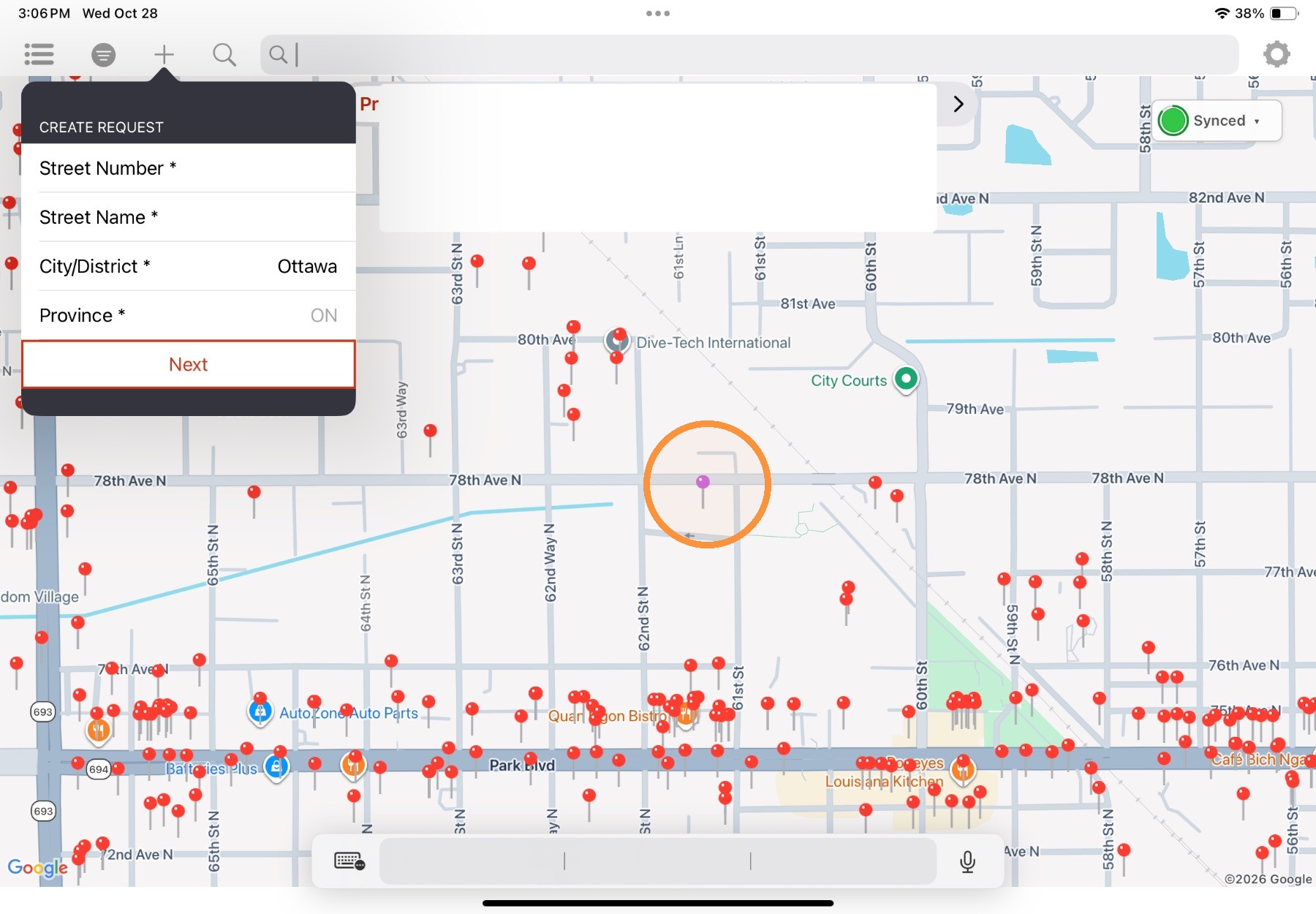
5. To select a new location to create a property record, complete one of the following:
- Tap and hold on a location on the map.
- Select New+ (fill out the address information, then select Next)
- Use the Search bar
Note: To create a new occupancy from the List View, select +New.
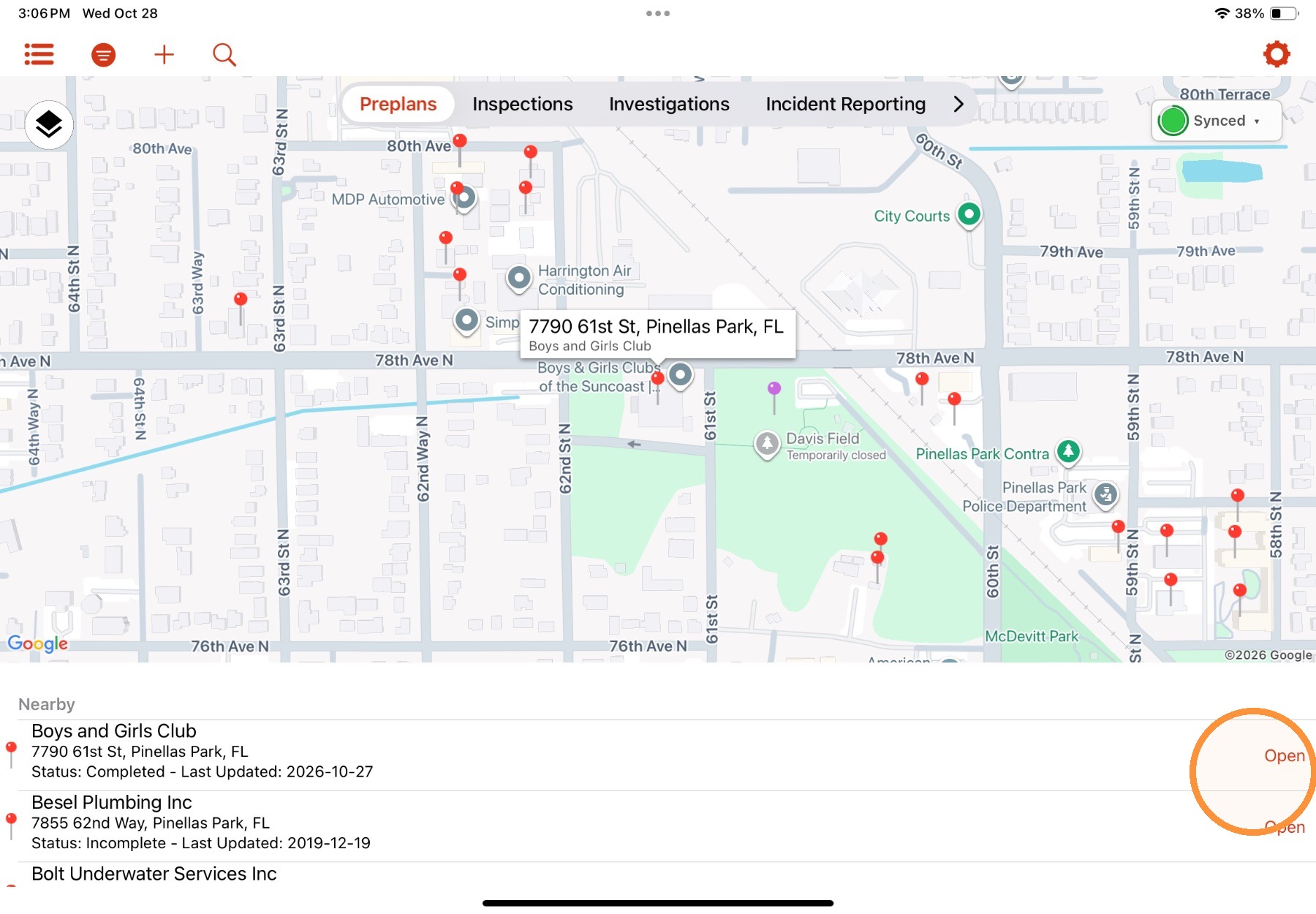
6. To open an existing property record, select a pin in the Map or List view. If in the Map view, you can also select Open from the Nearby list displayed at the bottom of the screen.
Comments
0 comments
Please sign in to leave a comment.