
The following article outlines how to capture a site plan through the SmartCapture iOS app version 3.16.7 or newer.
- Video Tutorial
- Steps
- PDF Version
1. Video Tutorial
2. Steps
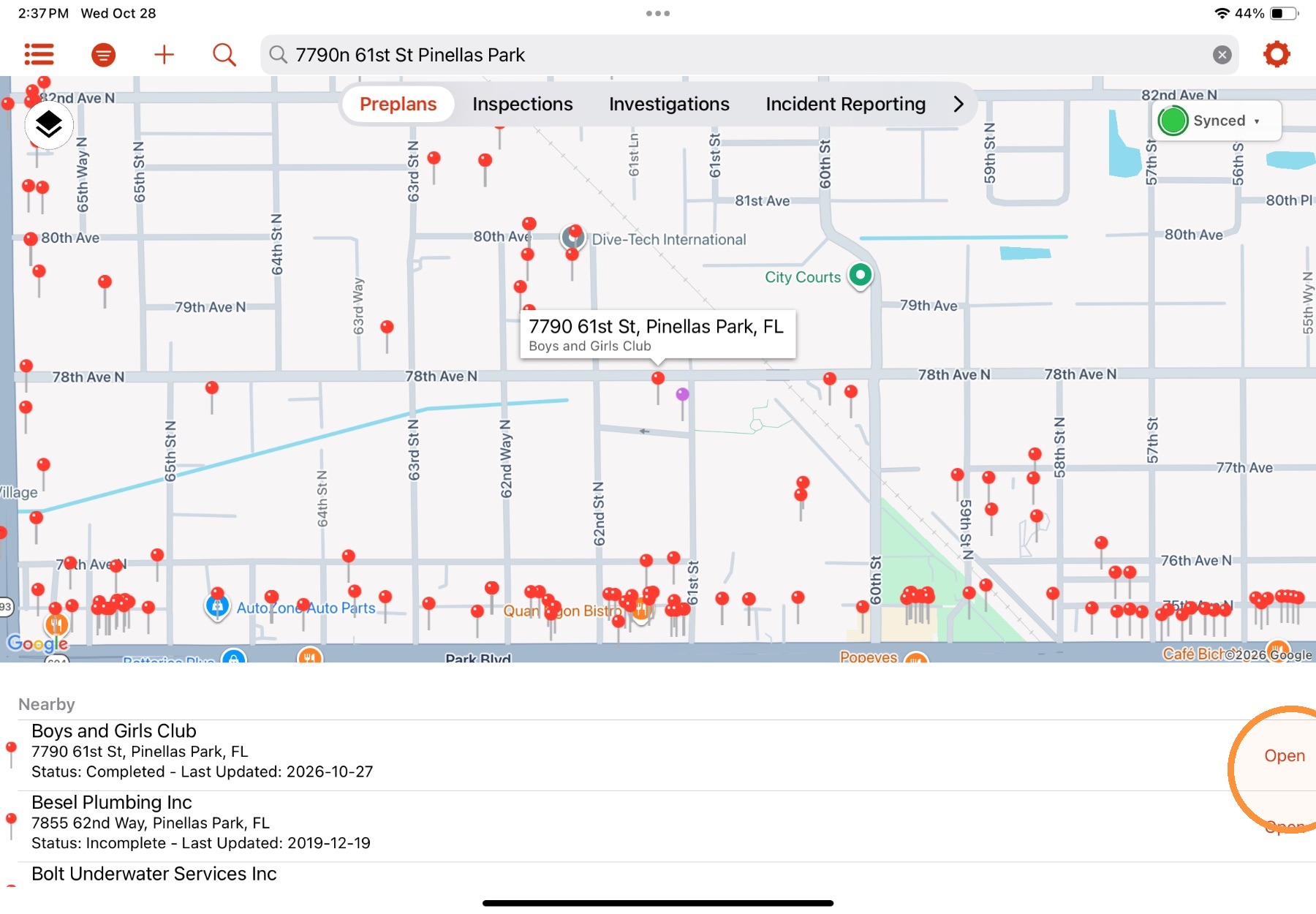
1. From the Home View, open a property record by selecting Open.
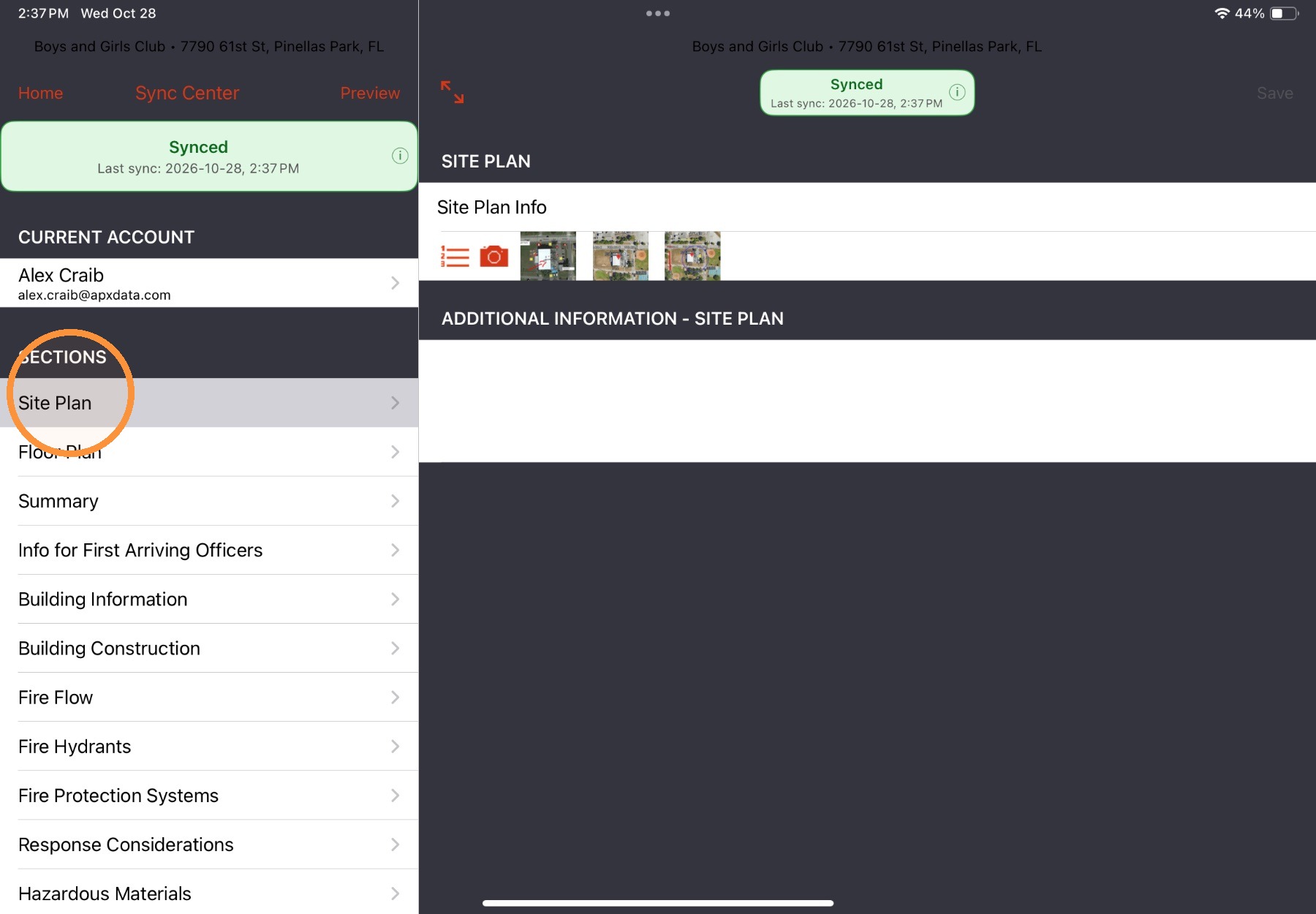
2. Use the preplan menu to navigate to the section with the site plan field.
In this example, it's in the Site Plan section.
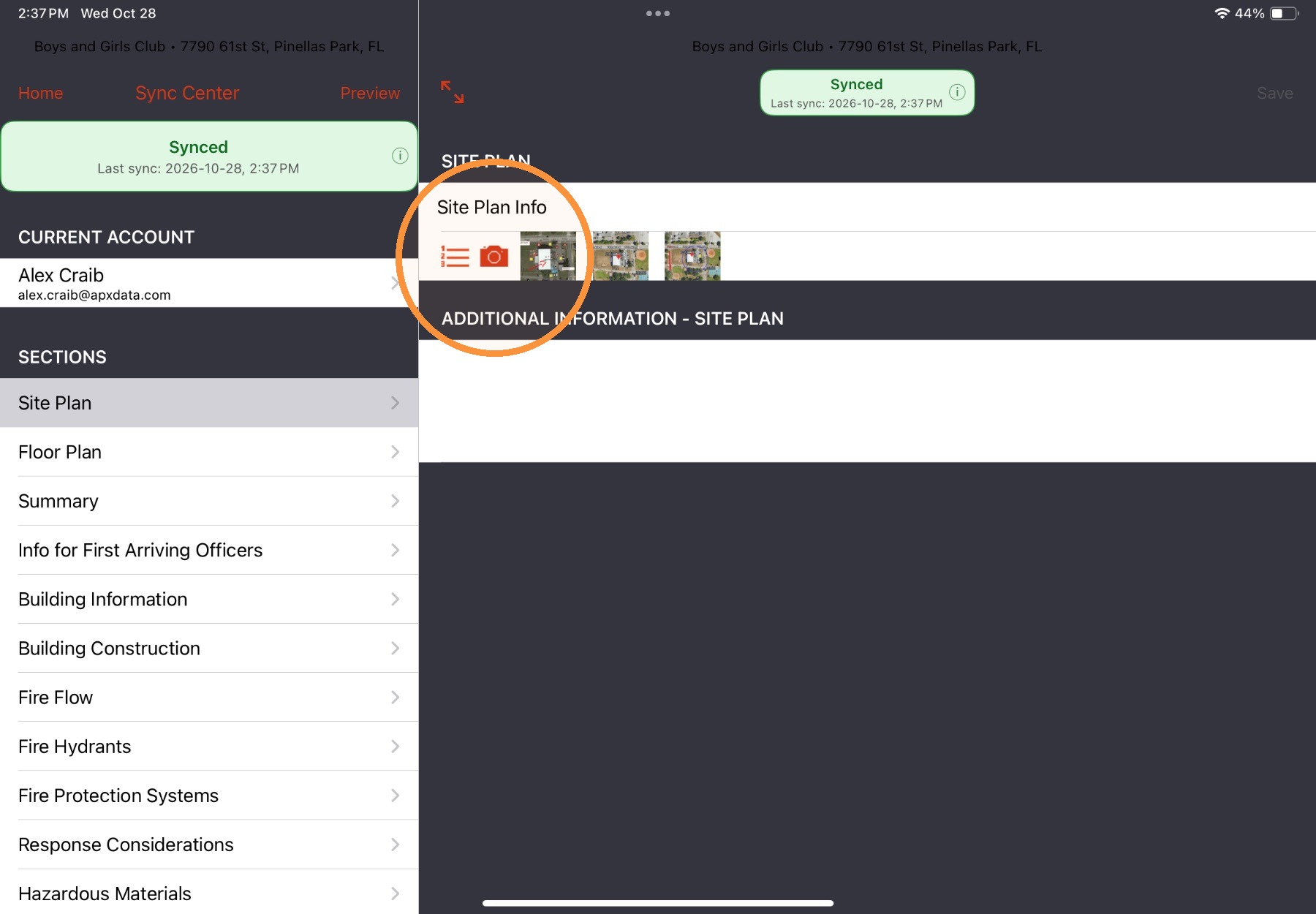
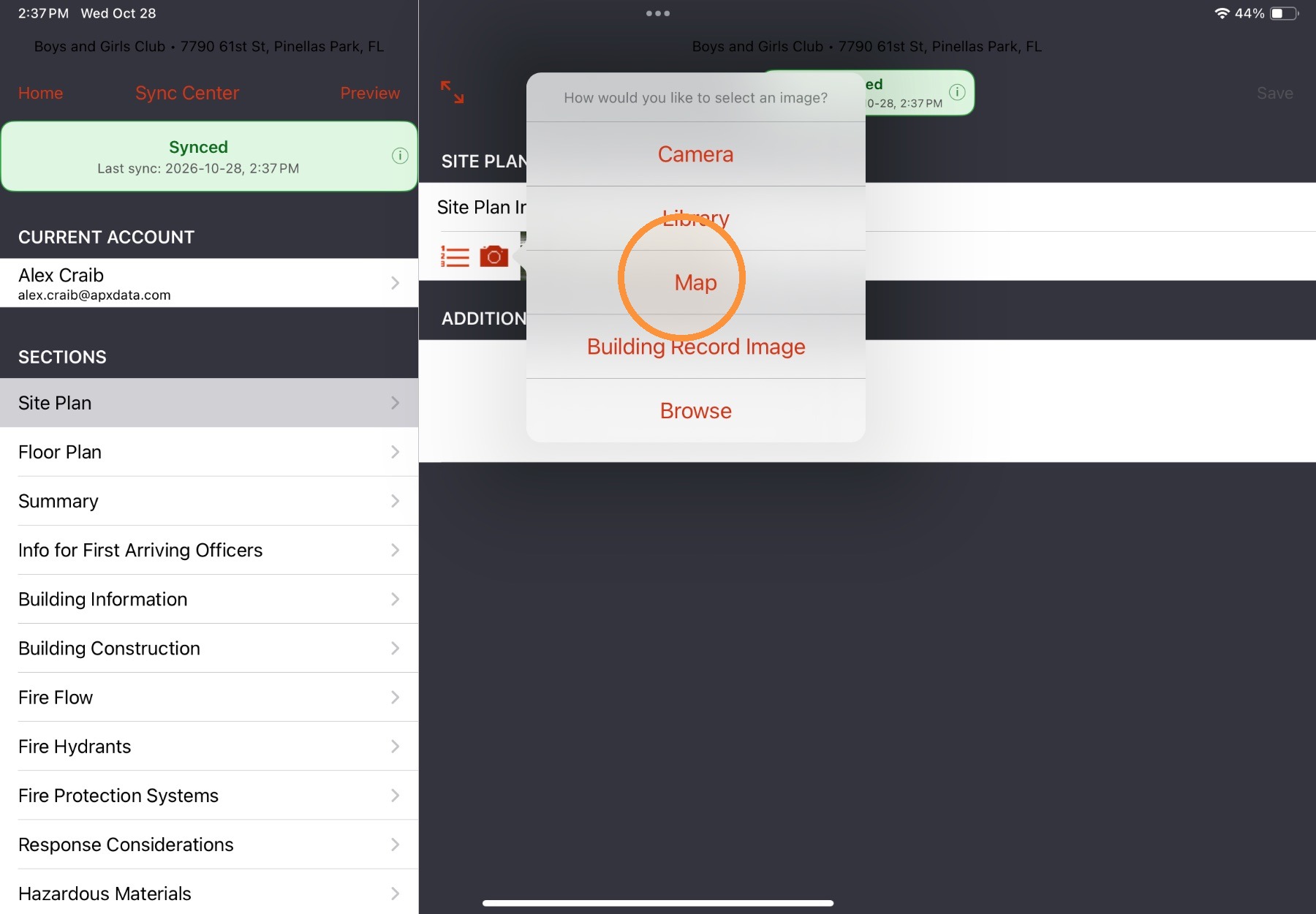
3. Select the camera icon and then Map.
A Google Maps view will open.
4. Use Pinch/Expand (zoom) or swipe (pan) gestures to position the map image. Use the layer button to toggle between Satellite and Map views.
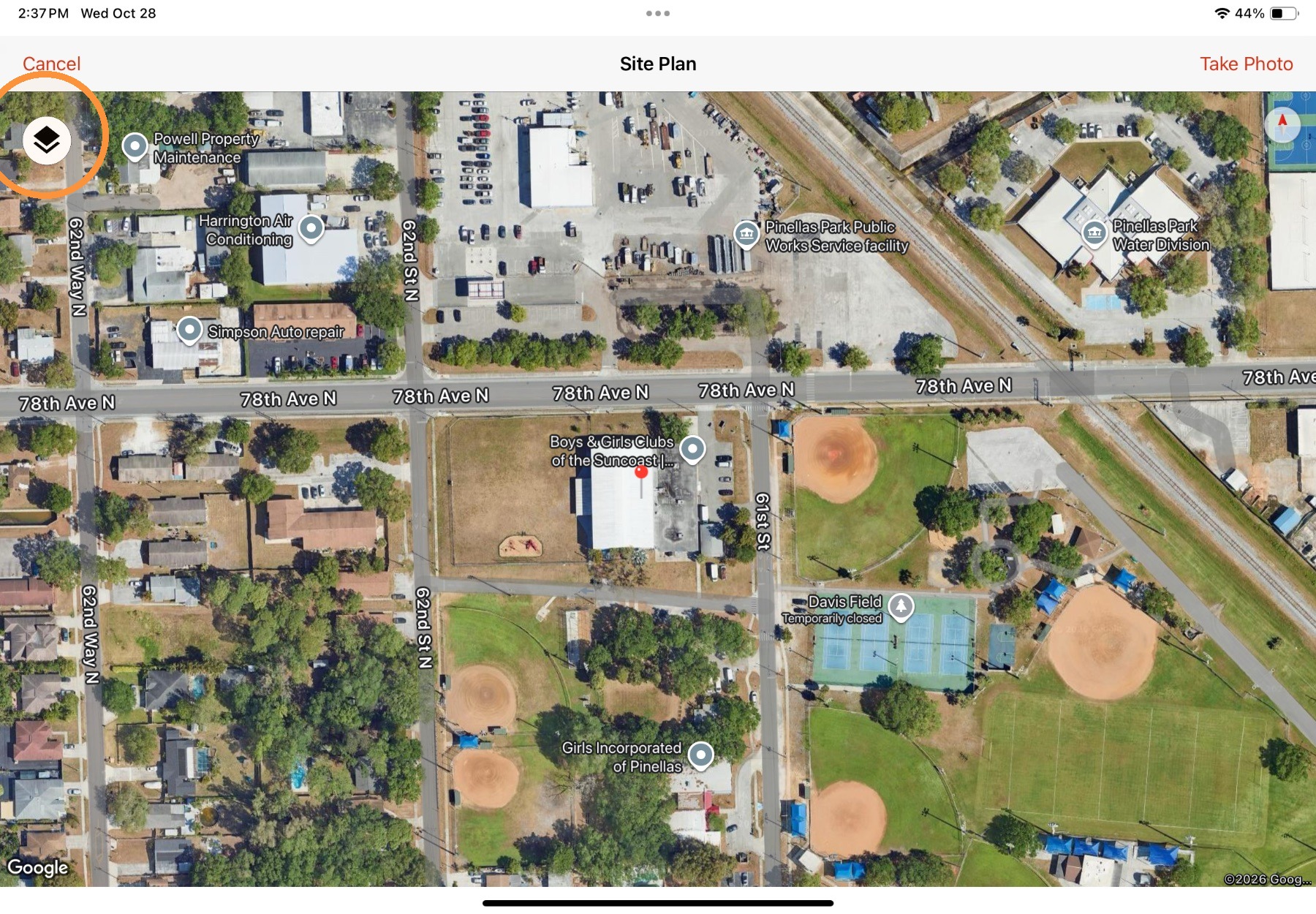
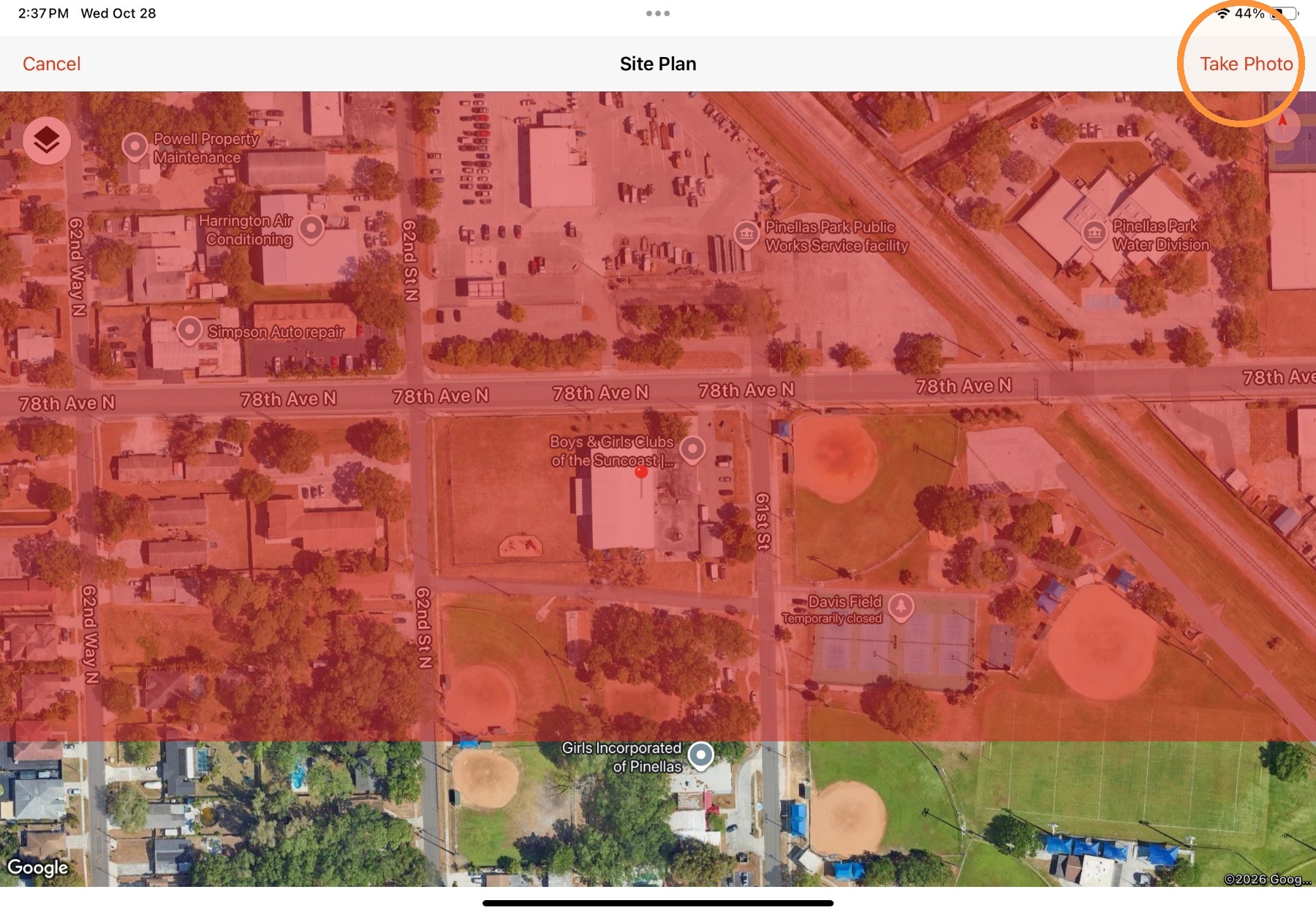
5. Select Take Photo to capture the viewable area as a site plan image.
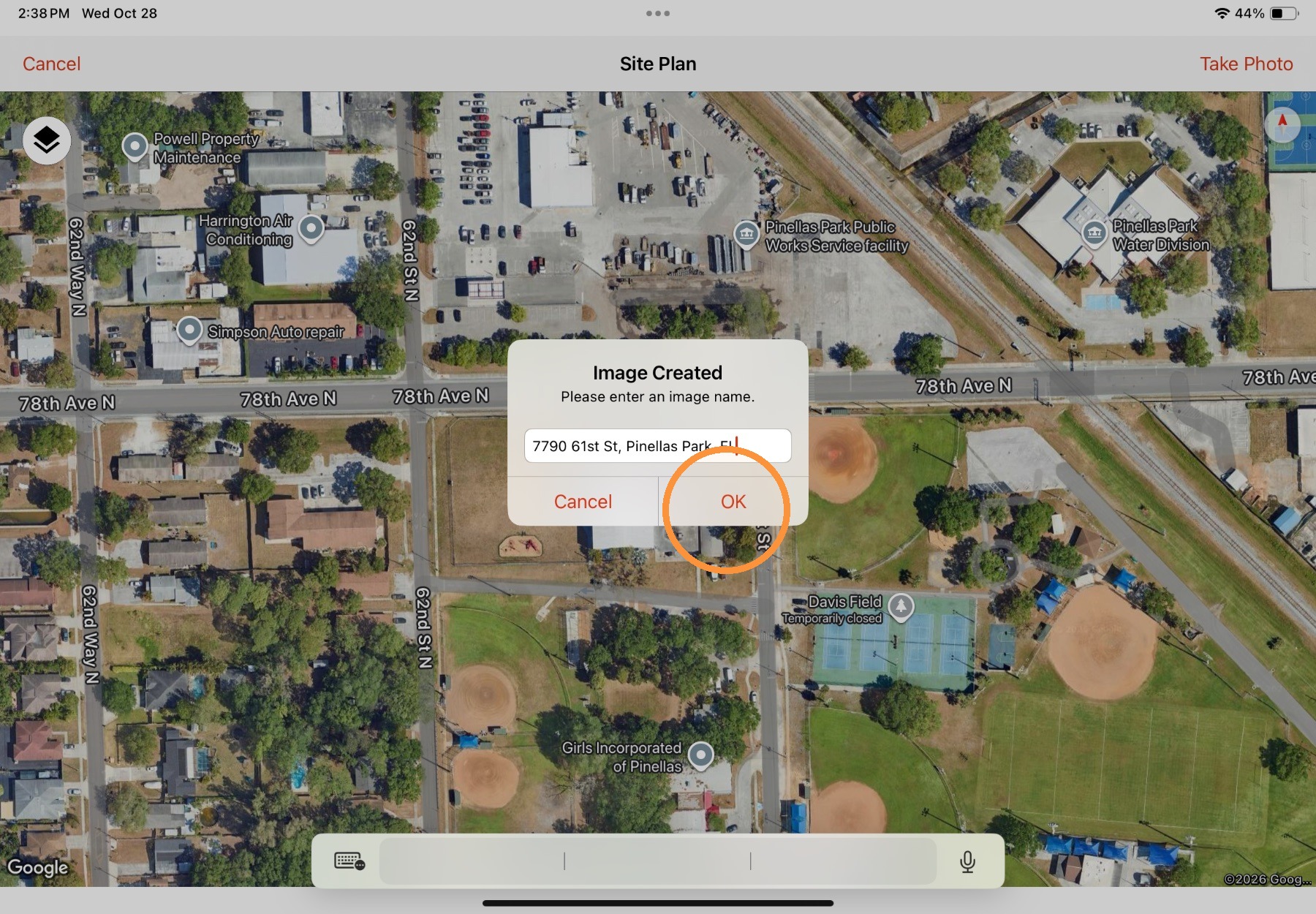
6. In the dialog that appears, update the name if necessary, and then select OK to confirm the site plan image.
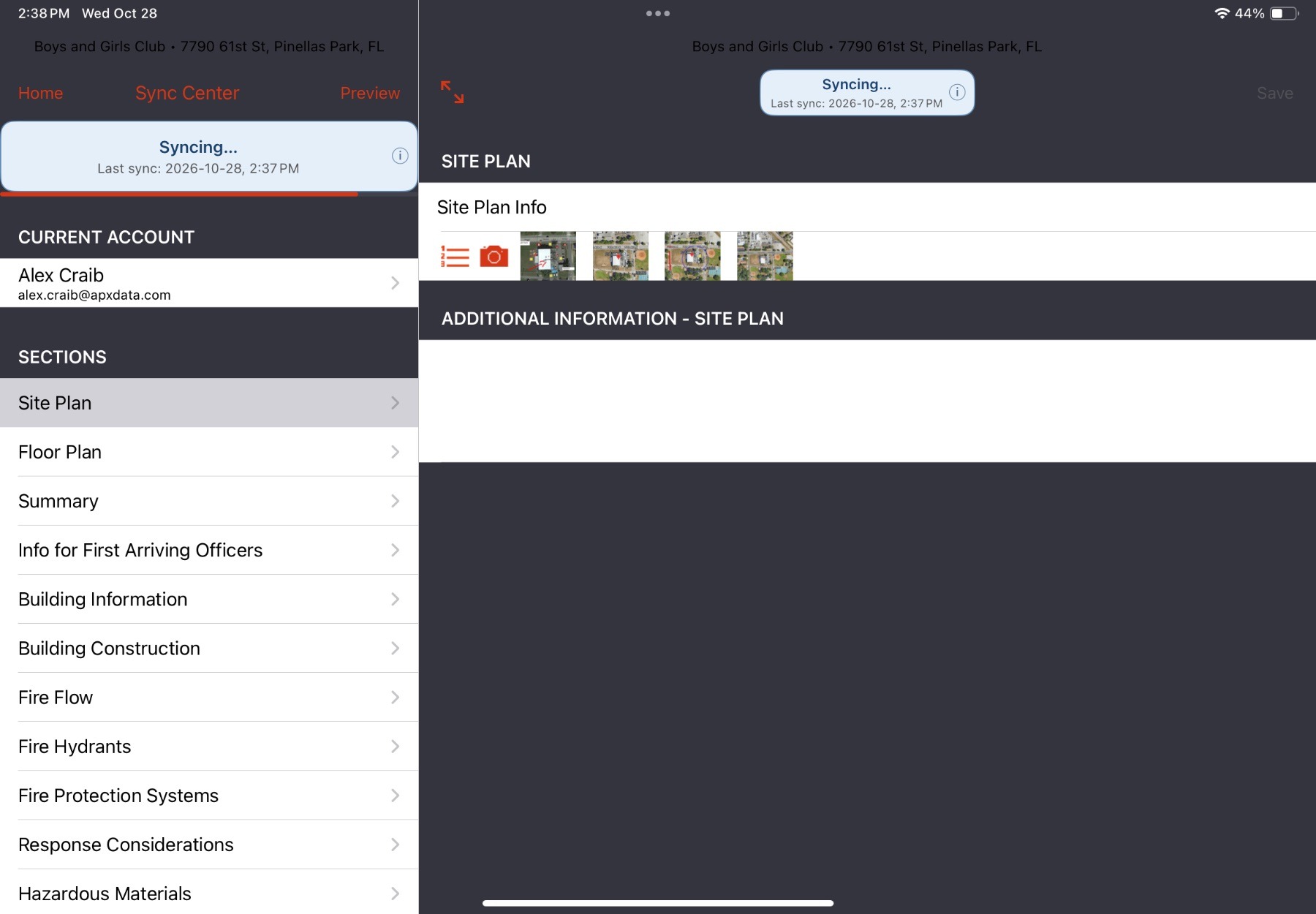
The site plan image will be saved and will appear as a thumbnail in the Site Plan field.
Comments
0 comments
Please sign in to leave a comment.