
The following article outlines how to create a new property record through the SmartCapture iOS app version 3.16.7 or newer.
- Video Tutorial
- Steps
- PDF Version
1. Video Tutorial
2. Steps
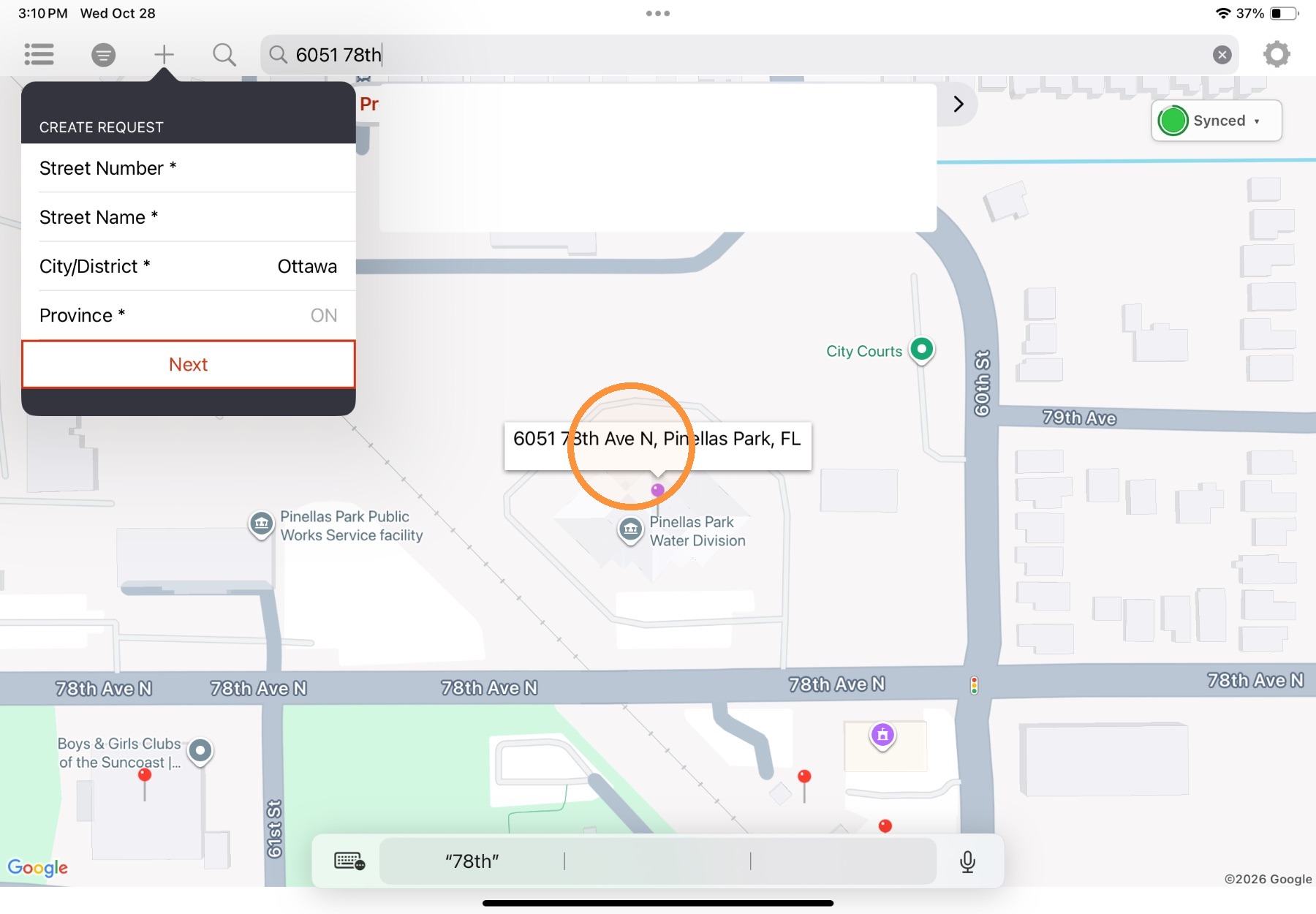
1. To select a new location to create a property record, complete one of the following:
- Tap and hold on a location on the map.
- Select New+ (fill out the address information, then select Next)
- Use the Search bar
A purple pin will appear on the map. Tap the purple pin, and then the label that appears, to present the occupancy creation window.
Note: To create a new occupancy from the List View, select +New.
2. In the dialog box that opens, enter a Building Name, edit the address information if required, and enter any additional details.
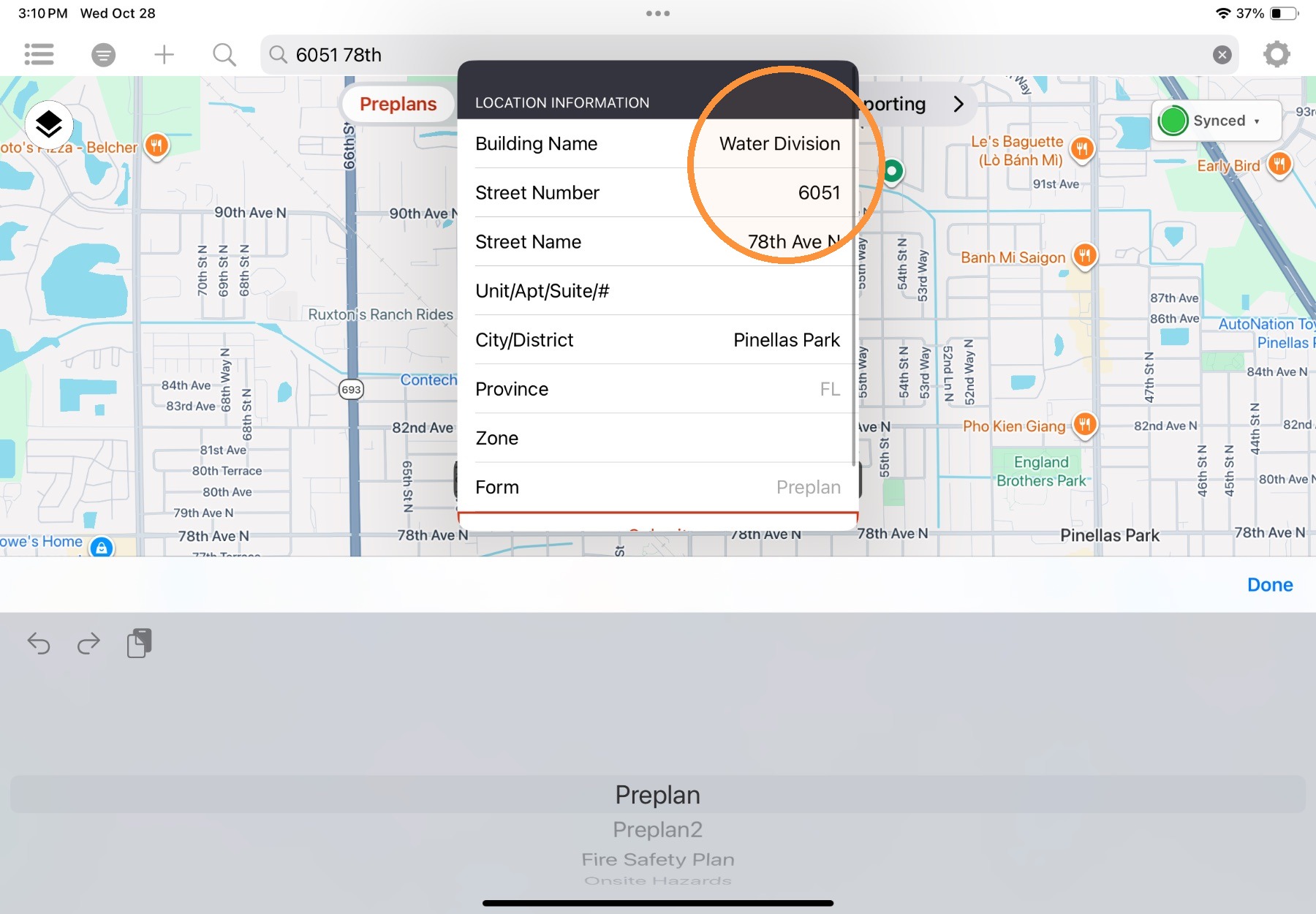
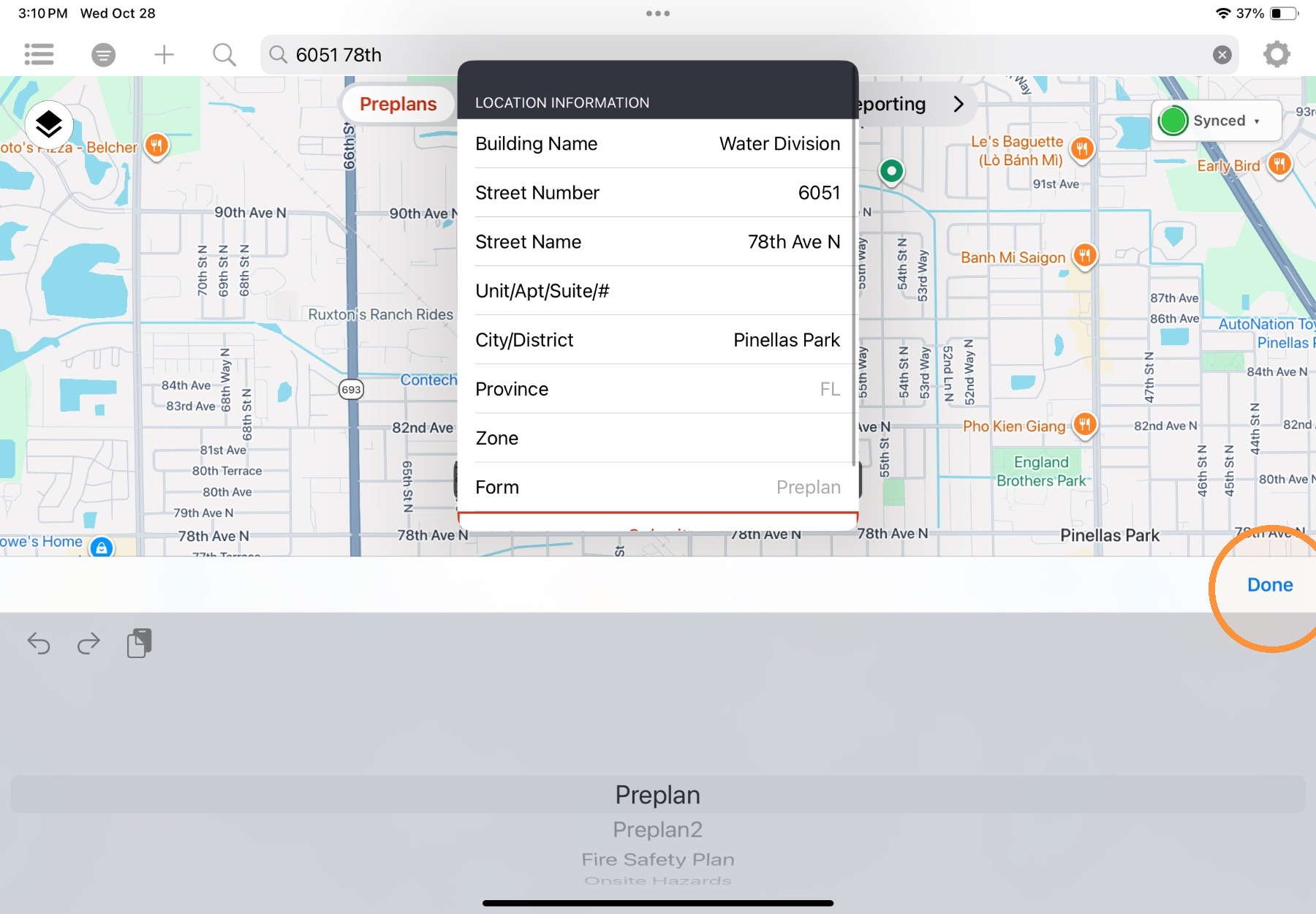
3. If multiple forms exist for the current module, use the Form selector to select a form to use, then select Done.
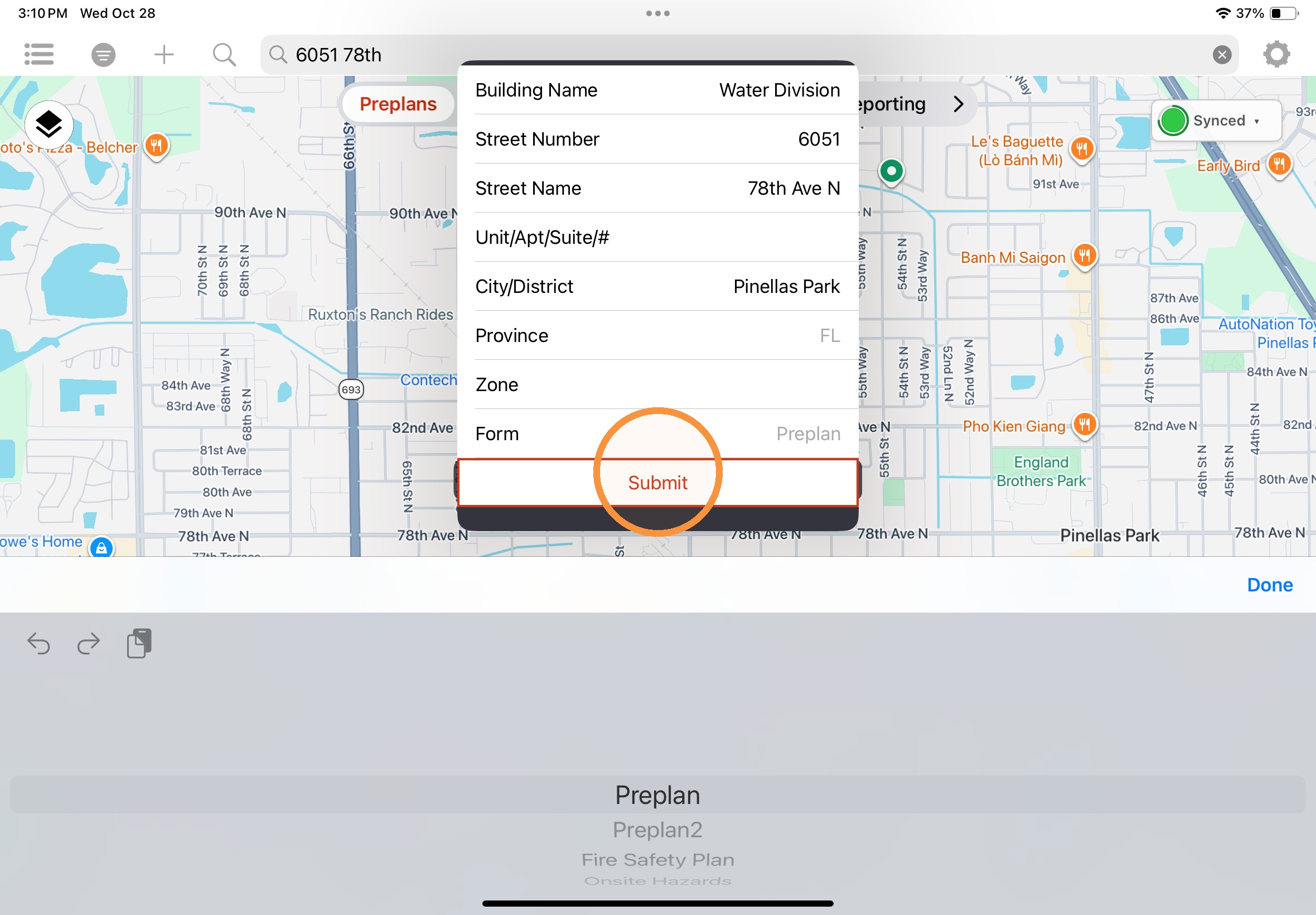
4. Select Submit to submit the new property record.
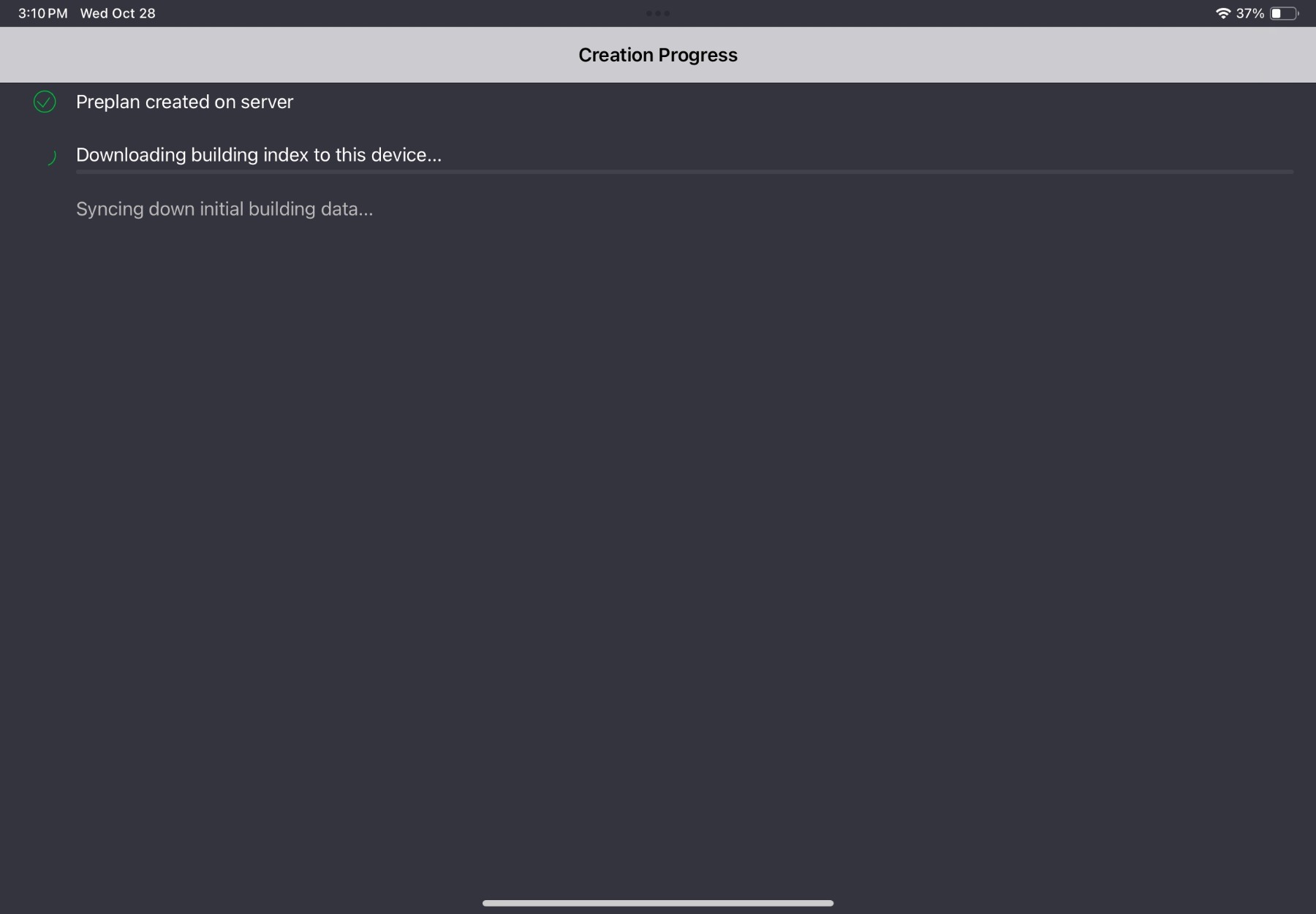
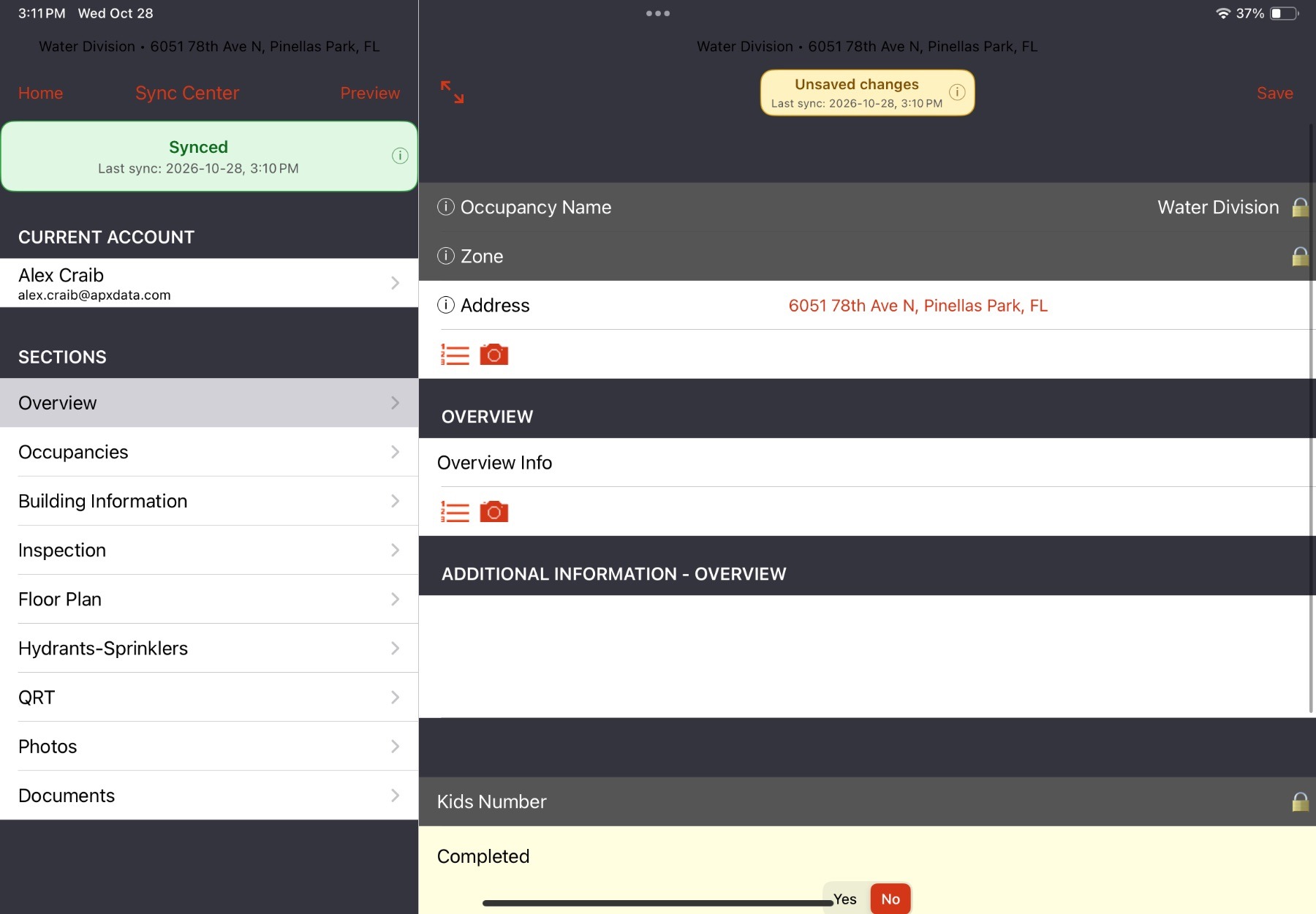
The app will provide feedback during creation, and then the new record will open.
Comments
0 comments
Please sign in to leave a comment.