
The following article outlines how to add a floor plan through the SmartCapture iOS app version 3.16.7 or newer.
- Video Tutorial
- Steps
- PDF Version
1. Video Tutorial
2. Steps
1. Tap here.
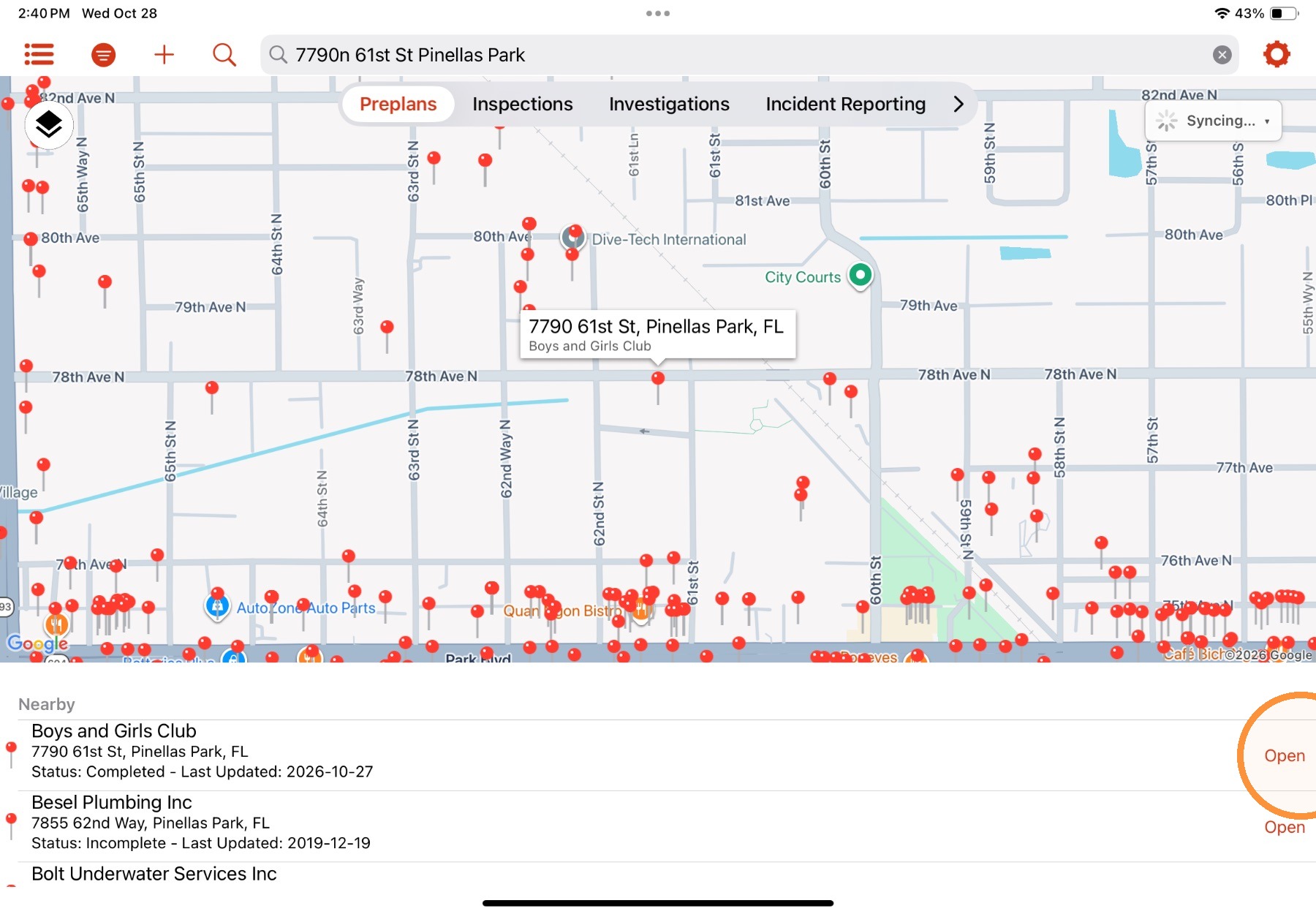
2. Select the section of the preplan with the floor plan field. In this example, it is in the Floor Plan section.
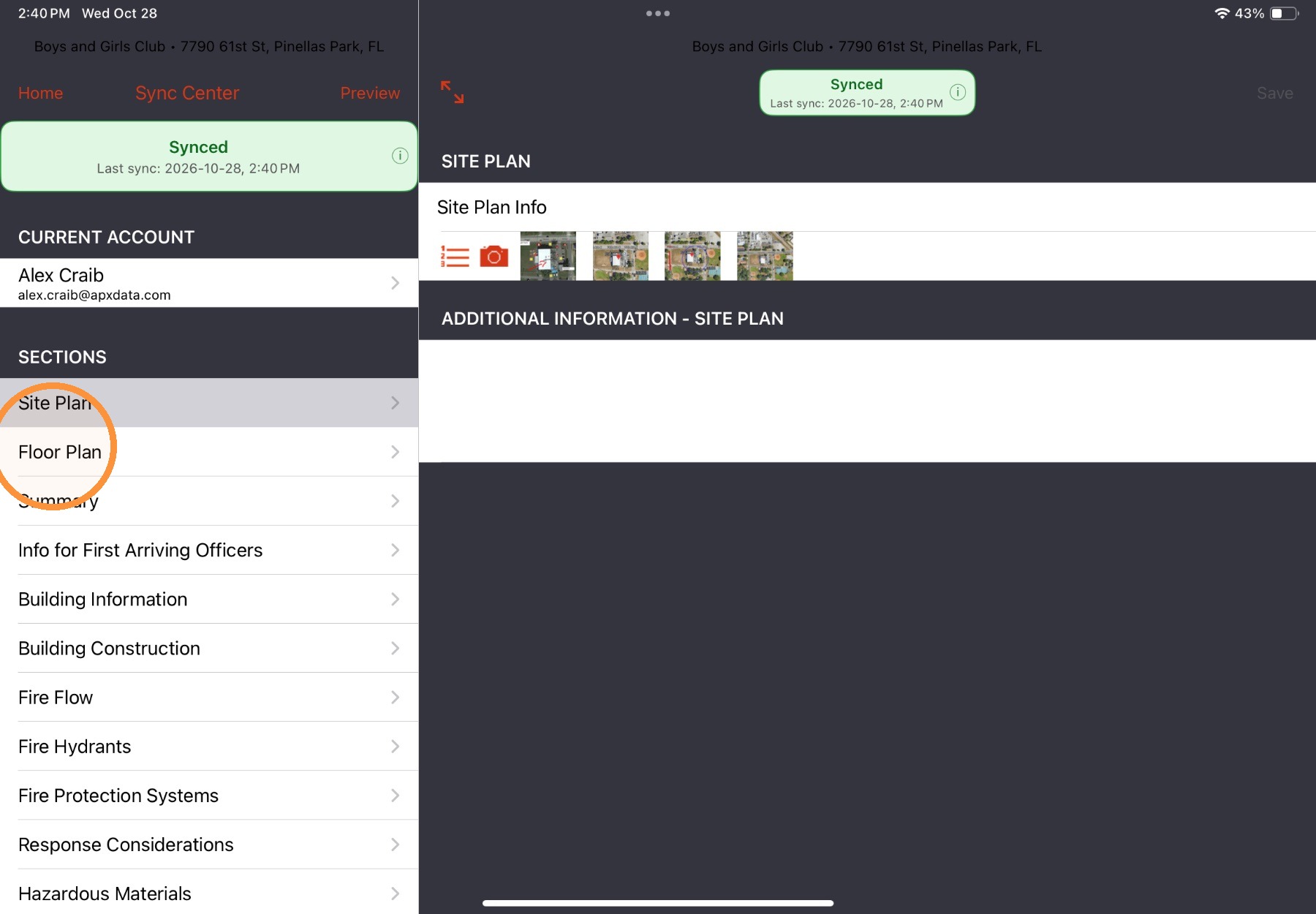
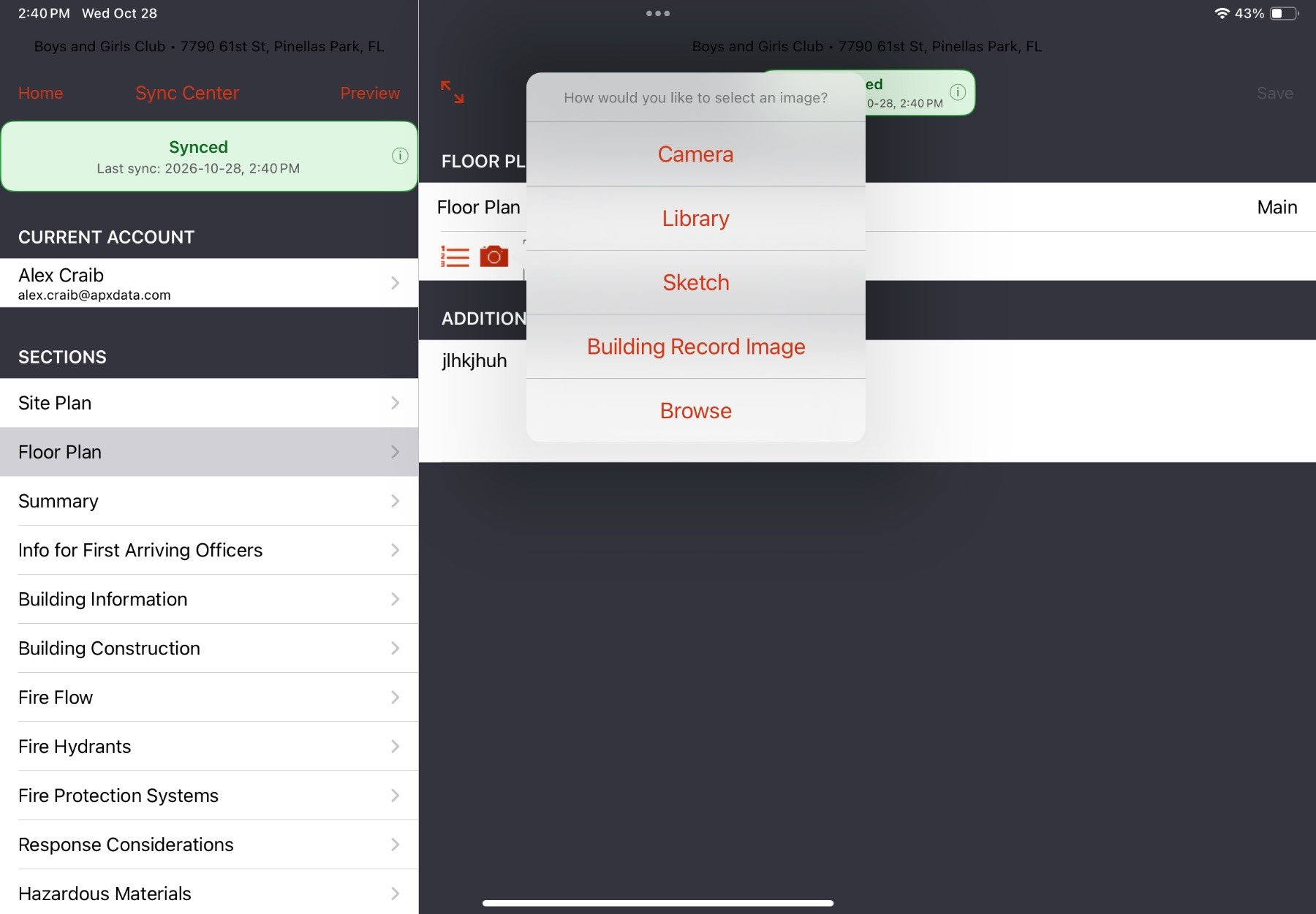
3. Select the Camera button. Depending on how the floor plan is being added, complete the following:
- To take a picture of a floor plan, select Camera.
- To upload an existing floor plan image file, select Library or Browse.
- To sketch a floor plan within the app, select Sketch.
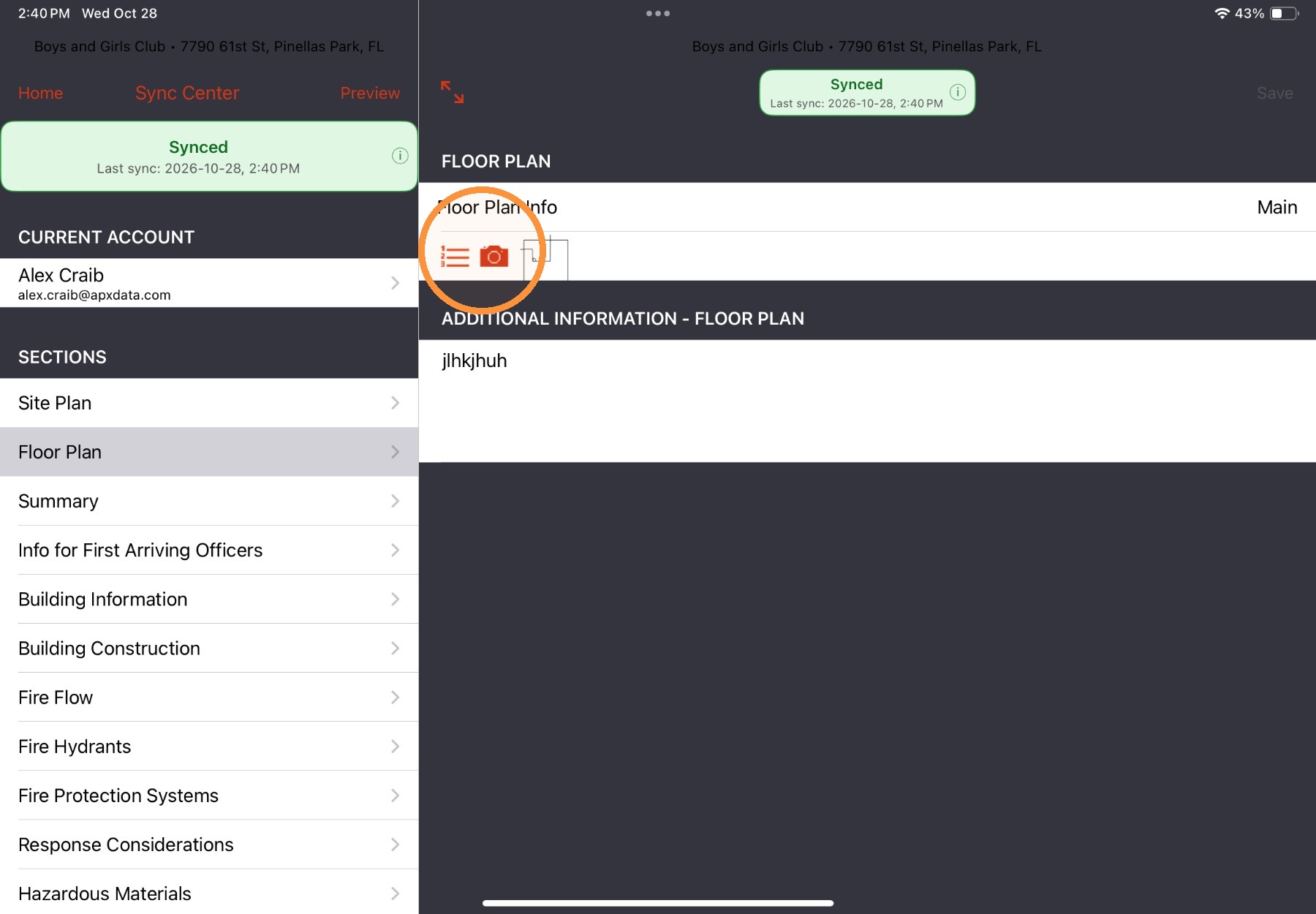
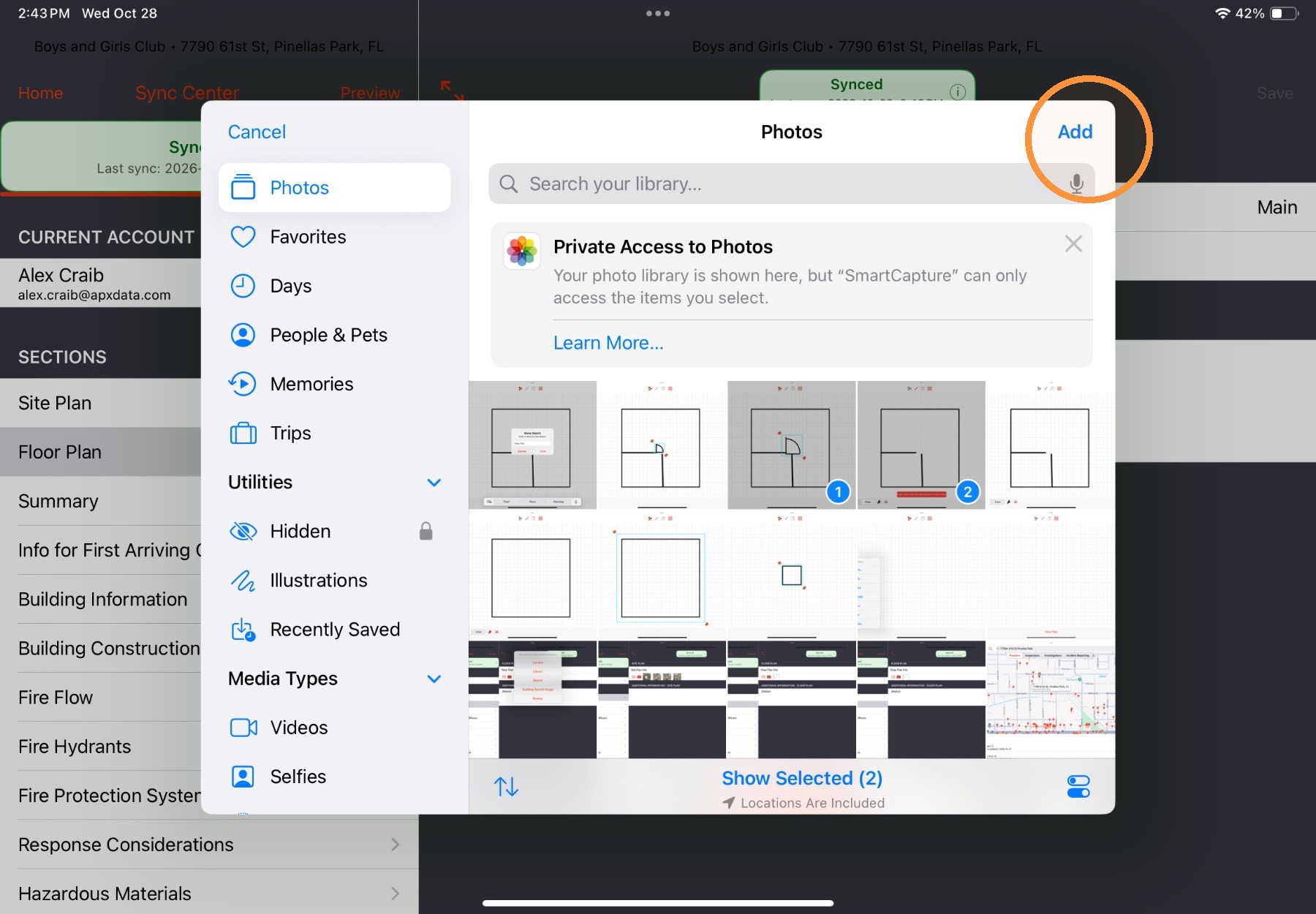
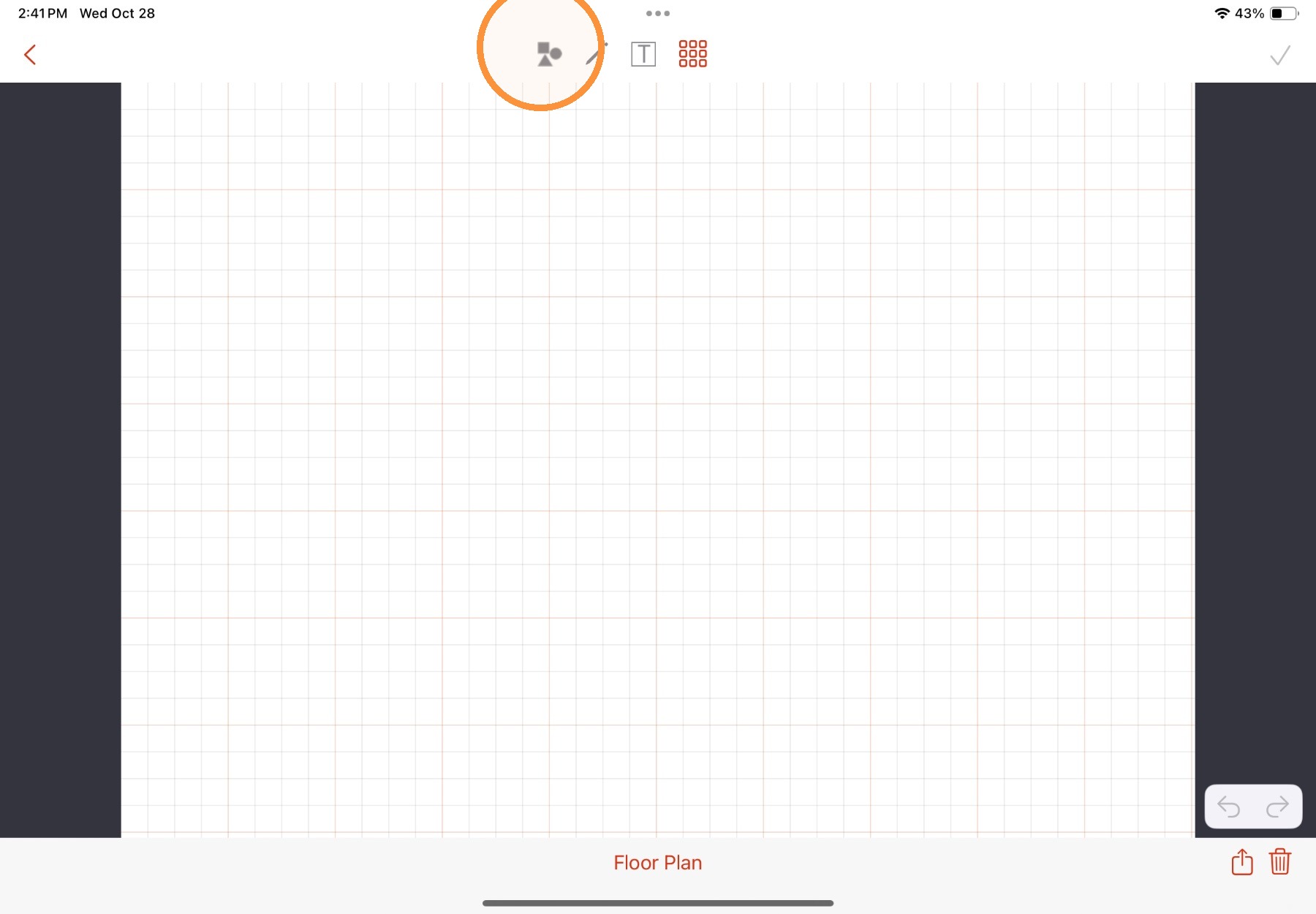
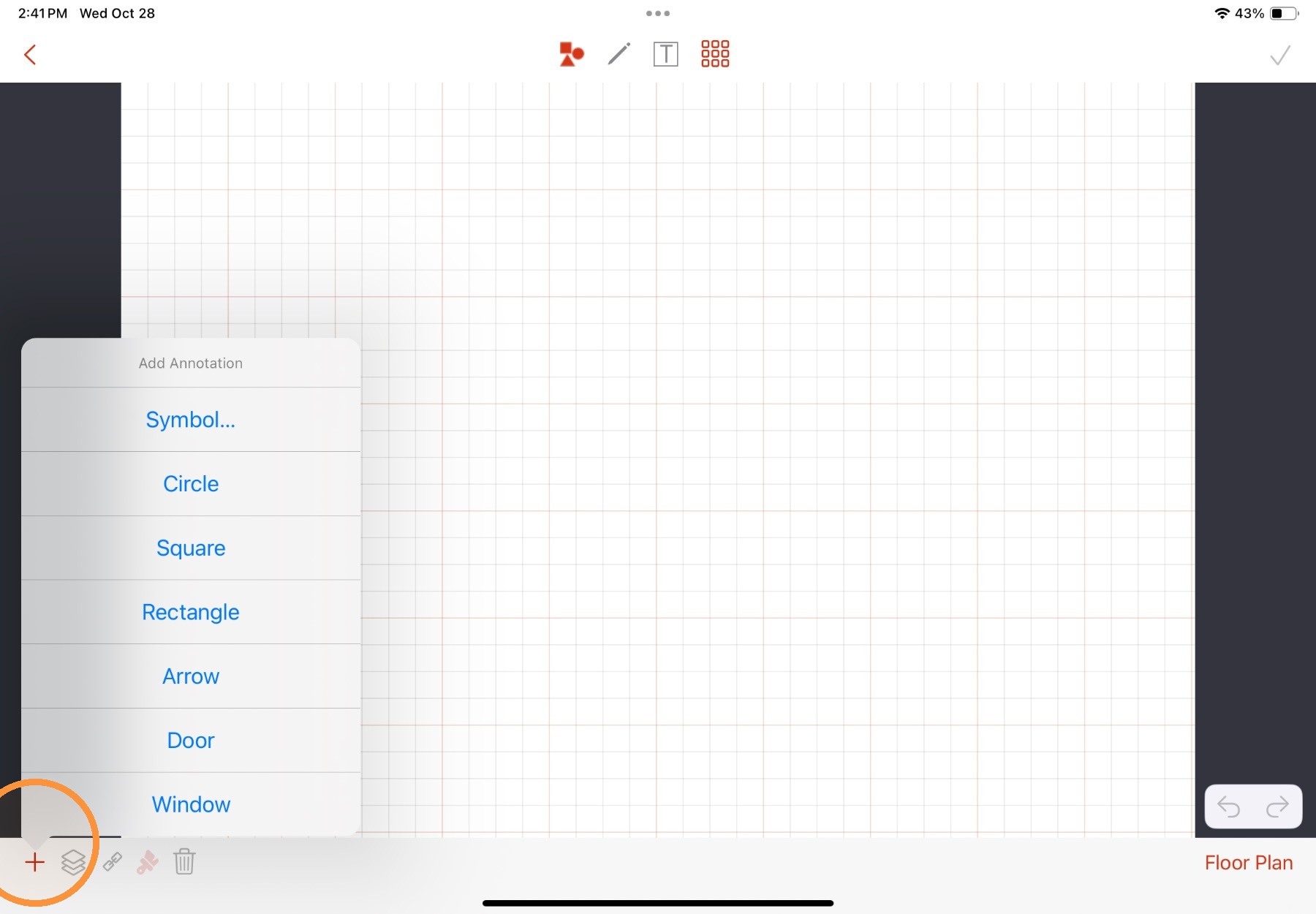
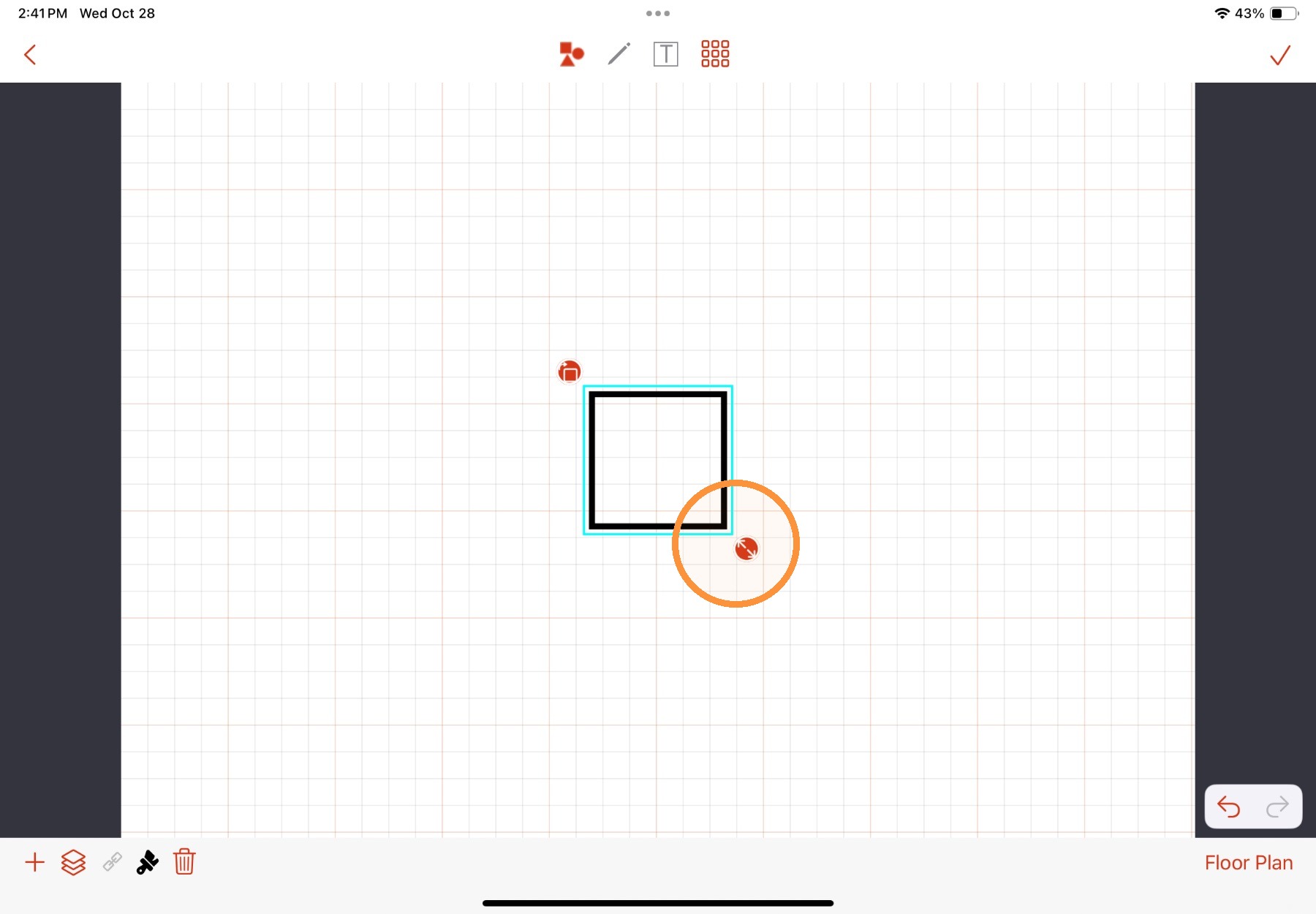
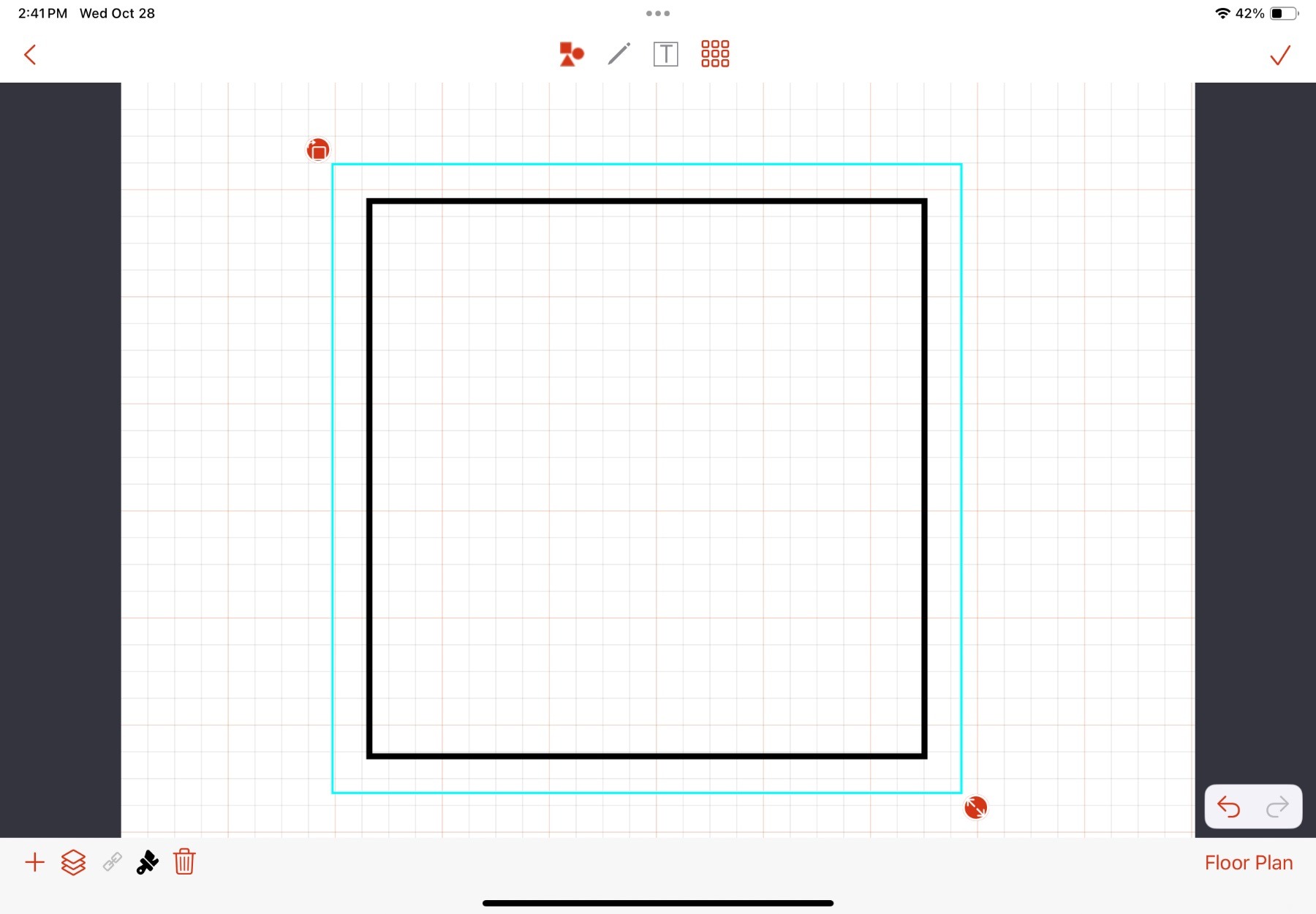
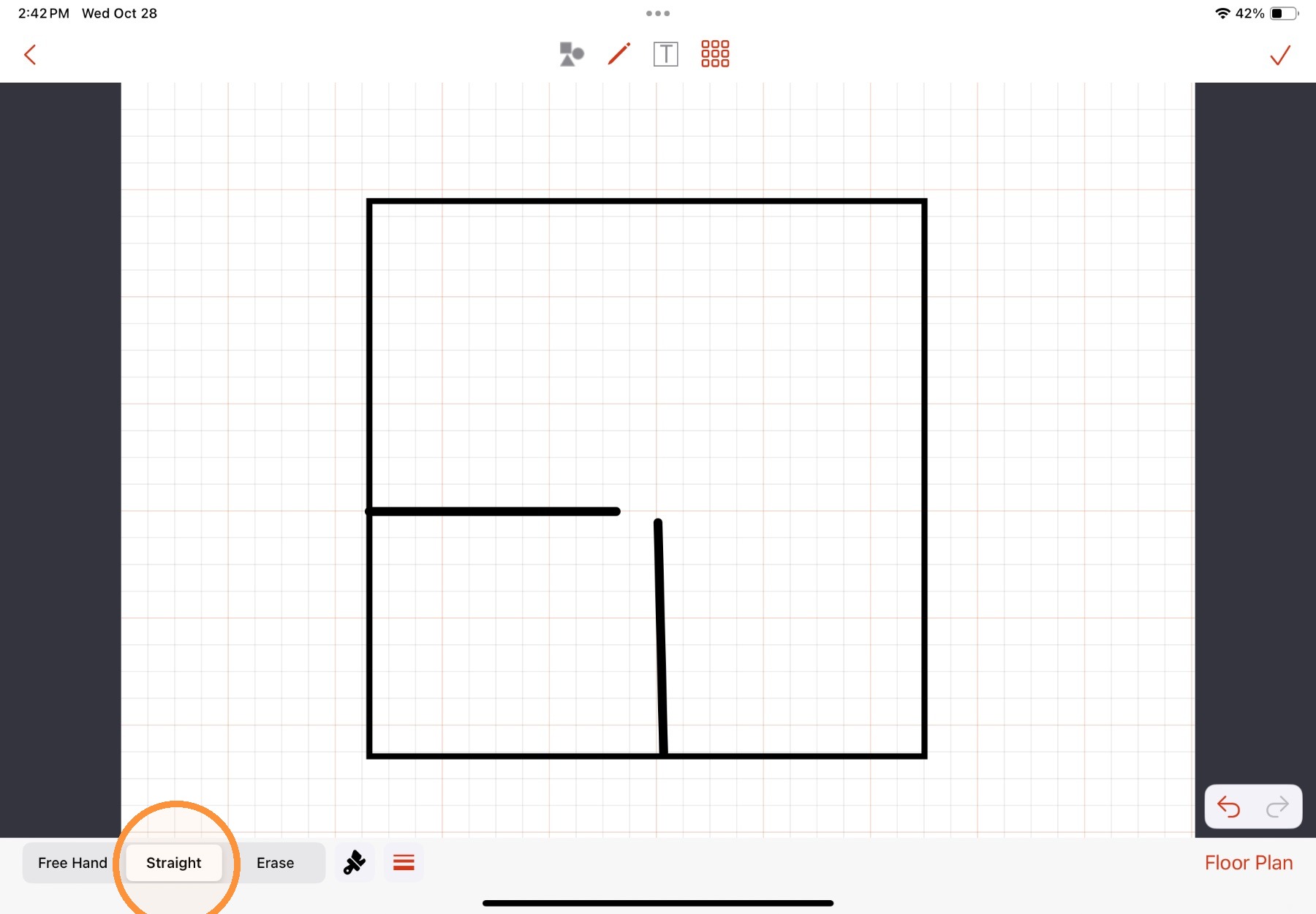
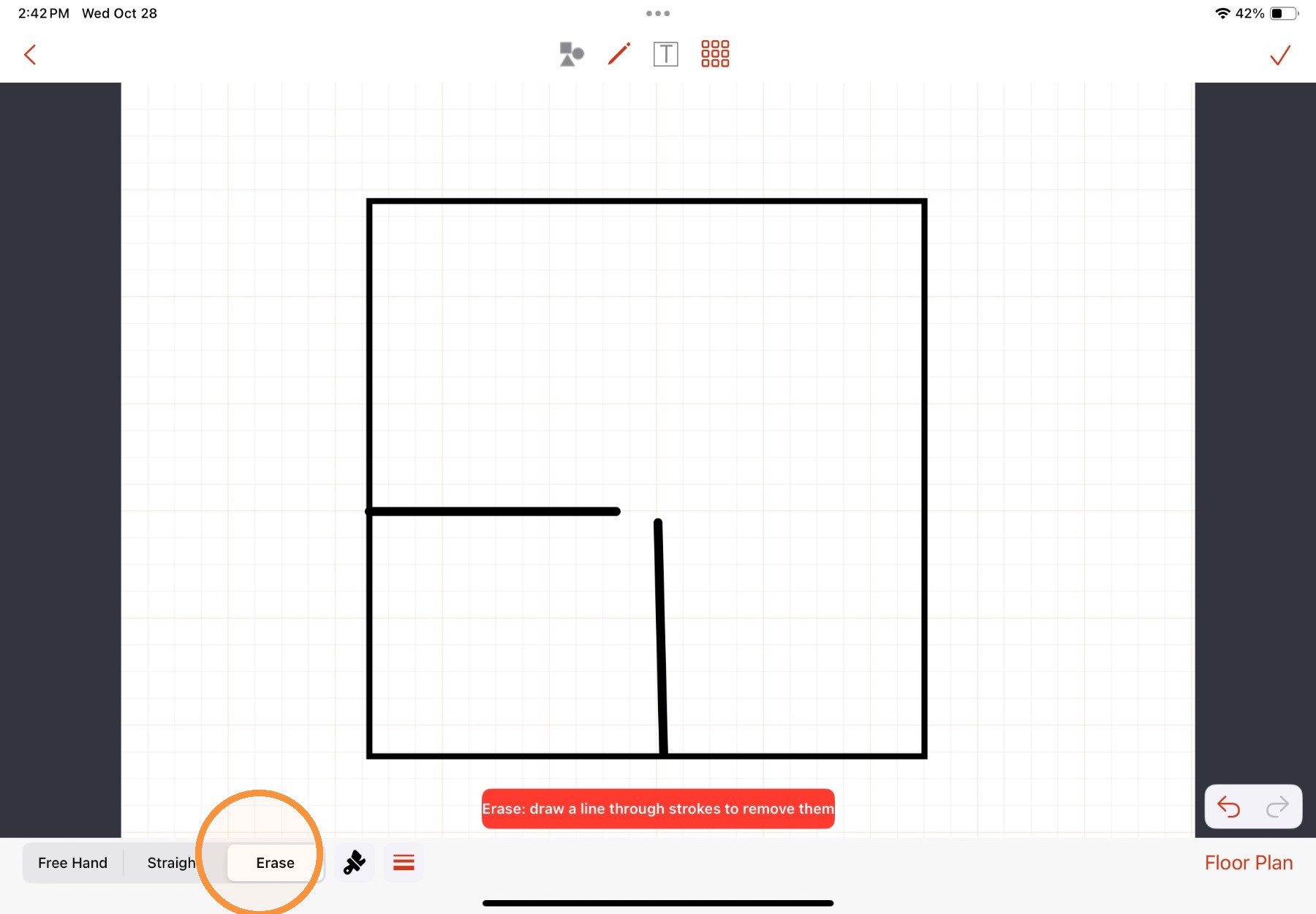
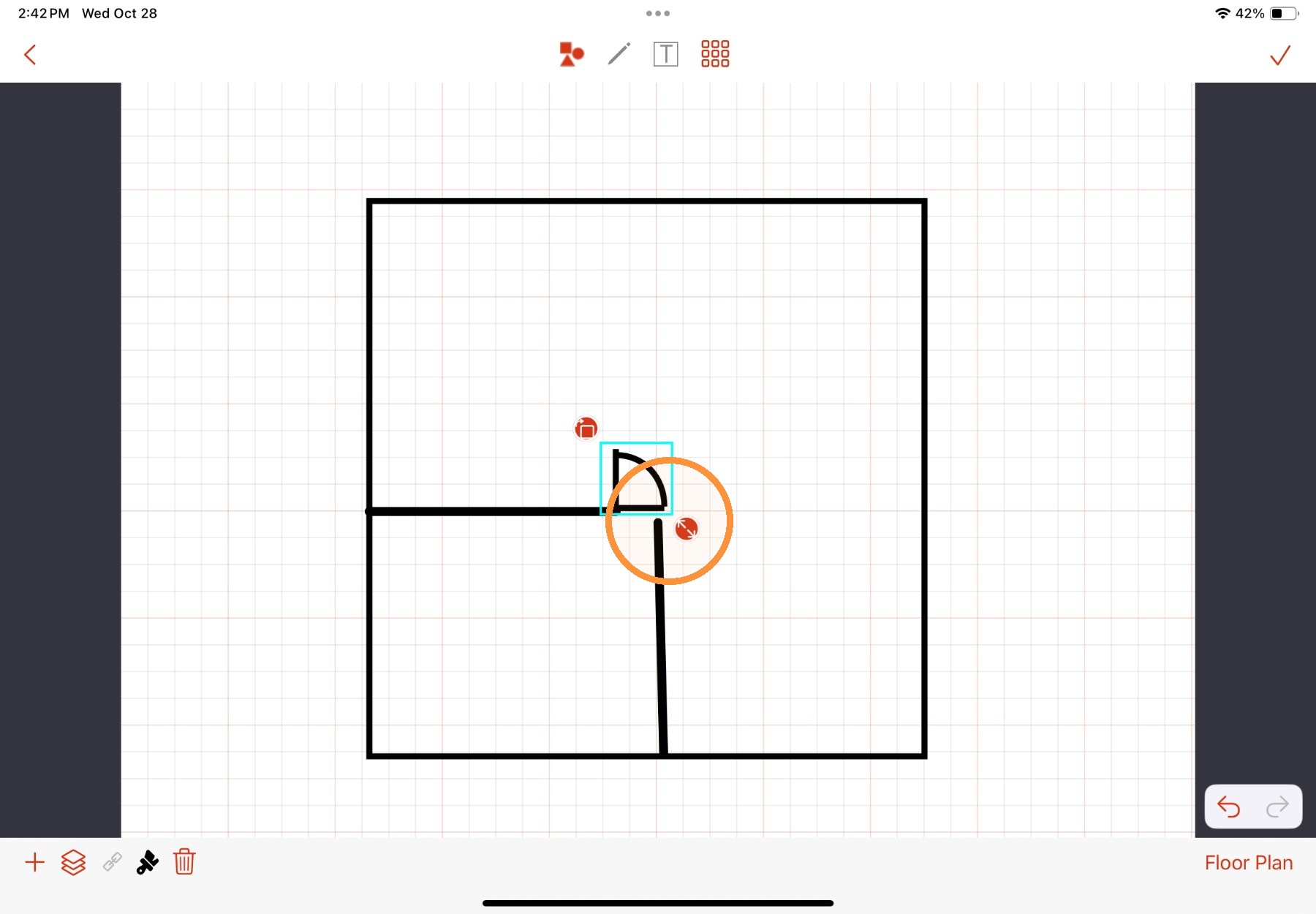
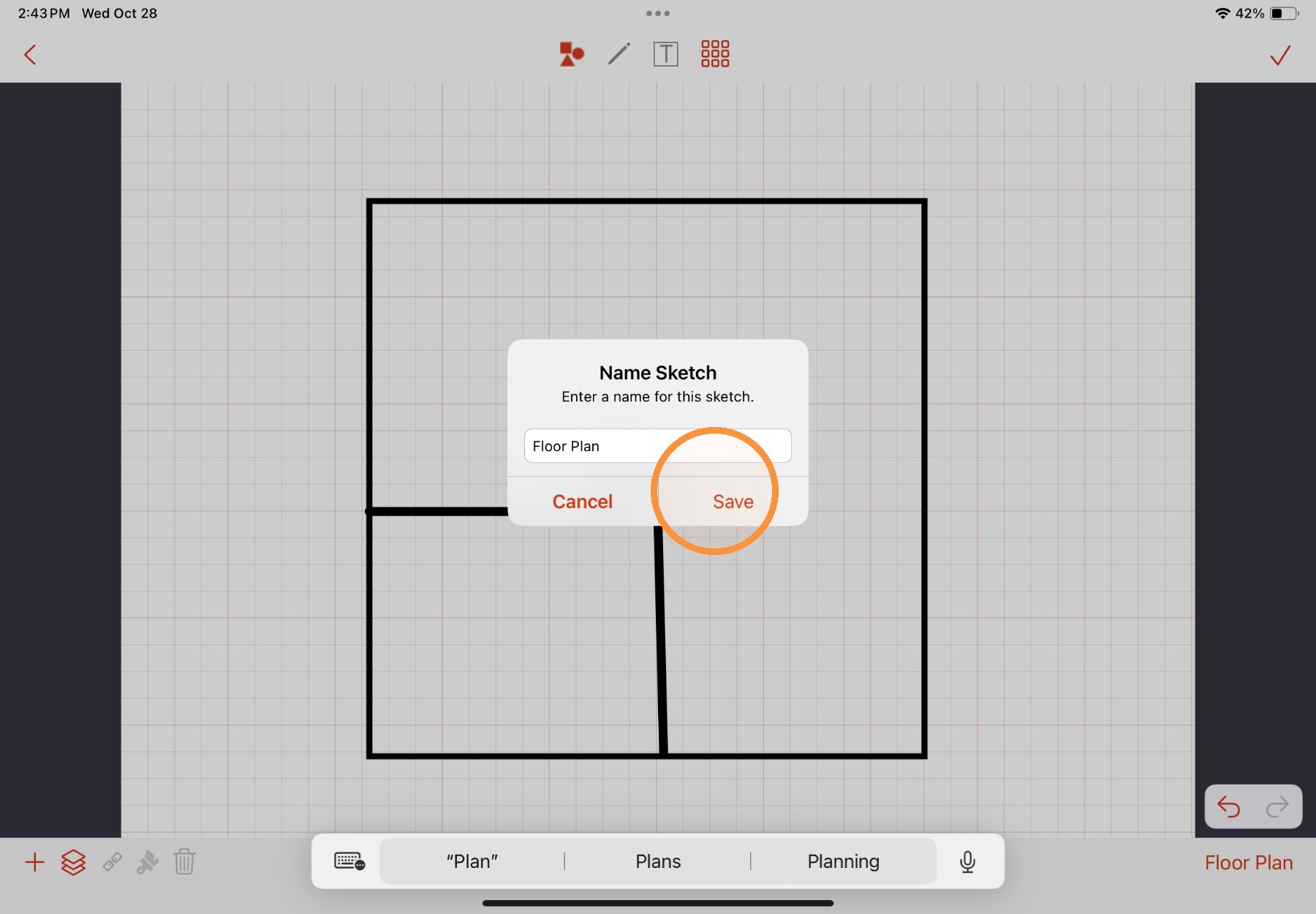
4. If Sketch is selected, the user will be presented a blank canvas with a grid that can be toggled on and off. Annotations can be added to this blank canvas, including symbols, shapes, and lines.
For more information on using these annotation tools, see SmartCapture iOS - Adding Annotations.
5. Select Save to save the new floor plan image.
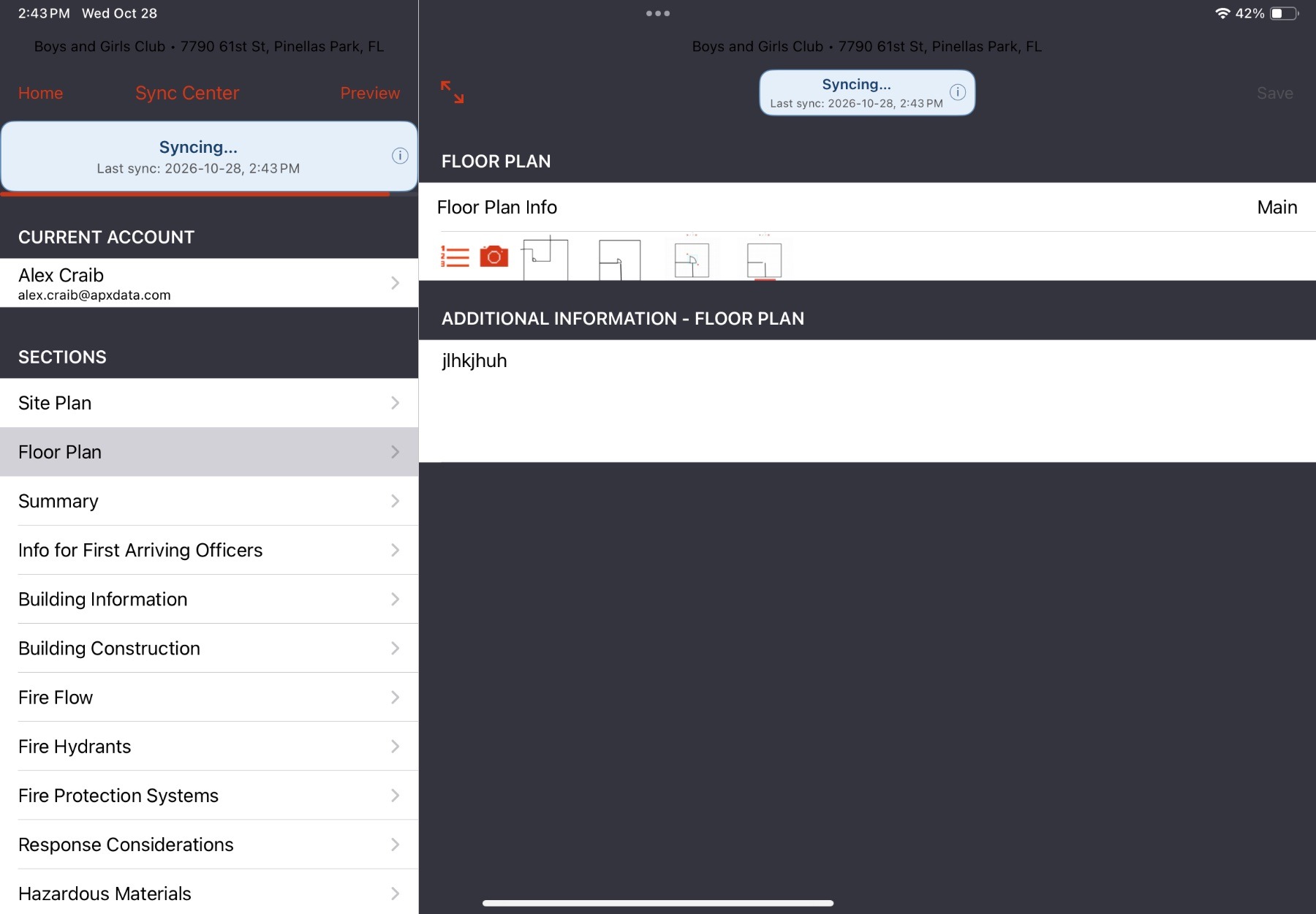
6. Floor plan images will appear as thumbnails in the Floor Plan field.
Comments
0 comments
Please sign in to leave a comment.