
The following article outlines how to edit a preplan through the SmartCapture iOS app version 3.16.7 or newer.
- Video Tutorial
- Steps
- PDF Version
1. Video Tutorial
2. Steps
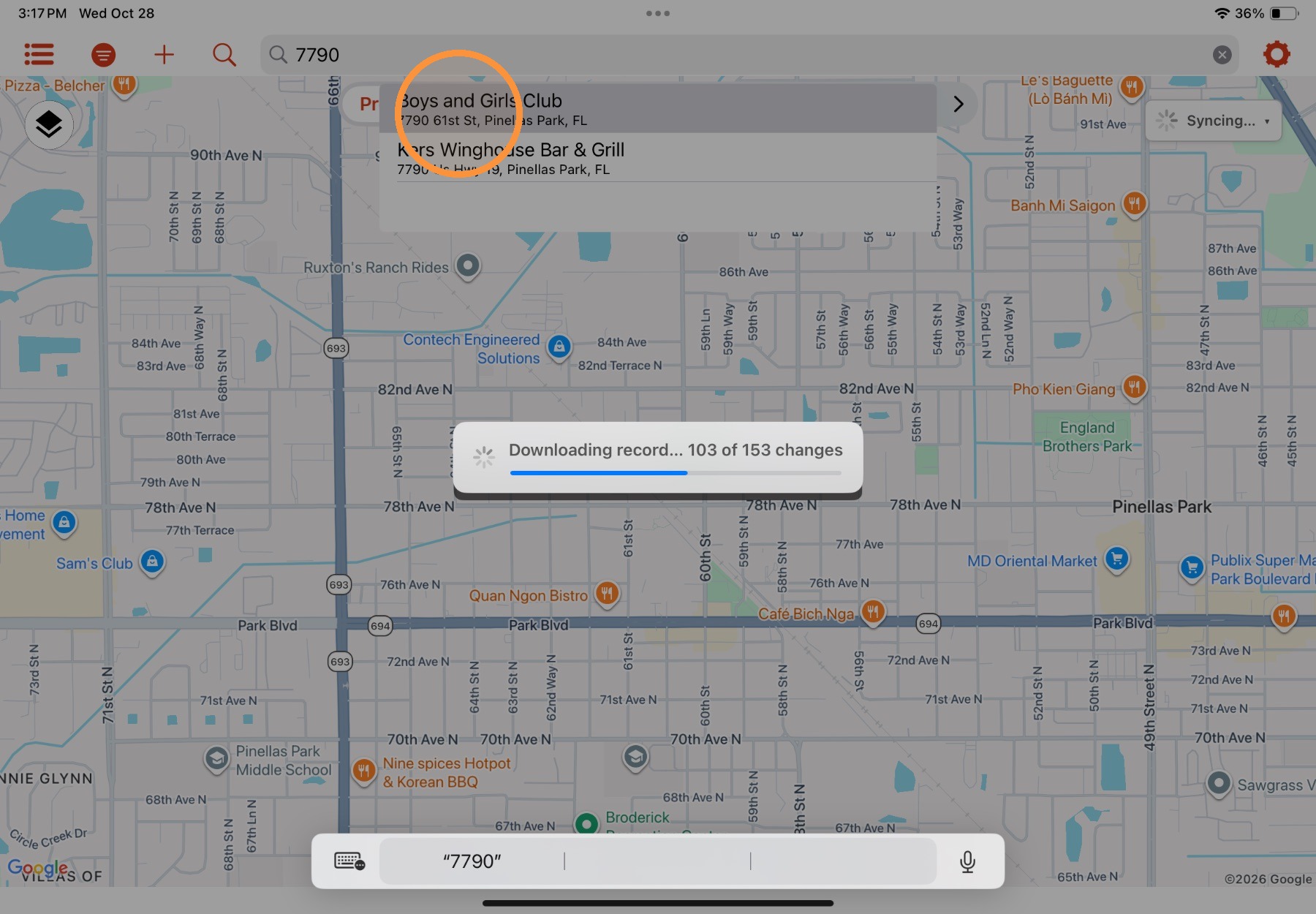
1. From the Home View, find and select a preplan to open it.
Property records can be opened by finding them on the map or list, or from a search result.
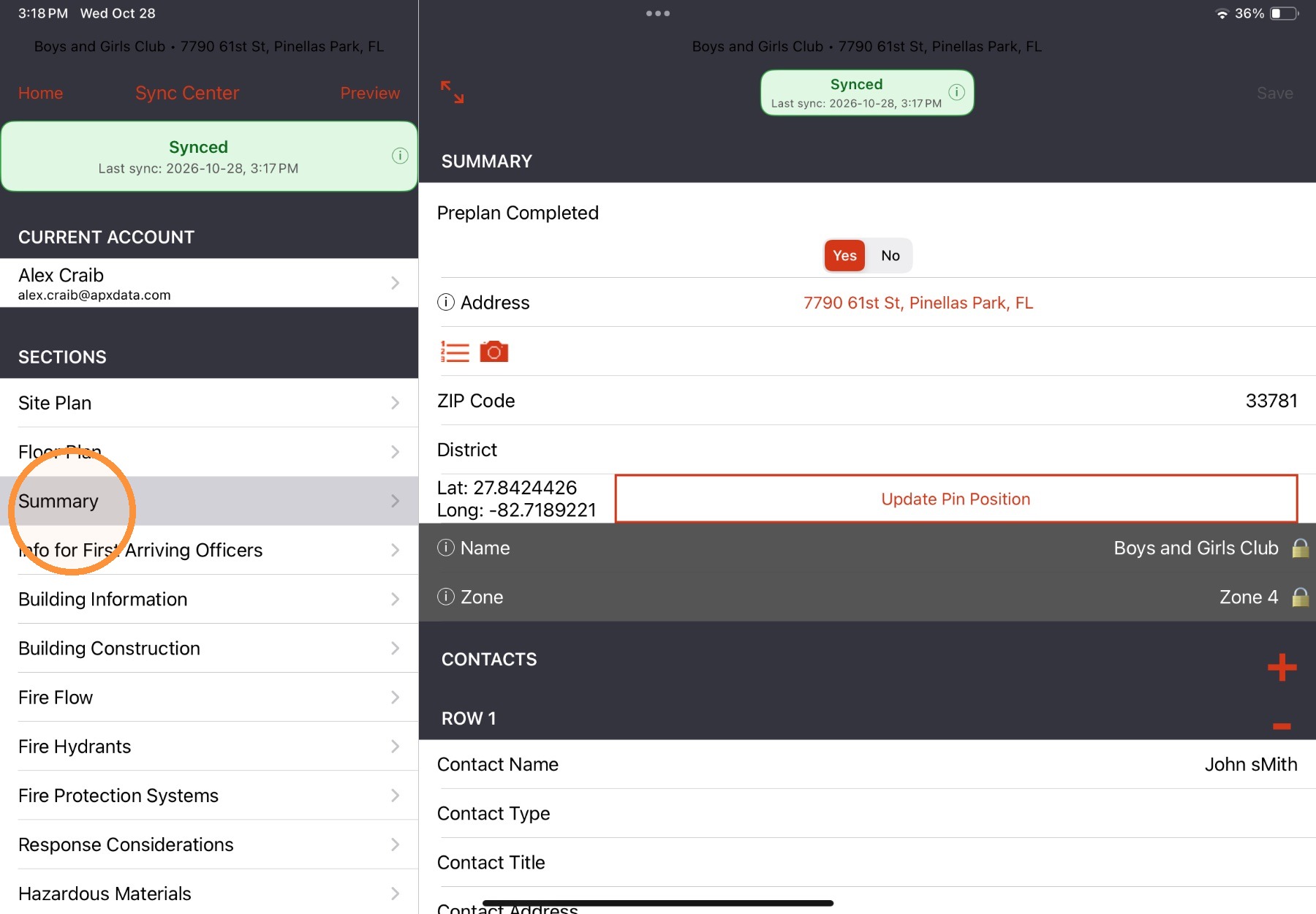
2. The selected form will be presented in a split screen view (menu and current section) on iPad, or full screen on iPhone. Select a section to navigation to that section.
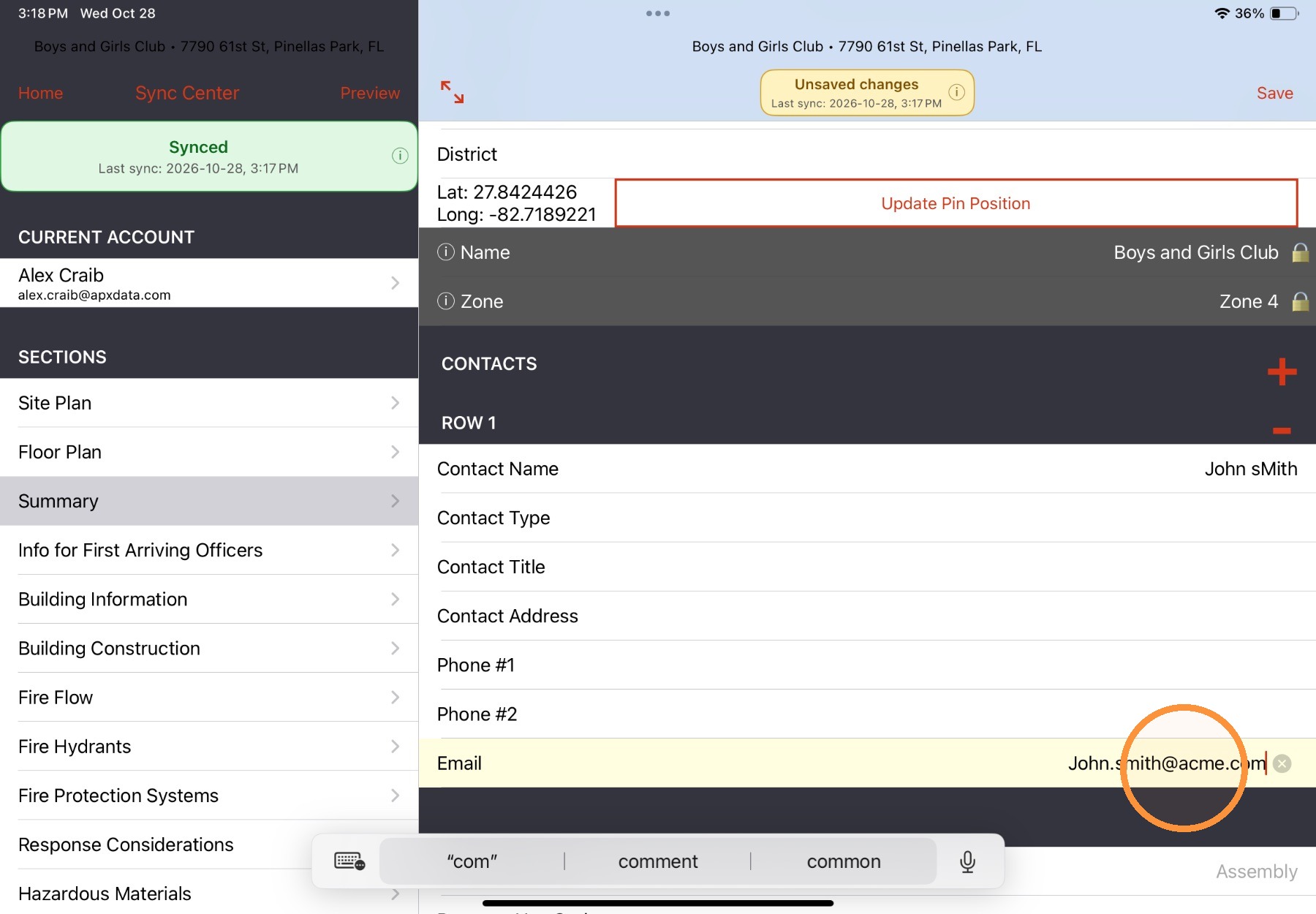
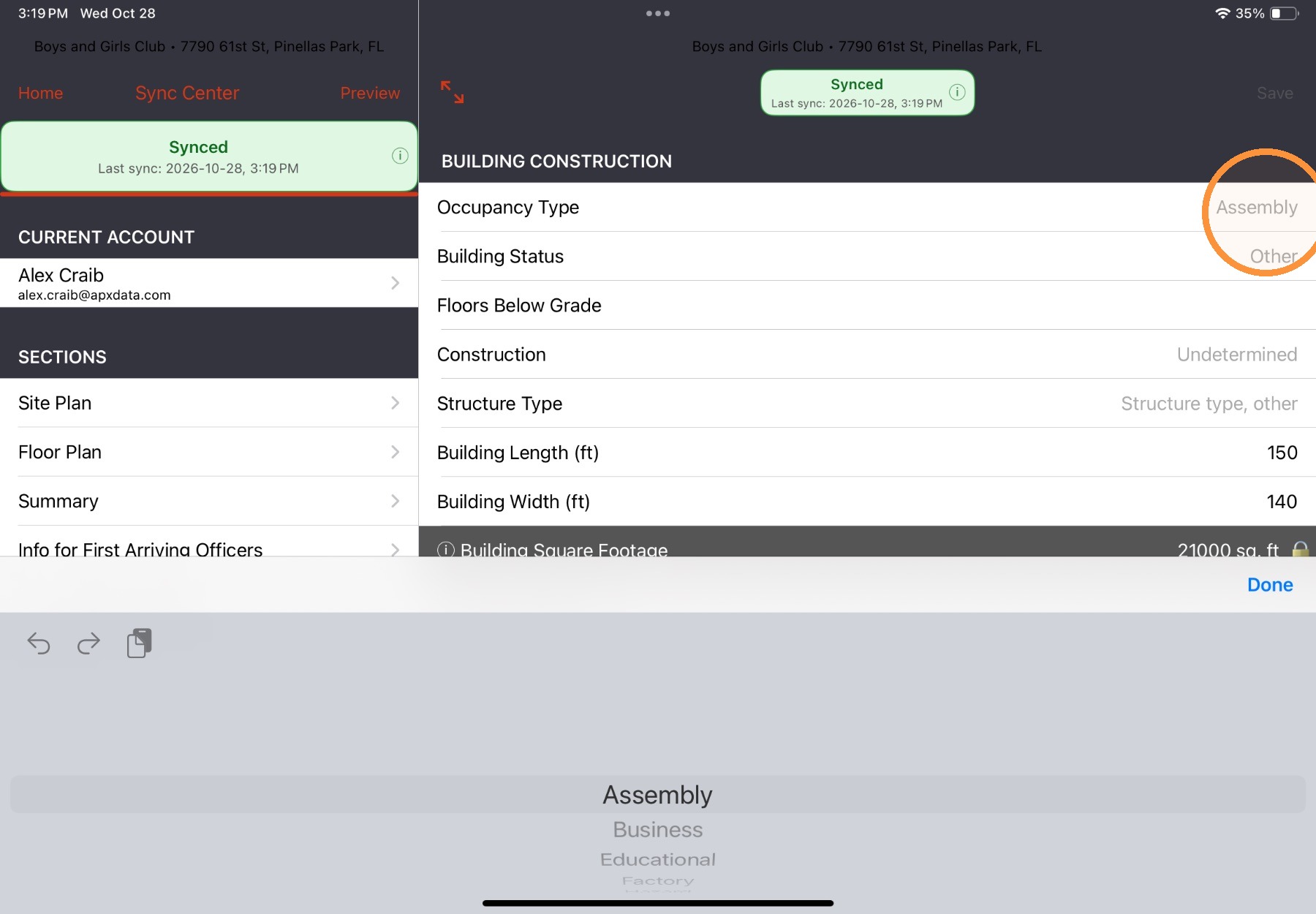
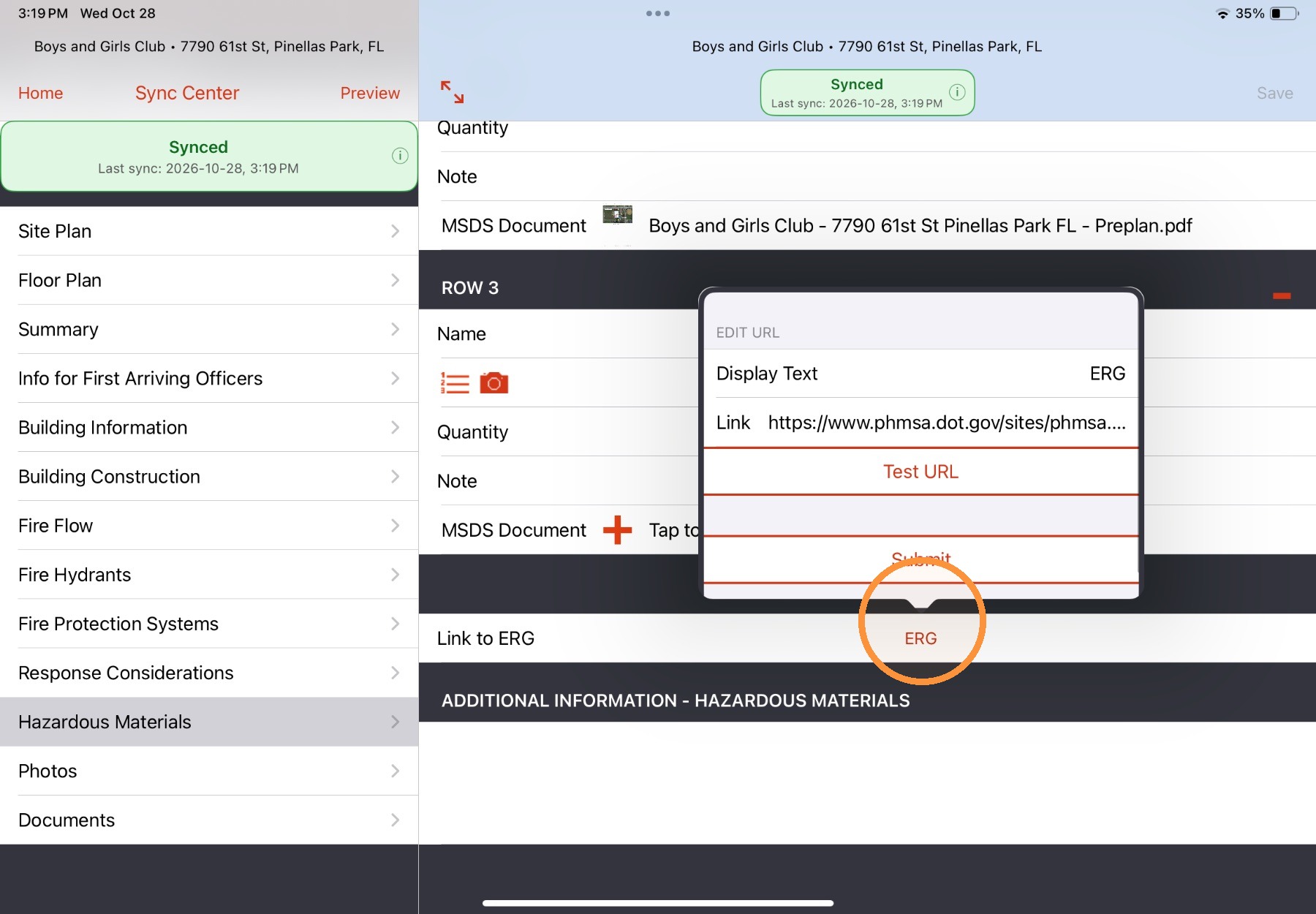
3. Information can be added to a preplan through many different fields types, including (but not limited to) text fields, dropdown fields, multi-selects, quick-choice buttons, or URL link fields.
Tap into one of these fields to add information to the field.
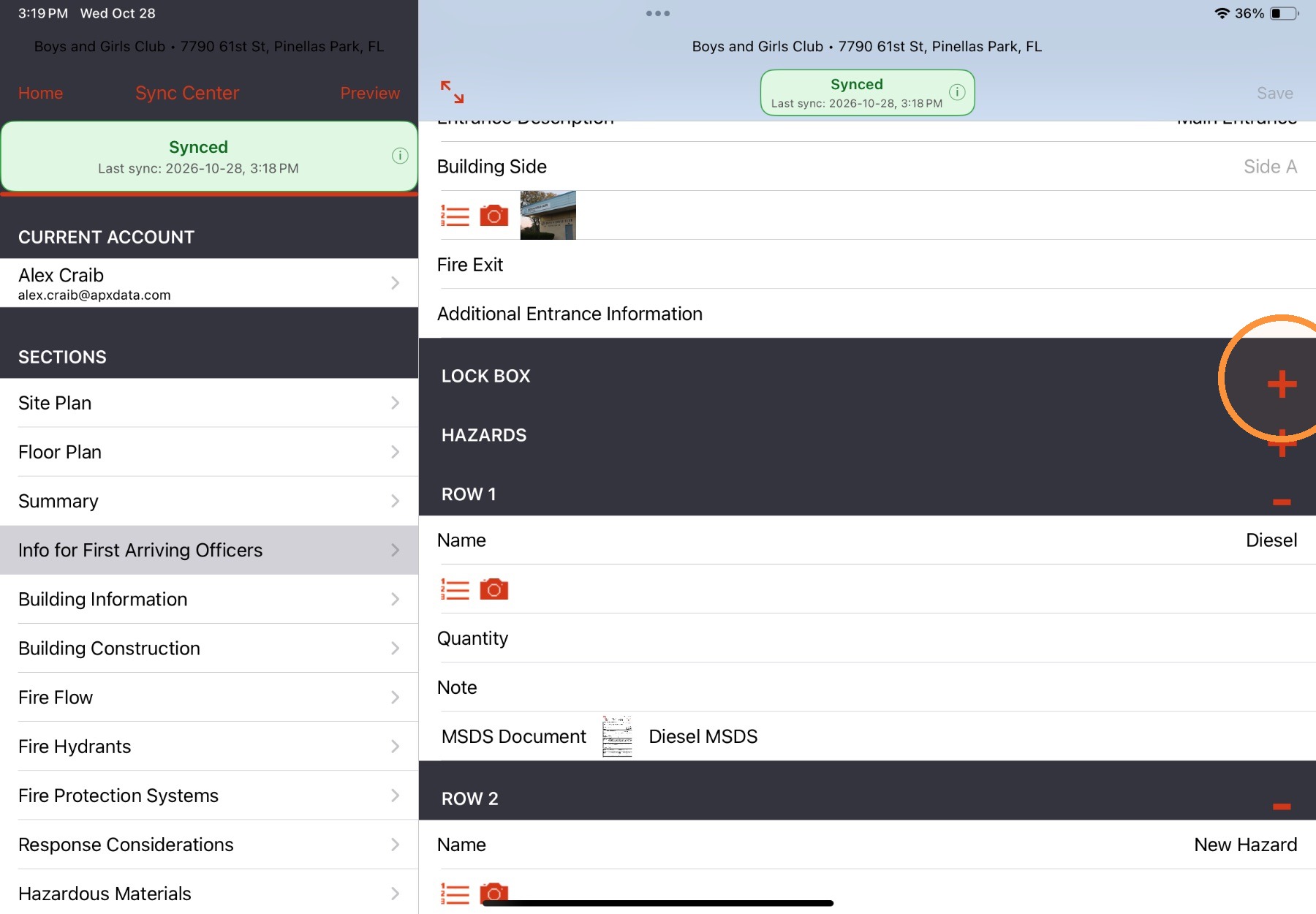
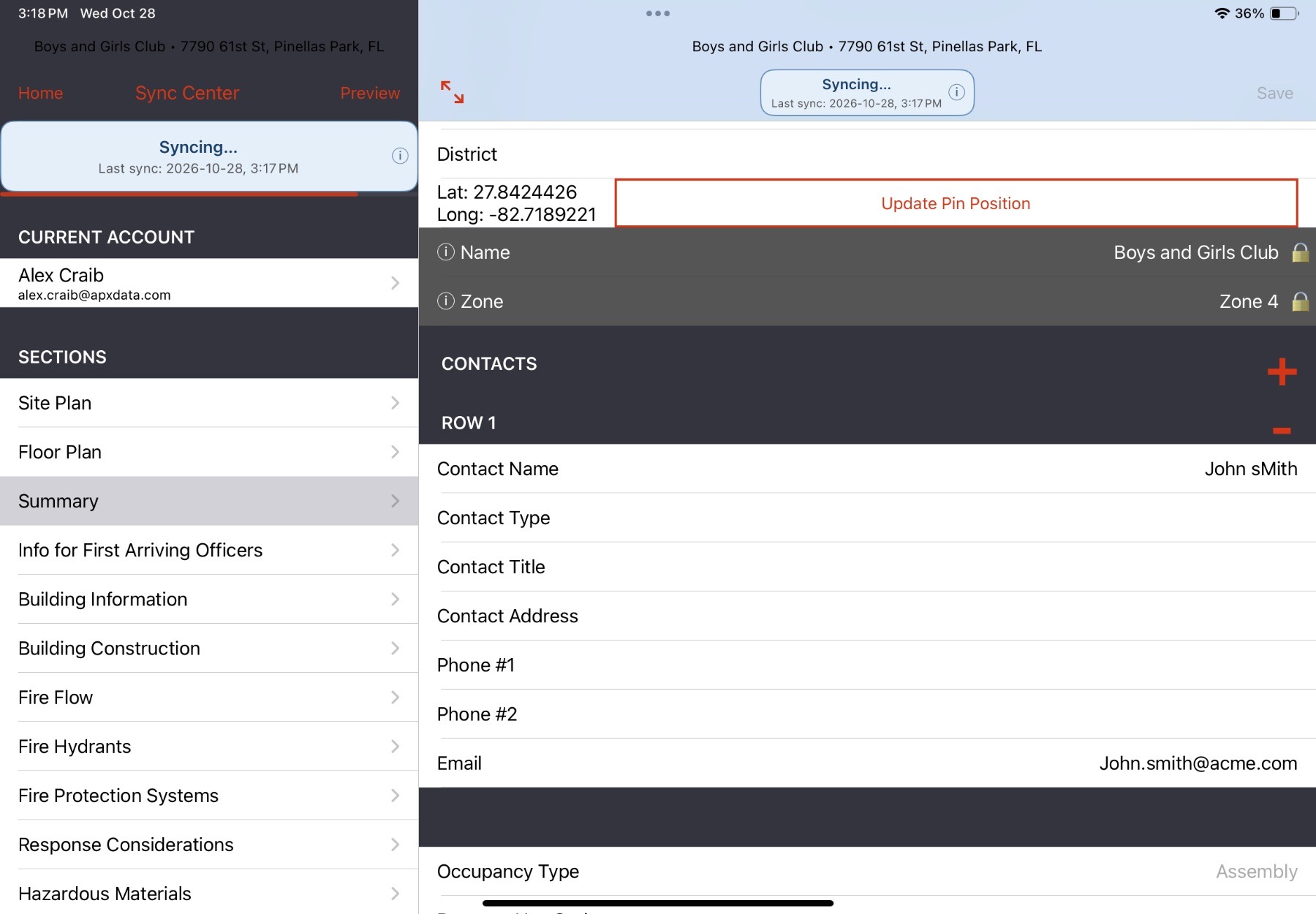
4. Tables allow for multiple entries of the same type (e.g. Contacts). Select the + button to drop one or more rows in a table.
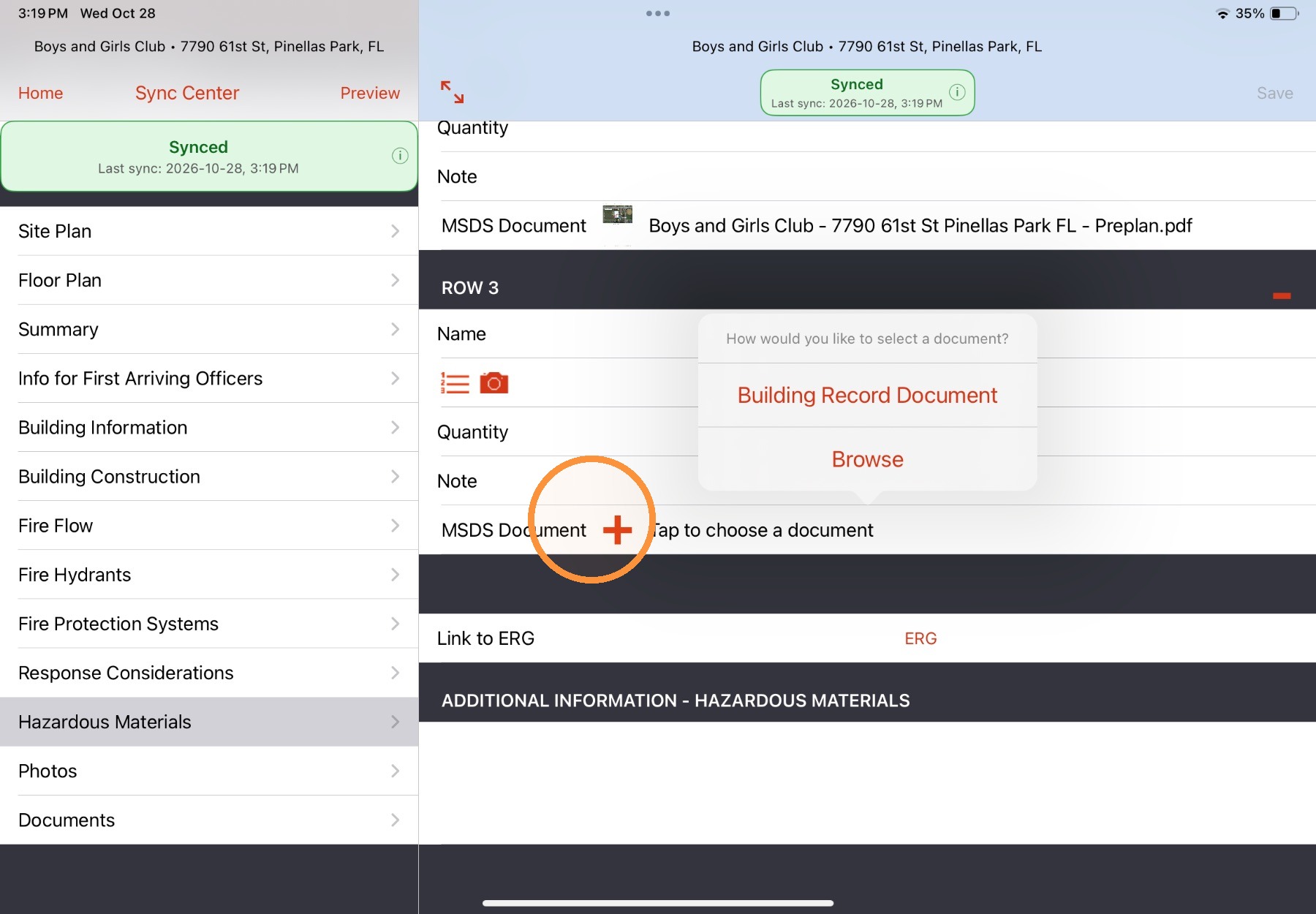
5. Document fields allow for PDF documents to be uploaded to a record. To add a PDF to a preplan, select the + button and then select Browse to find and select the desired file.
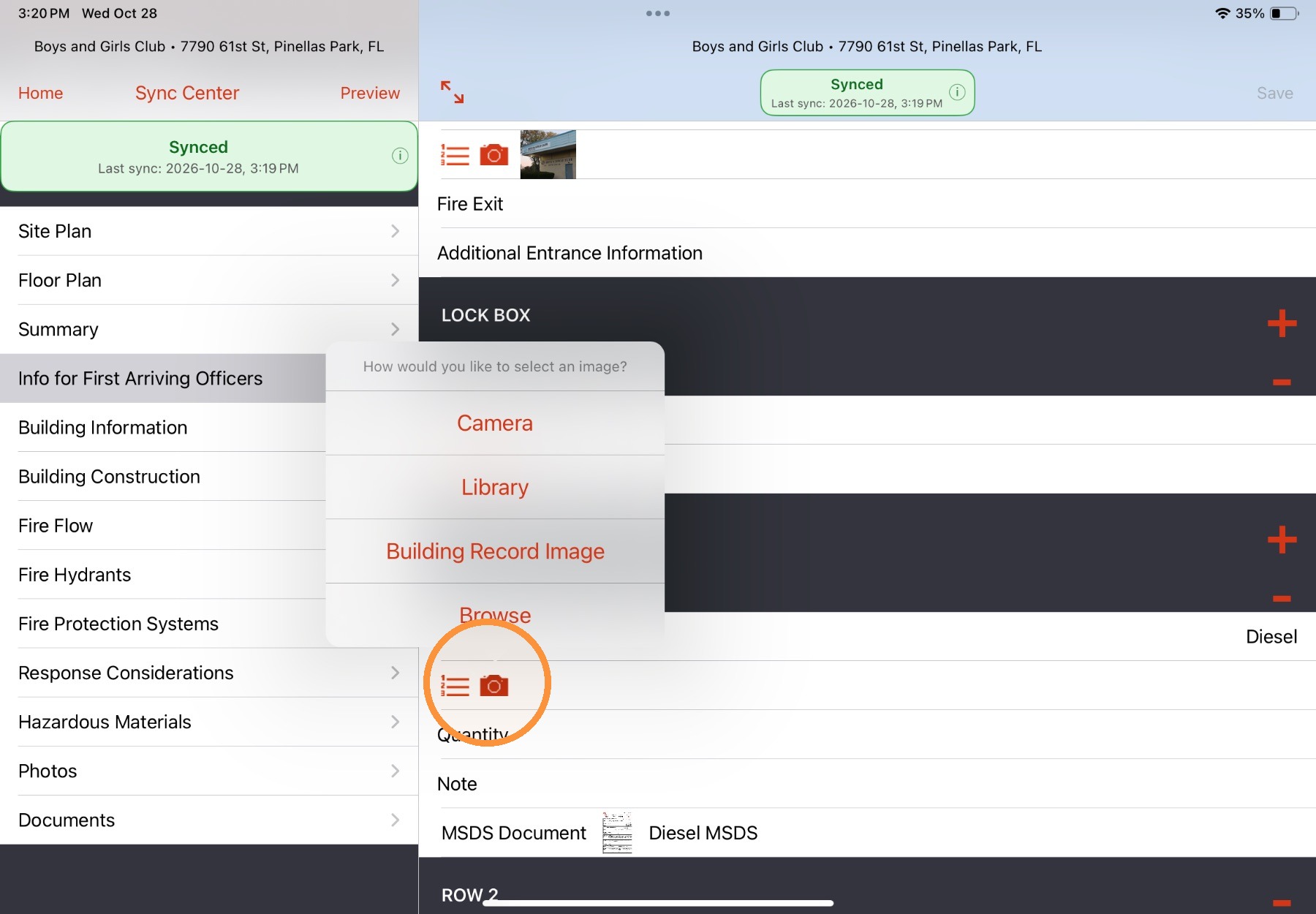
6. To add an image, select the Camera button.
Images can be added from the following sources:
- Camera - Use the device camera to upload an image
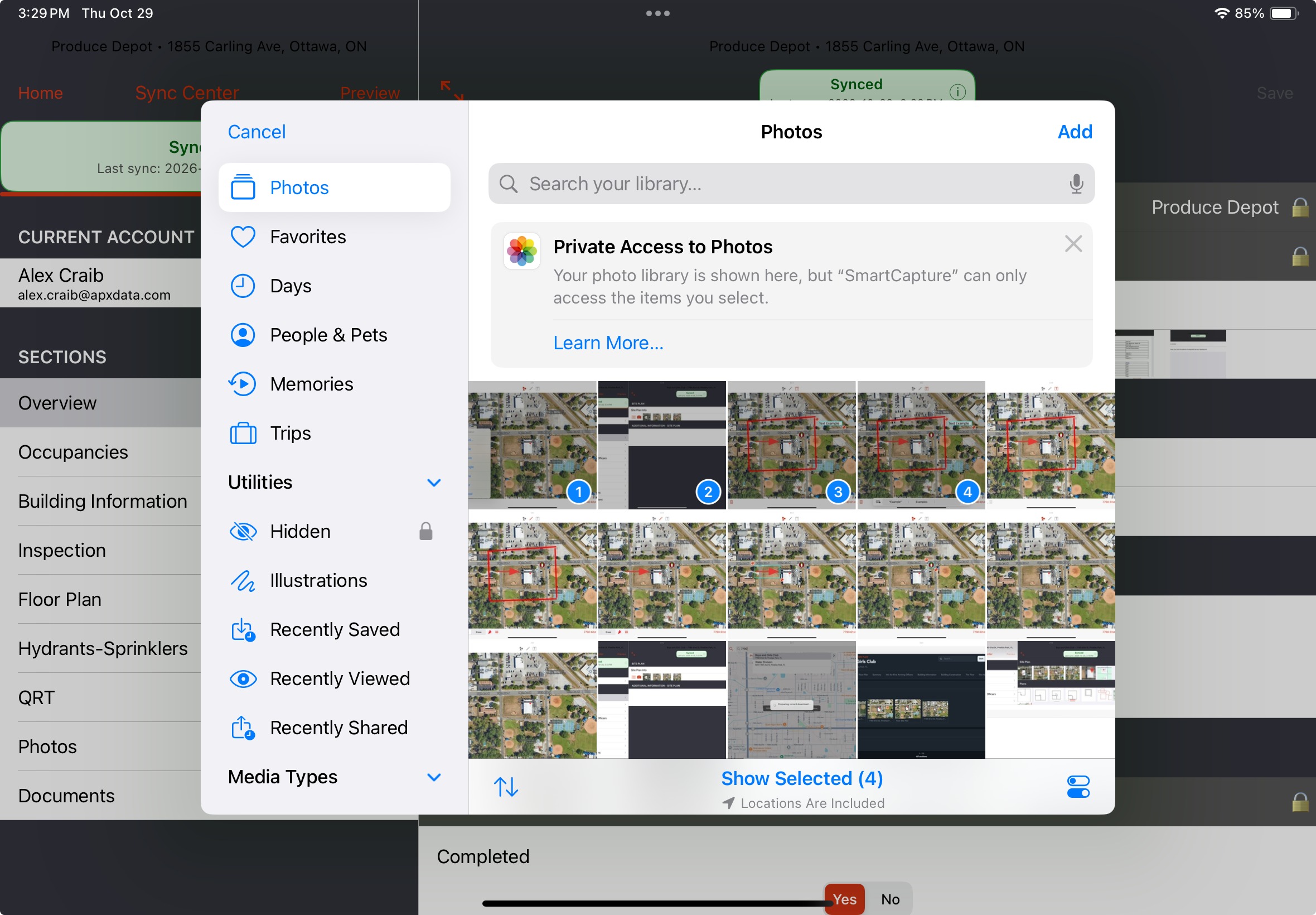
- Library- Upload an image from the device photo library
- Building Record Image - Re-use an image added to another field
- Browse - Opens the iOS Files app.
Tip: When selecting photos using the Library or from the Files app, images can be imported in bulk.
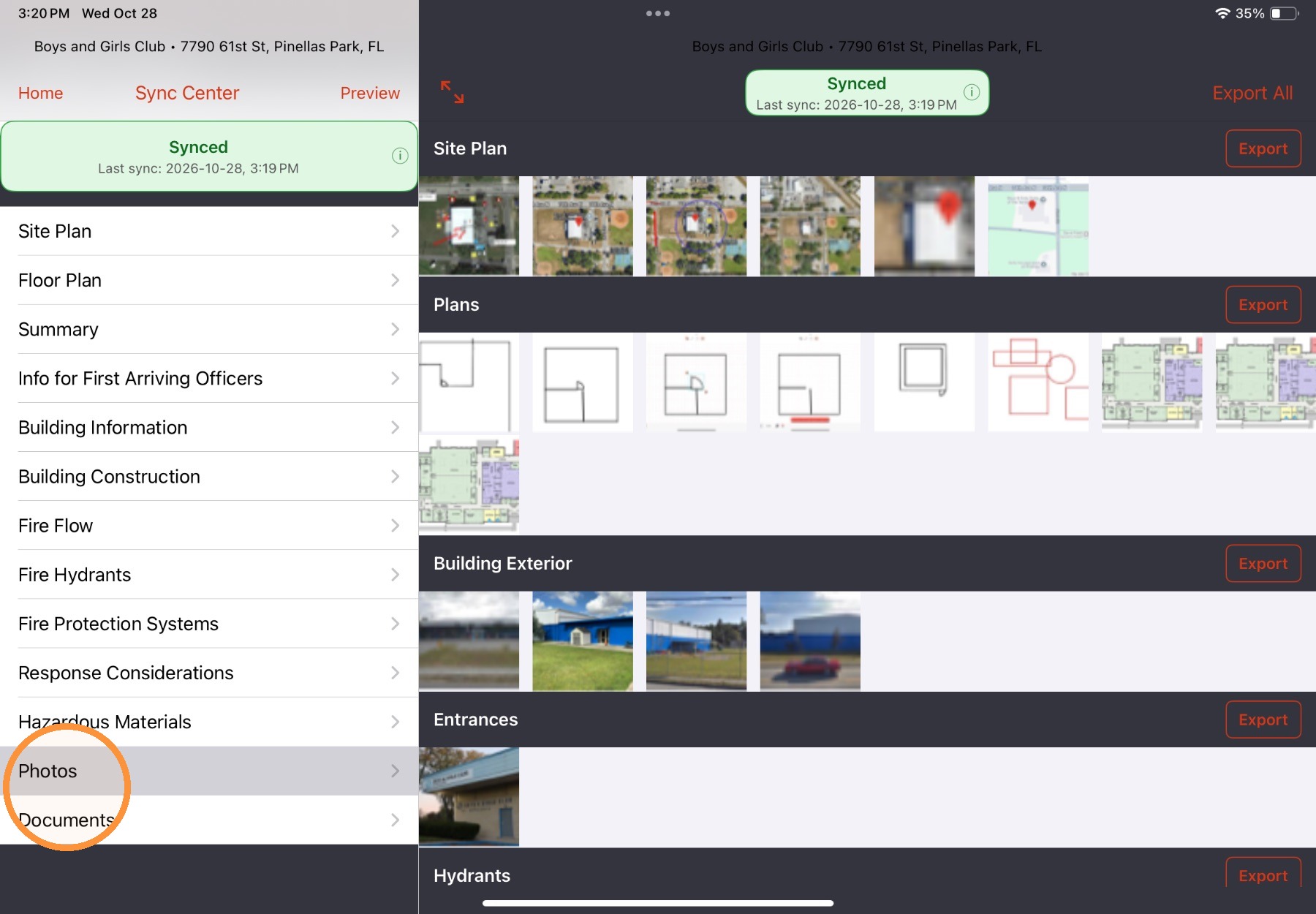
7. The Photos gallery shows all images uploaded to the preplan. Photos can be exported individually or in bulk from the gallery
The Documents gallery similarly displays all documents uploaded to the record.
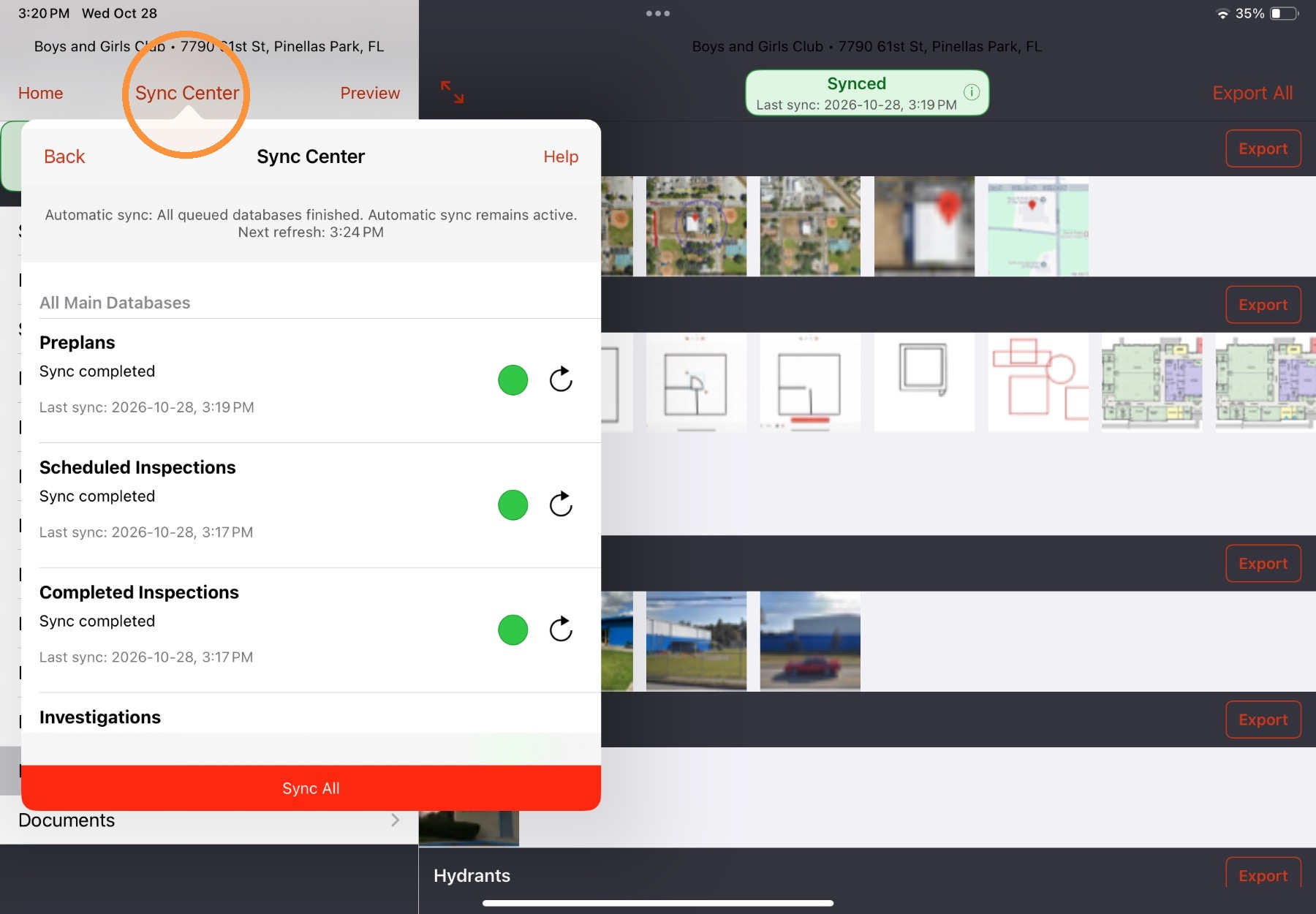
8. Select Save to save any changes. Sync indicators will update to show that unsynced local changes have been successfully synced to the APX server. Users can also select Sync Center to view the current sync status of all databases and locally synced records or manually sync a record.
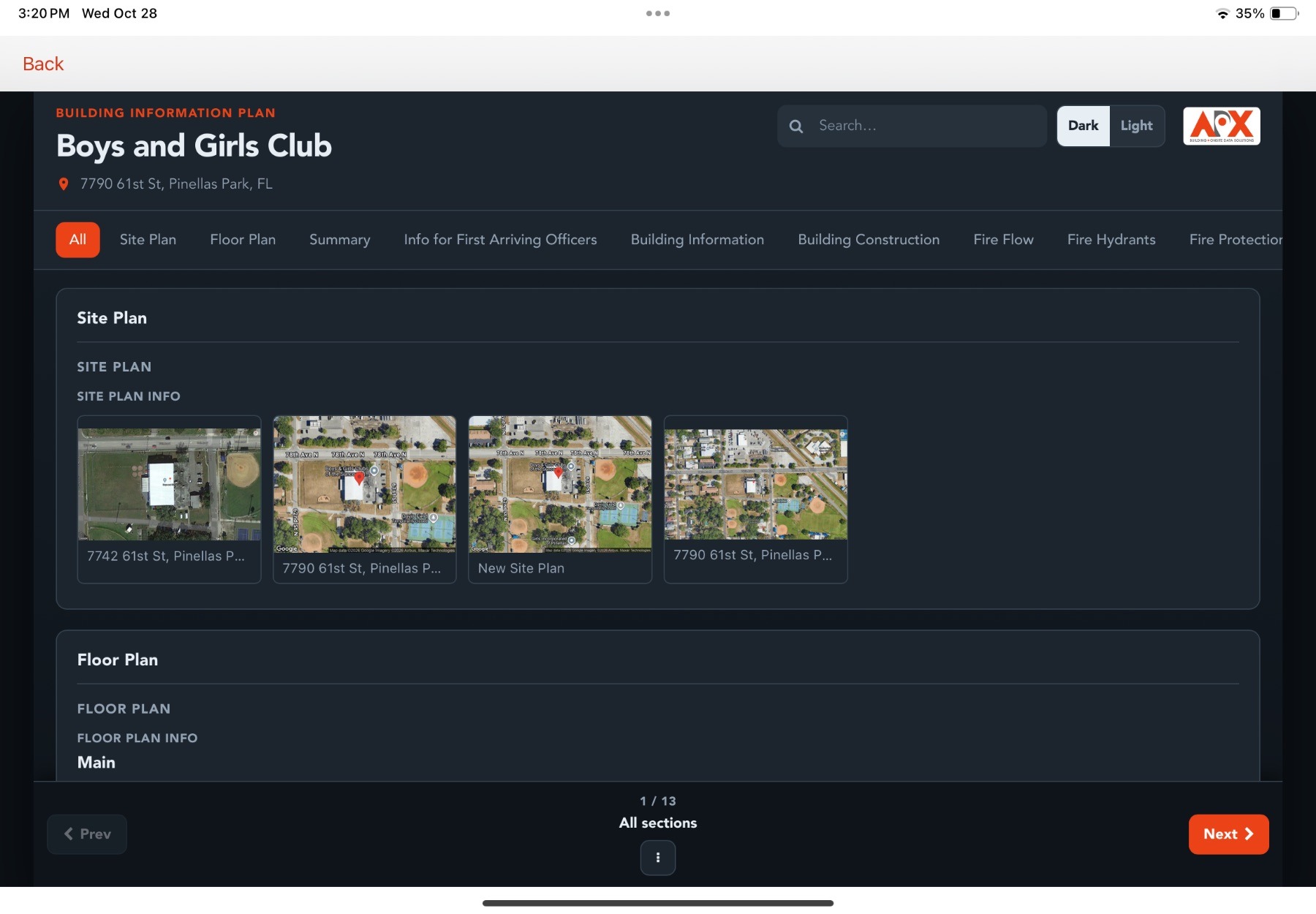
9. Select Preview to see how the created preplan will look when accessed through the APX response module SmartMAP.
Comments
0 comments
Please sign in to leave a comment.